Flight & Operators Manual
Introduction
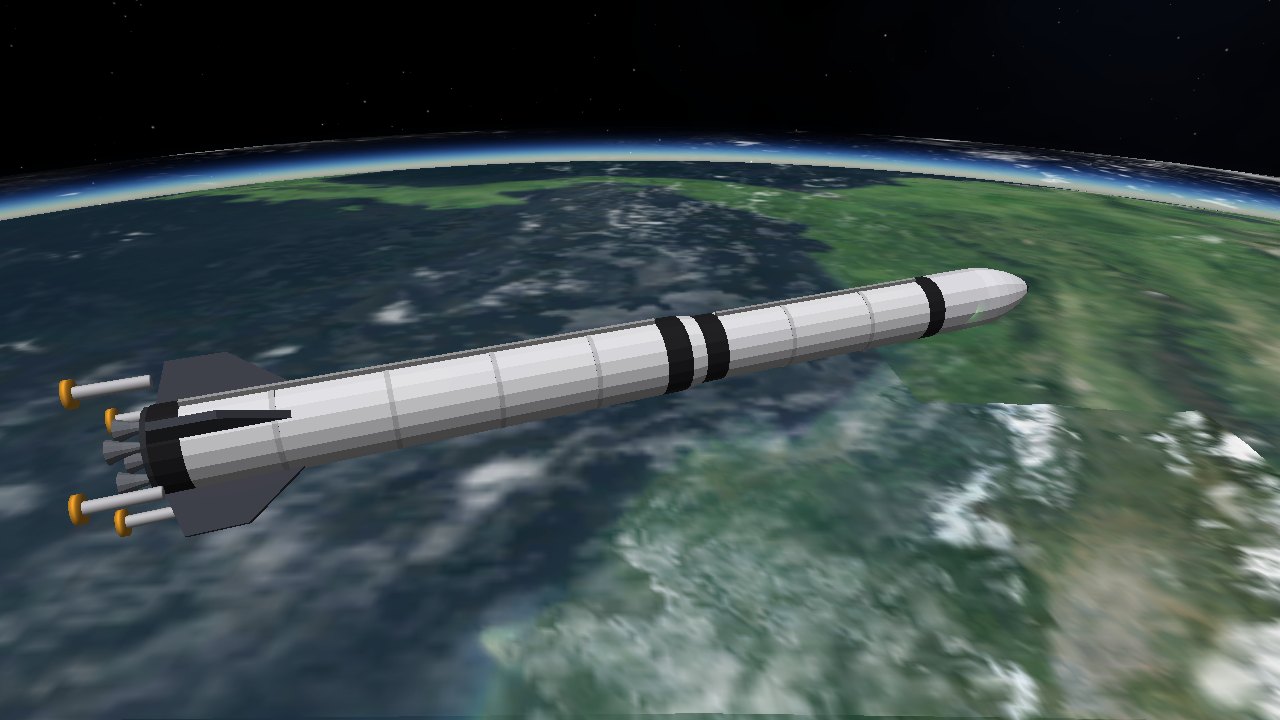
Kosmos is a space flight simulator. You fly rockets, tugs, landers, stations and even aeroplanes through a physically modelled solar system. Gravity follows whichever body you are in the sphere of influence of; atmospheres produce drag and lift; fuel is finite; time can be accelerated for long transfers.
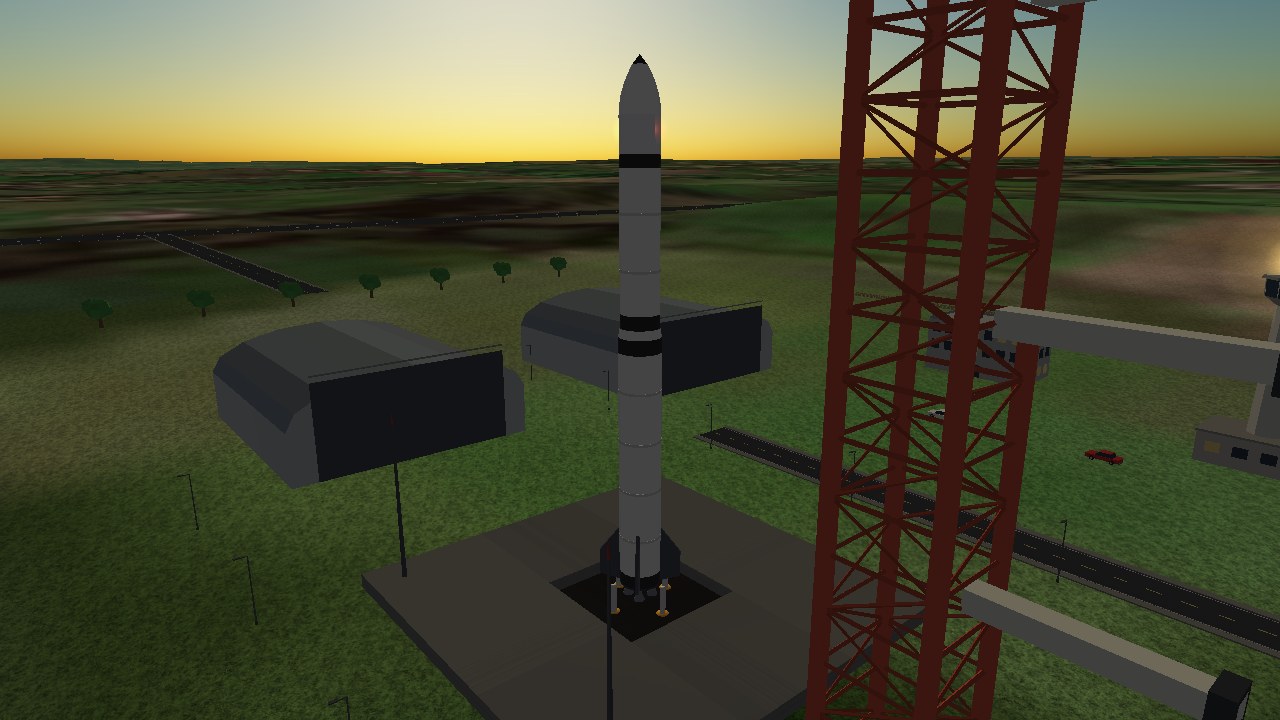
Beyond the solar system there is a 24,409-star galaxy to visit, and ships with a quantum jump drive can fly there.
You can fly manually, use the ship's autopilot, or write your own scripts. Everything the simulator knows is published in a property tree, which instruments, autopilots and the tools in this manual all read from and write to.
Running Kosmos
./kosmos [options]With no options Kosmos loads the default scenario (data/scenarios/default.json): Kestrel on the pad at Chippenham Spaceport. Copy that file to ~/.config/kosmos/scenarios/default.json and edit it to change what you start with. To pick a different start, give a scenario id (the file name without .json):
./kosmos --list-scenarios
./kosmos --scenario 07_mars_orbit
Press F10 in flight to load the next scenario, or R to reset the current one. Esc quits. See the command-line reference for all options.
The screen
The top-left heads-up display shows, from top to bottom:
- Ship and clock: the vessel you are flying and mission elapsed time.
- Position: the body you orbit or stand on, altitude, speed and vertical speed.
- Orbit: apoapsis, periapsis, period and eccentricity.
- Propulsion: throttle, thrust, thrust-to-weight ratio (TWR), current stage, fuel and mass.
- Attitude: pitch, heading, the SAS hold mode and the time-warp factor.
- Nearest base: the closest spaceport on any body, with its distance.
Aircraft get their own line with airspeed, climb rate, angle of attack, sideslip and flap setting. The bottom of the screen shows key reminders; you can hide them in the settings window. The on-screen text is off when Kosmos starts, for a clean view: press I to show or hide it all at once (title, telemetry and key reminders), or start with --show-info.
Controls
Flight
| Key | Action |
|---|---|
| Z / X | Full throttle / cut throttle |
| Shift / Ctrl | Ramp the throttle up / down while held |
| W S | Pitch |
| A D | Yaw (rudder in an aircraft) |
| Q E | Roll |
| Arrow keys | RCS translation |
| Space | Fire the next stage |
| T | Cycle SAS hold mode |
| P | Toggle the ship's autopilot |
| B / F | Wheel brakes / cycle flaps (aircraft) |
| L | Landing gear up / down (ships with retractable gear, such as the Skylark) |
| , / . | Time warp down / up |
| U | Undock |
| V | Switch to the next ship |
| R | Reset the scenario |
Views and interface
| Key | Action |
|---|---|
| Right-drag | Look around from the chase camera (the camera stays put and turns; the view is straightened again by switching camera with C) |
| [ ] | Zoom the camera |
| C | Cycle chase view, 2D cockpit, 3D cockpit, then your own cameras (the orbiting External camera first) |
| Tab | Orrery map |
| G | Galaxy map |
| O | Orbit line on/off |
| H / Shift+H | Cycle the head-up display (orbit, surface, docking, off) / change its colour. The HUD shows only in cockpit views (C) |
| I | Show or hide all on-screen text |
| M | Sound on/off |
| F2 | Camera window |
| F3 | Settings window |
| F4 | Property browser |
| F1 | Ship systems window |
| F5 | Cycle MFD display: off, framed panels, heads-up |
| F6 F7 | Cycle left / right MFD mode |
| F8 F9 | Left / right MFD power |
| F10 | Load the next scenario |
| F11 | Lua console |
| Alt+Enter | Toggle full screen |
| F12 | Multiplayer |
| J | Jump next to the nearest other player (multiplayer) |
| Esc | Close menus and windows; quits when none are open |
| Mouse to top edge | Slide in the menu bar (when unpinned) |
While you are typing in a text box in one of the F-key windows, flight keys are ignored, so editing a script will not fly your ship.
Attitude & SAS
The Stability Augmentation System (SAS) turns the ship to hold an orientation. Press T to cycle through the modes:
| Mode | Holds |
|---|---|
| stability | Damps rotation; holds whatever attitude you leave it in |
| prograde / retrograde | Along / against your orbital velocity |
| radial-out / radial-in | Away from / towards the body |
| normal / antinormal | Perpendicular to the orbital plane, either way |
| off | No assistance; you fly the rotation yourself |
Turning on the autopilot disables SAS holds. Rotation uses reaction wheels or thrusters, so it works in vacuum. In an atmosphere, aircraft rotate using their control surfaces instead.
Launch to orbit
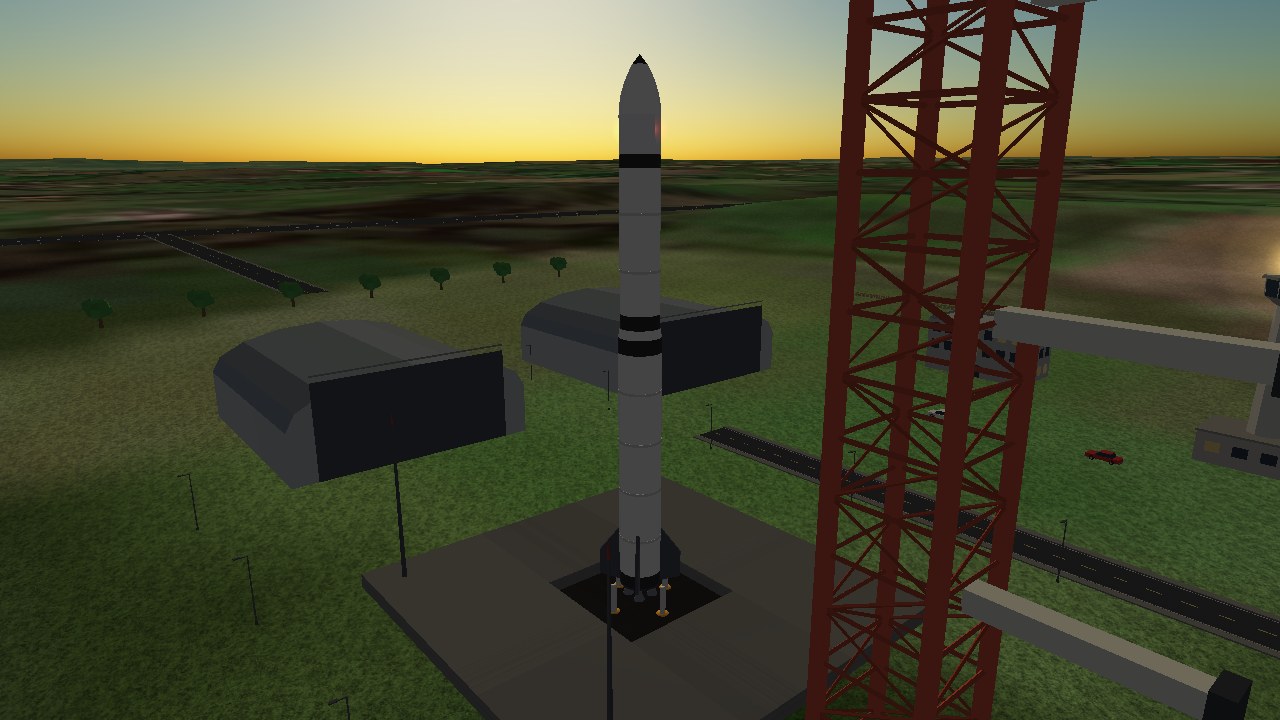
Start scenario 01_launch_pad: a Kestrel three-stage launcher on its pad. A typical ascent is:
- Set full throttle with Z, then press Space to ignite the first stage.
- Climb straight up through the thickest part of the atmosphere. Once you clear about 10 km, gradually pitch over towards the horizon (heading 90° is due east, which gains the most from Earth's rotation).
- When the booster runs dry, press Space again to stage. The upper stage takes over.
- Keep your apoapsis climbing towards the target altitude, coast to apoapsis, and burn prograde to raise your periapsis and circularise.
Or press P and let Kestrel's built-in autopilot do it; it flies to a 200 km circular orbit.
Watch your TWR in the HUD. Above 1.0 you climb; much below it you are wasting fuel fighting gravity.
Orbits & time warp
An orbit is described by its apoapsis (highest point), periapsis (lowest point), eccentricity and inclination. The Orbit MFD draws it in its own plane and shows the main orbital elements; O toggles the orbit line in the 3D view.
Use . and , to change the time-warp factor. The levels are:
1x 2x 3x 4x 5x 10x 50x 100x 1,000x 10,000x 100,000xWarp up to 4x runs the full physics. Above that your ships go on rails: they follow a pure orbit and cannot burn. Kosmos refuses to go on rails when it would be unsafe (for example, while you are thrusting, standing on a surface or in a dense atmosphere), and drops the warp back down.
Transfers
To travel between bodies, set a target (TGT+/TGT- on the target-based MFDs, or --target NAME on the command line) and use:
- Align Planes to see how far your orbital plane is from the target's and the ascending and descending node times.
- Sync Orbit to match your orbit period and phase with a target orbiting the same body.
- Transfer to plan a burn that takes you to the target.
- OrbitComp, the orbital computer, for a full plan-and-burn workflow (below).
OrbitComp
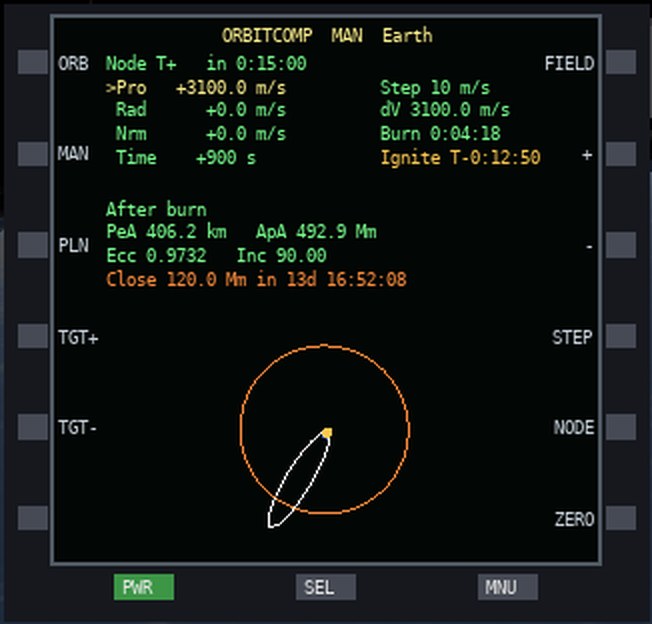
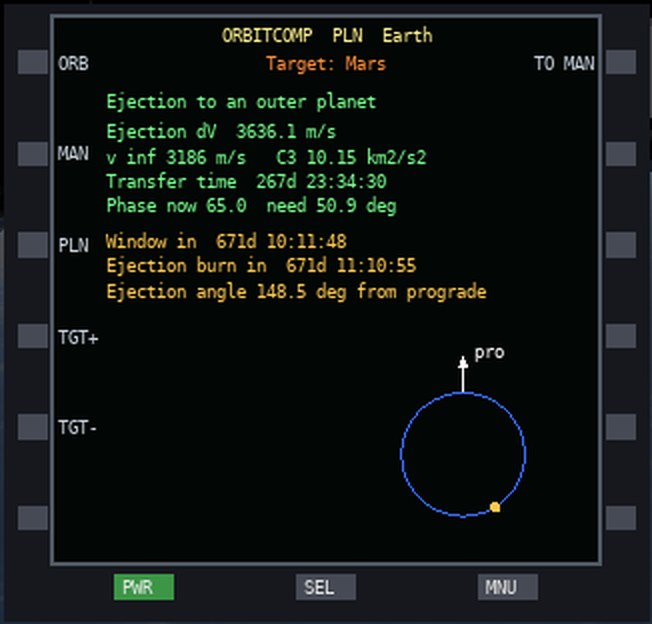
OrbitComp is a space-only MFD in the style of Orbiter's TransX. Its left buttons switch page (ORB, MAN, PLN) and cycle the target (TGT+/TGT-); the right buttons change with the page.
- ORB draws your orbit and the target's projected on your orbit plane, with periapsis and apoapsis, the closest approach to the target and your orbital elements. ZOOM+, ZOOM- and FIT change the scale.
- MAN places a manoeuvre node (NODE cycles T+, Pe, Ap, AN, DN) with prograde, radial and normal delta-v and a time offset. FIELD selects the value, +/- change it by STEP, and ZERO clears it. It shows the orbit after the burn, the burn time and ignition countdown, and the closest approach to the target after the burn.
- PLN plans a Hohmann transfer to a target in the same sphere of influence, or an ejection to another planet of the same star (delta-v, v∞, C3, transfer time, next window and ejection angle). TO MAN loads the plan into the MAN page.
Plans assume near-circular, coplanar orbits, so treat them as a starting point and correct en route. 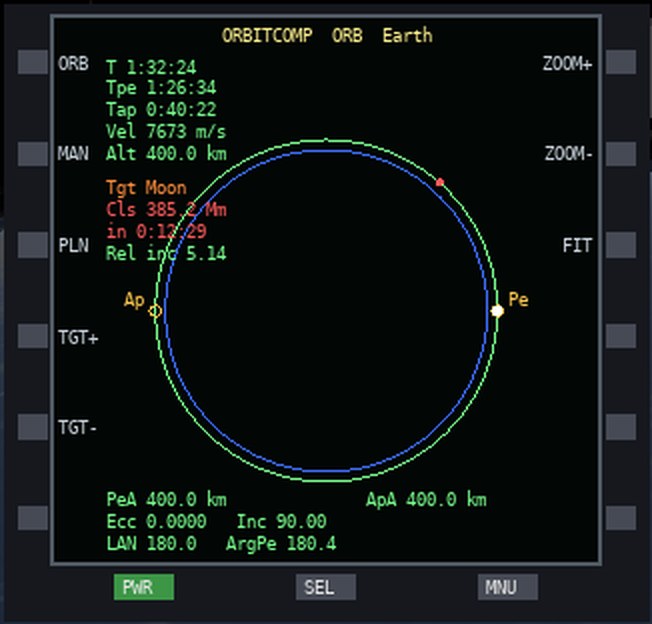
Leaving a body's sphere of influence for another (Earth to Moon, say) is automatic: the simulator switches the reference body, and the HUD tells you which body you are now in the sphere of influence of.
Landing
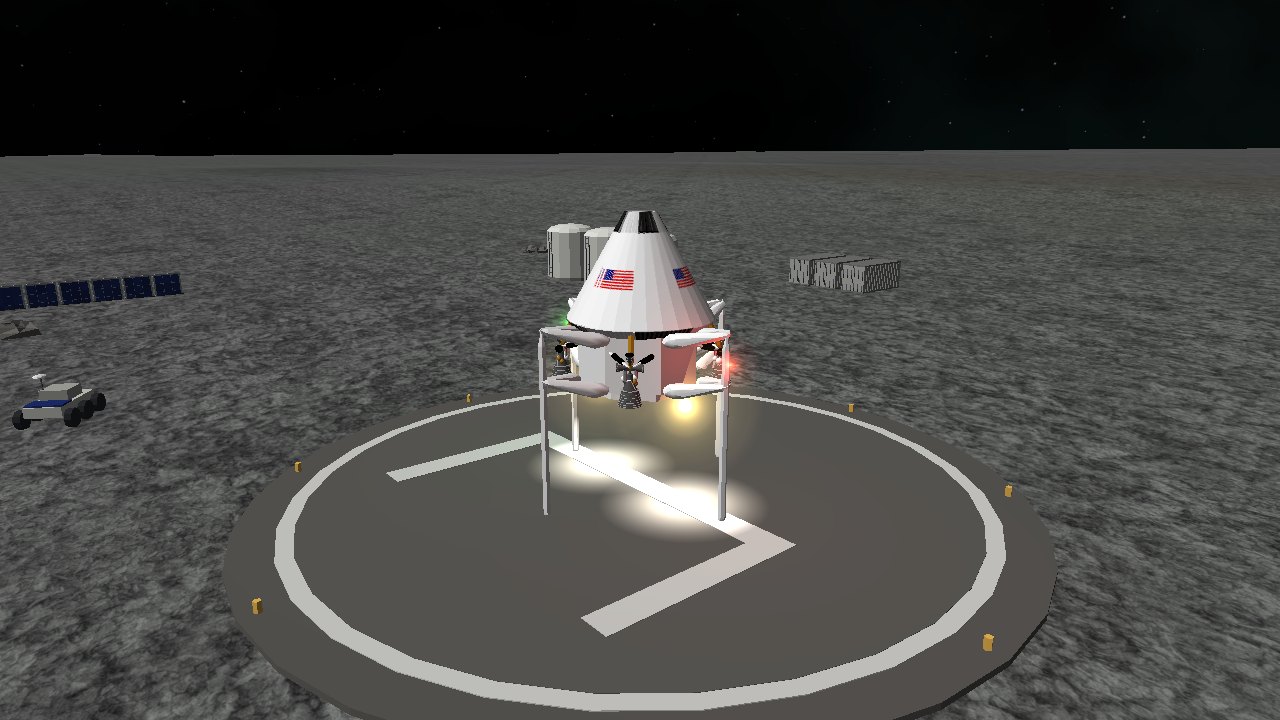
Landers like the Ares Spider are designed to touch down gently. Start from 04_tranquility to see one on the Moon, or 08_mars_landing for Mars's Gale Crater.
- Kill your orbital velocity with a retrograde burn (use SAS retrograde).
- Keep the ship upright, watching your vertical speed and altitude on the Surface MFD.
- Use the throttle to arrive at the ground below a few metres per second.
A crash ends the flight with a "vessel lost" message; press R to try again. Earth, the Moon and Mars can use real elevation data when the optional Orbiter terrain packs are installed; otherwise their terrain is procedural.
Docking
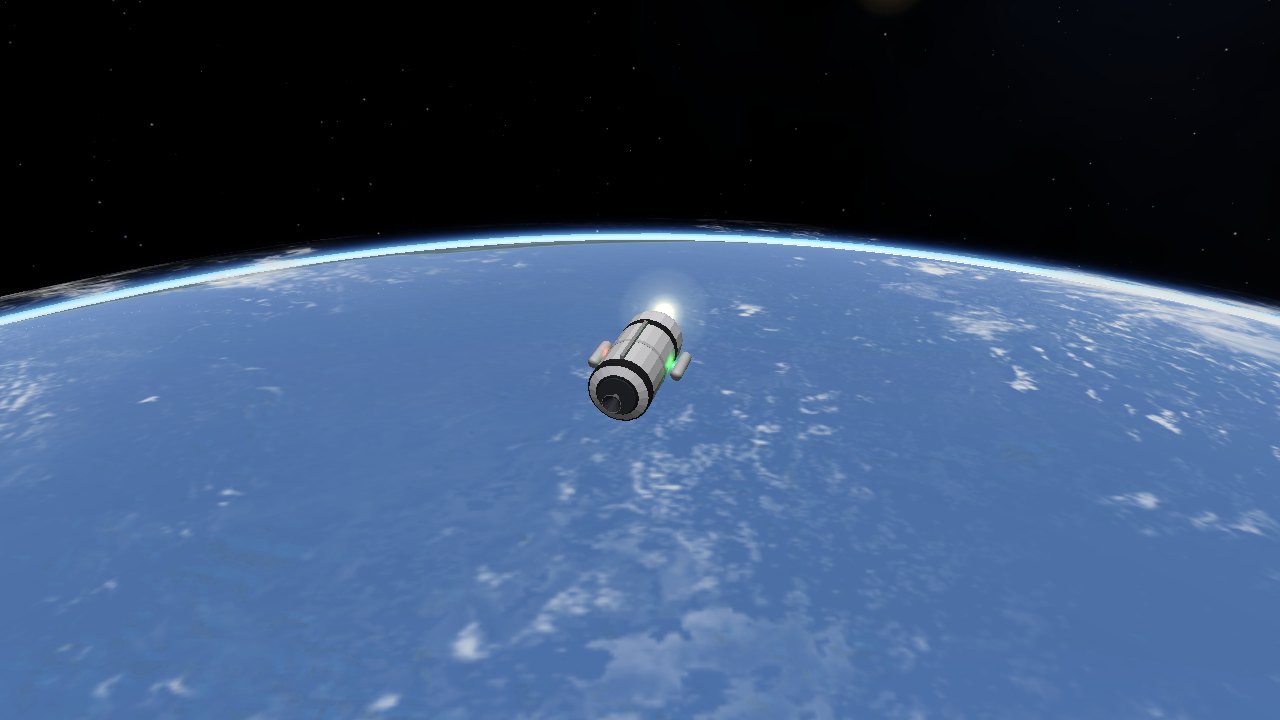
Ships and stations with docking ports can connect. Scenario 13_docking_approach places a Wren tug near a Salyut station. Use the Docking MFD, which shows the relative position and velocity of the target port:
- Select the target port (PRT) and tune its transponder (TUNE), or press RCV to receive.
- Close in slowly with RCS translation (arrow keys), steering the relative position to the centre of the display.
- Line up the ports' directions, and arrive at less than a metre per second.
- To separate, press U or the UNDK button.
Aircraft
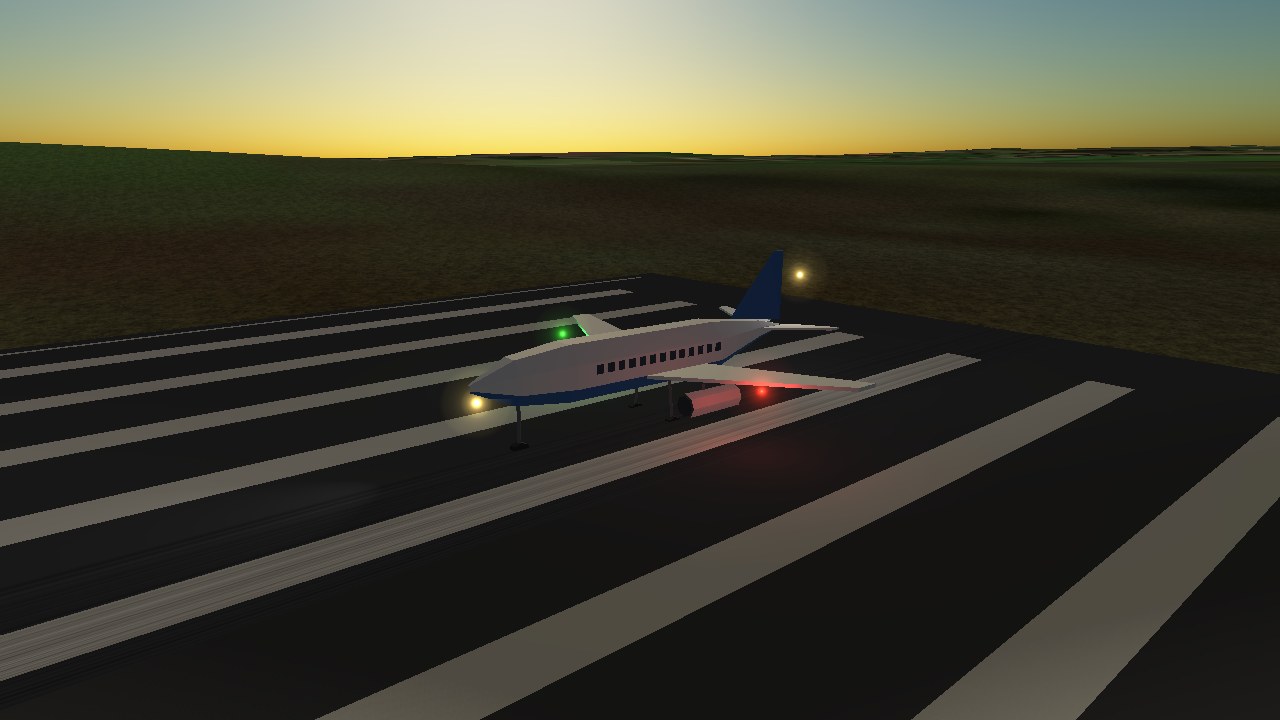
Ships of class aircraft fly with an atmospheric model: every lifting surface produces lift and drag according to its angle of attack, and stalls beyond its limit. Engines marked air-breathing lose thrust as the air thins.
The Skylark is a light twin. Scenario 19_skylark_takeoff starts you on the runway at Chippenham:
- Release the brakes (B), set takeoff flaps (F) and apply full throttle.
- Steer with the rudder (A D); the nose wheel steers on the ground.
- At roughly 70 m/s, pull back gently (S) to rotate. Keep the climb gentle, and retract the flaps once safely airborne.
The Skylark's cockpit has the traditional six-pack (airspeed, attitude, altimeter on the top row; turn coordinator, heading and vertical speed below), with an Engine MFD and a Surface MFD to the right. Press C for the 2D panel, and again for the 3D cockpit, where the MFD buttons can be clicked.
Scenario 20_skylark_approach puts you on the ILS 3.3 km from the runway. Tune the localizer and glideslope on the HSI or VOR MFD, and fly them down to touchdown.
Aircraft only fly in an atmosphere: Skylark will not climb into space.
Spaceports & navaids
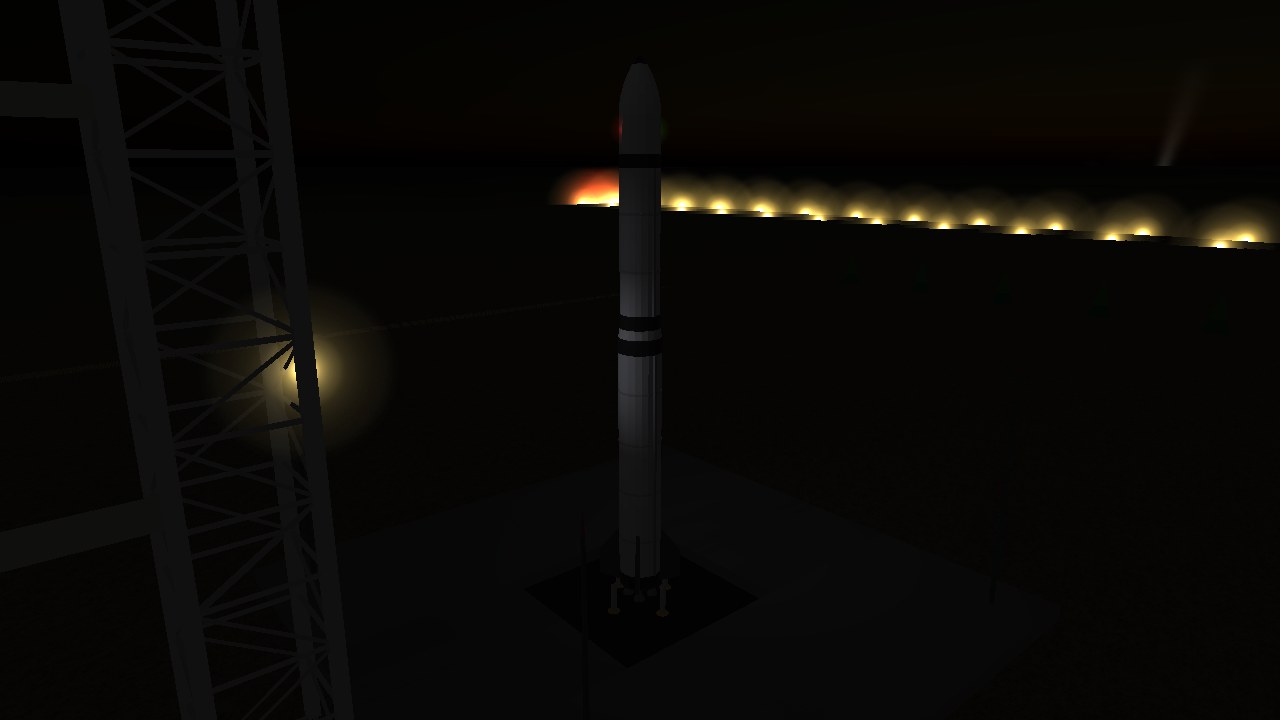
Four spaceports sit on Earth, each with a pad, runway and buildings: Chippenham and Twickenham (UK), Helsinki (Finland) and Wagga Wagga (Australia). Scenarios 15 to 18 start you on each pad.
Navaids
| Type | Use | Instrument |
|---|---|---|
| VOR | Bearing to a station, with a tunable OBS | VOR, HSI |
| NDB | Non-directional beacon (below 1 MHz); points the way | ADF |
| ILS | Localizer and glideslope for a runway direction | HSI, VOR |
| VTOL beacon | Pad guidance for landing vertically | VTOL |
Frequencies are shown in the base's definition, and each radio can be tuned with the ± buttons on the MFD.
Views & cameras
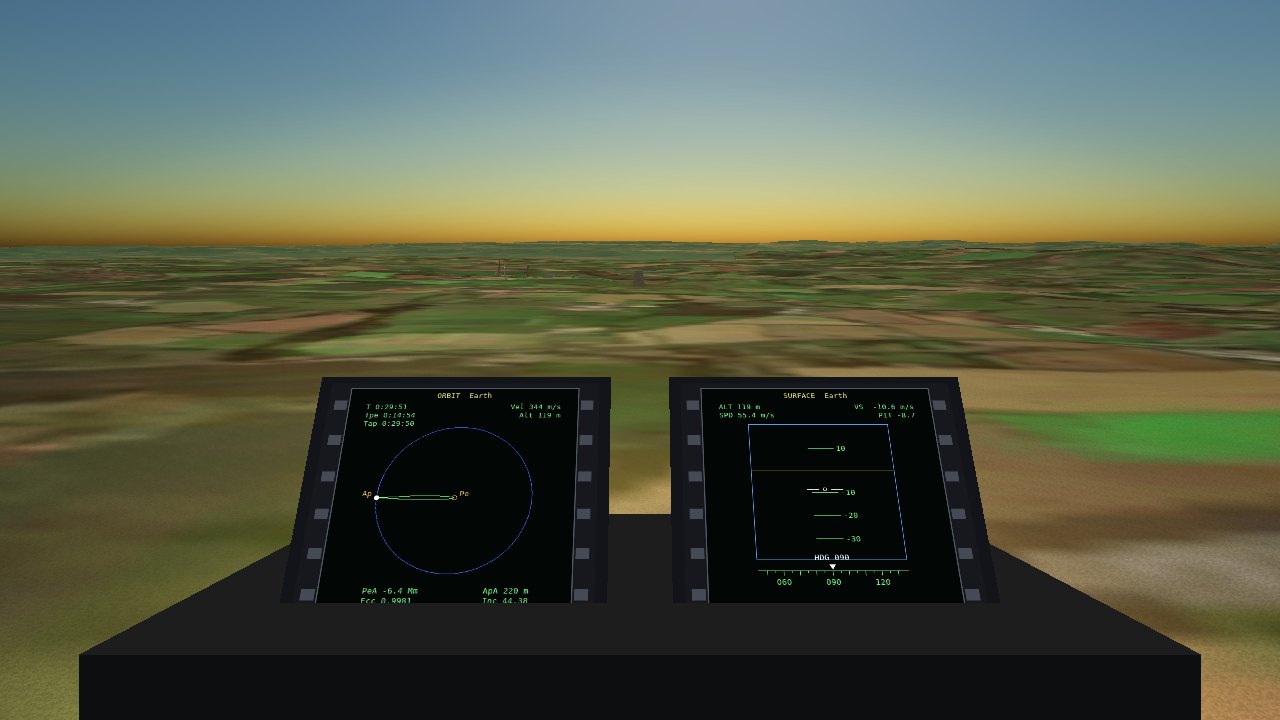
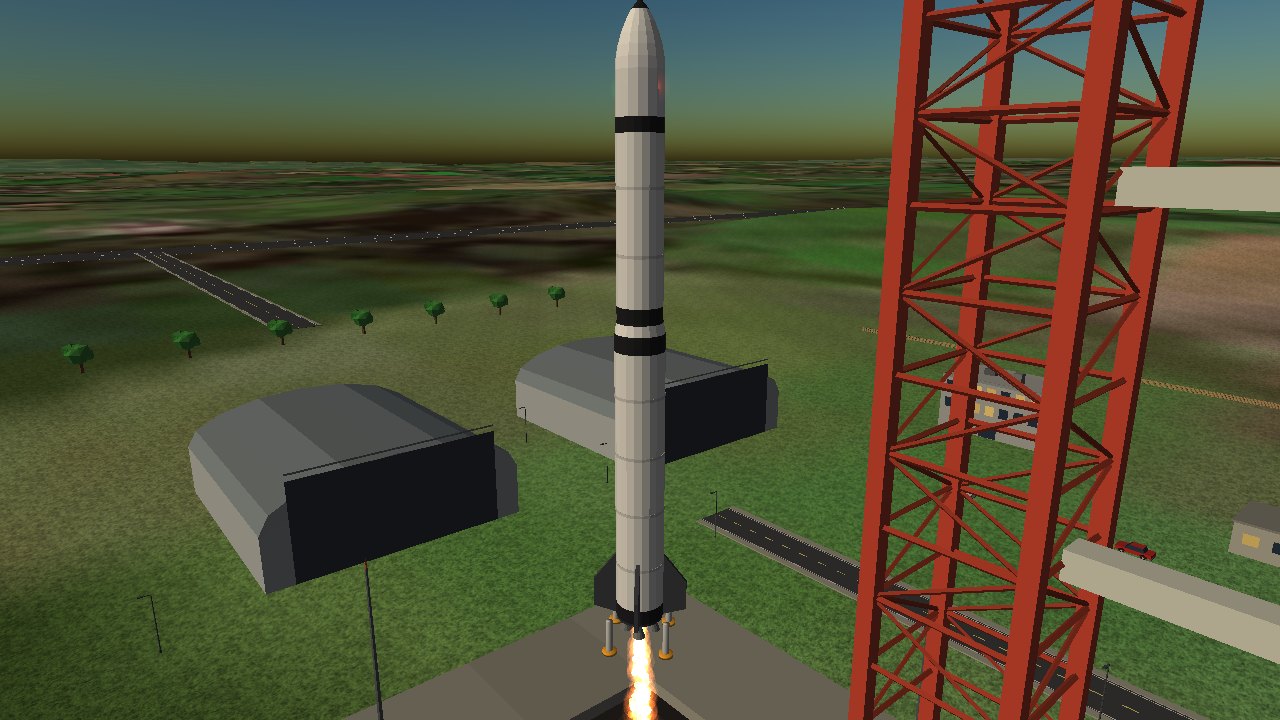
Press C to cycle between the chase view, a 2D dashboard, a 3D cockpit and the cameras you have set up (see Camera editor below). Drag the right mouse button to look around, and [ ] to zoom.
Camera window (F2)
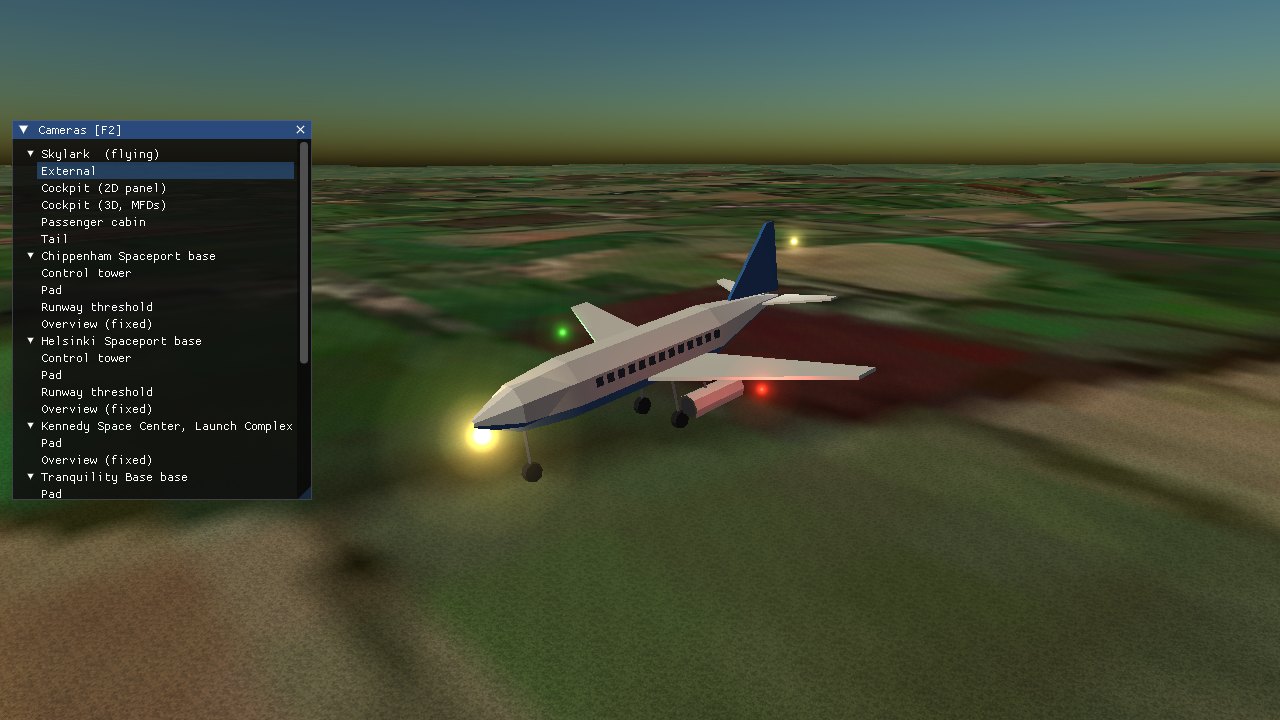
Press F2 to open the camera list. It contains every ship in the universe (external view and any cockpit or interior cameras) and every camera at every base: control tower, pad, runway threshold and an overview. Click one to cut to it; External returns you to the chase view.
Camera editor
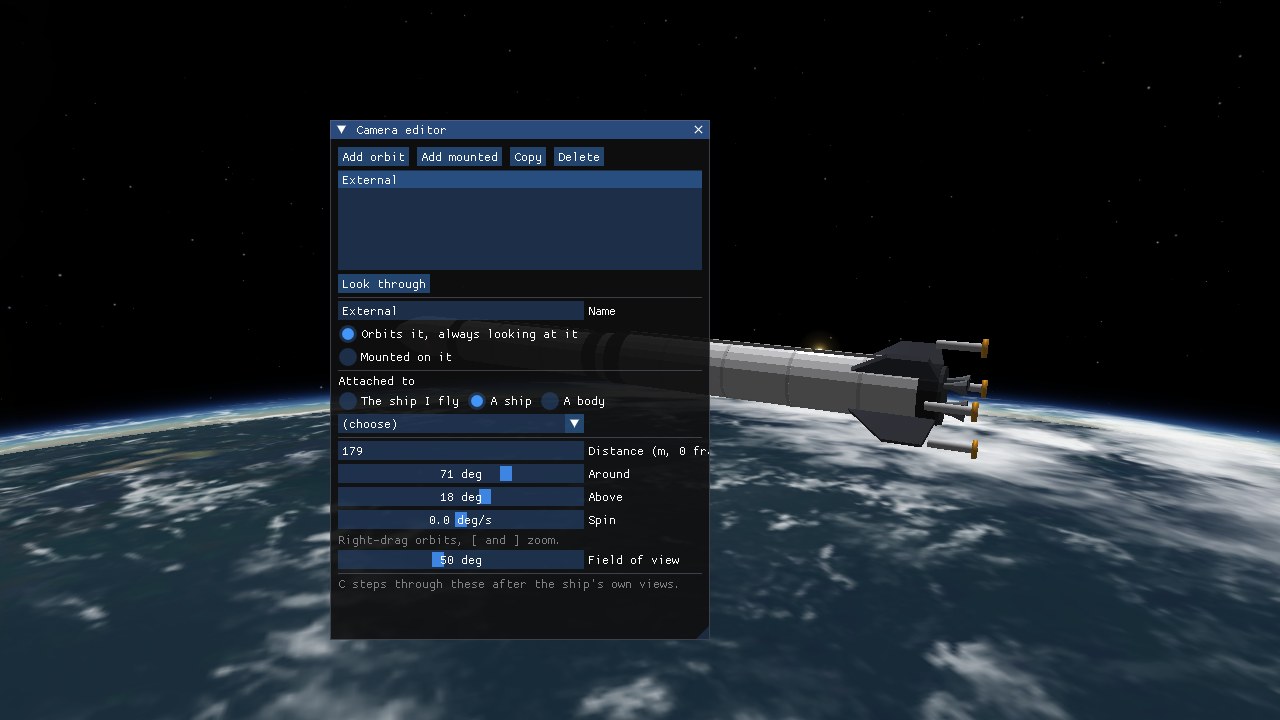
The View menu (and the Camera editor button in the F2 window) opens the camera editor, where you build your own cameras. They are saved in ~/.config/kosmos/cameras.json, listed under My cameras in F2, and C steps through them after the ship's own views. There are two kinds:
- Orbit cameras circle what they are attached to and always look at it. Right-drag swings round it, [ ] change the distance, and Spin turns it slowly by itself. A distance of 0 frames the object. A default External orbit camera is provided.
- Mounted cameras sit at an offset (right, up, back, in metres) on the object, facing the way it faces or turned by an angle, or looking at another ship or body.
Either kind can be attached to the ship you fly, to any other ship, or to any planet or moon. Start in a camera with --user-camera N or open the editor with --camera-editor.
MFDs (multi-function displays)
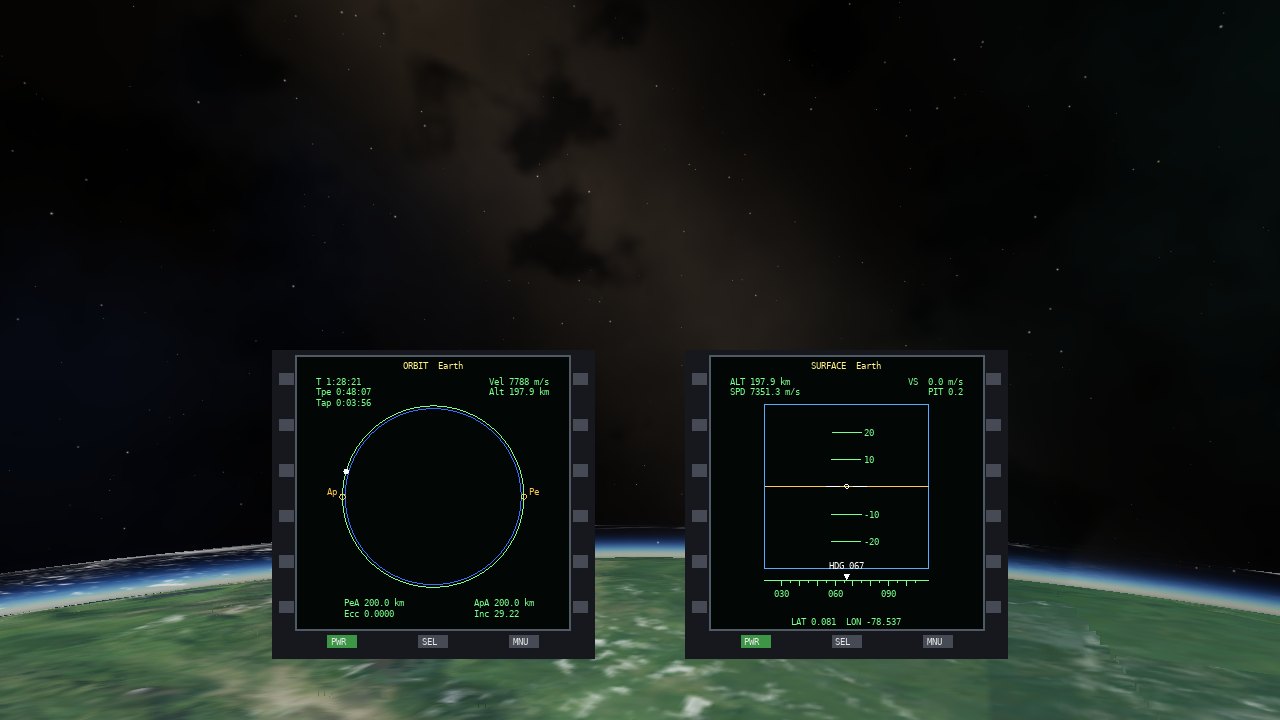
MFDs are the ship's instrument screens. Press F5 to cycle the display: off, two framed panels at the bottom of the screen with clickable buttons, or heads-up (shapes and text over the scene). In the 2D cockpit the MFDs are part of the dashboard to start with, and F5 steps dashboard, heads-up, off. F6 and F7 cycle the left and right modes; F8 and F9 toggle their power. In the 3D cockpit the buttons are pressed by clicking on the screen.
Each ship only offers the displays that make sense for it. Aircraft (class aircraft) do not list the orbital modes (Orbit, Map, Ascent, Align, Sync, Transfer, Docking), and spacecraft do not list or show the airspeed, vertical speed, turn and heading gauges. Altitude and attitude stay for both. Addons can change this per ship.
| Mode | Shows |
|---|---|
| Systems | Power bus, battery, tanks, and each cabin's pressure, gases and crew health, with a button to open a test leak. Goes dark if the ship loses all electrical power |
| Attitude Indicator | The classic blue-and-brown ball: pitch ladder, roll scale and pointer, with pitch, heading and roll below |
| Airspeed | Knots on a 0 to 500 dial, from the surface speed |
| Vertical Speed | Climb and descent in feet per minute, zero at 9 o'clock |
| Heading | A rotating compass card under a fixed aircraft symbol |
| Turn Coordinator | A miniature aircraft banking with the turn rate (lined up with the marks at 3°/s), and the slip ball |
| Engine | Throttle, thrust, propellant, fuel flow, endurance and the battery for the active stage |
| Altimeter | A three-pointer clock face: the long needle turns once per kilometre, the short one per 10 km and the rim marker per 100 km, with a digital readout and vertical speed |
| Orbit | Your orbit, in its own plane, with apsides and orbital elements |
| Surface | Altitude, speed, vertical speed and attitude relative to the ground |
| Map | Ground track on the body |
| Attitude | Attitude indicator, with buttons to set the SAS mode |
| Ascent | Graph of altitude, speed and pitch against time since the display was opened or reset |
| Align Planes | Orbit plane alignment with the target |
| Sync Orbit | Orbit synchronisation with the target |
| Transfer | Transfer planning to the target |
| OrbitComp | Orbital computer: orbit plot, manoeuvre nodes, Hohmann and ejection planning |
| Docking | Docking port approach |
| Com/Nav | Radio frequencies and signal list |
| VOR | Two VOR receivers with OBS adjustment |
| HSI | Horizontal situation indicator with ILS needles |
| VTOL | Pad beacon guidance with zoom |
| ADF | Automatic direction finder for NDBs |
Launch with --mfd 0|1|2, --mfd-left ID and --mfd-right ID to choose the display style and the starting modes.
Orrery & galaxy maps
Orrery (Tab)
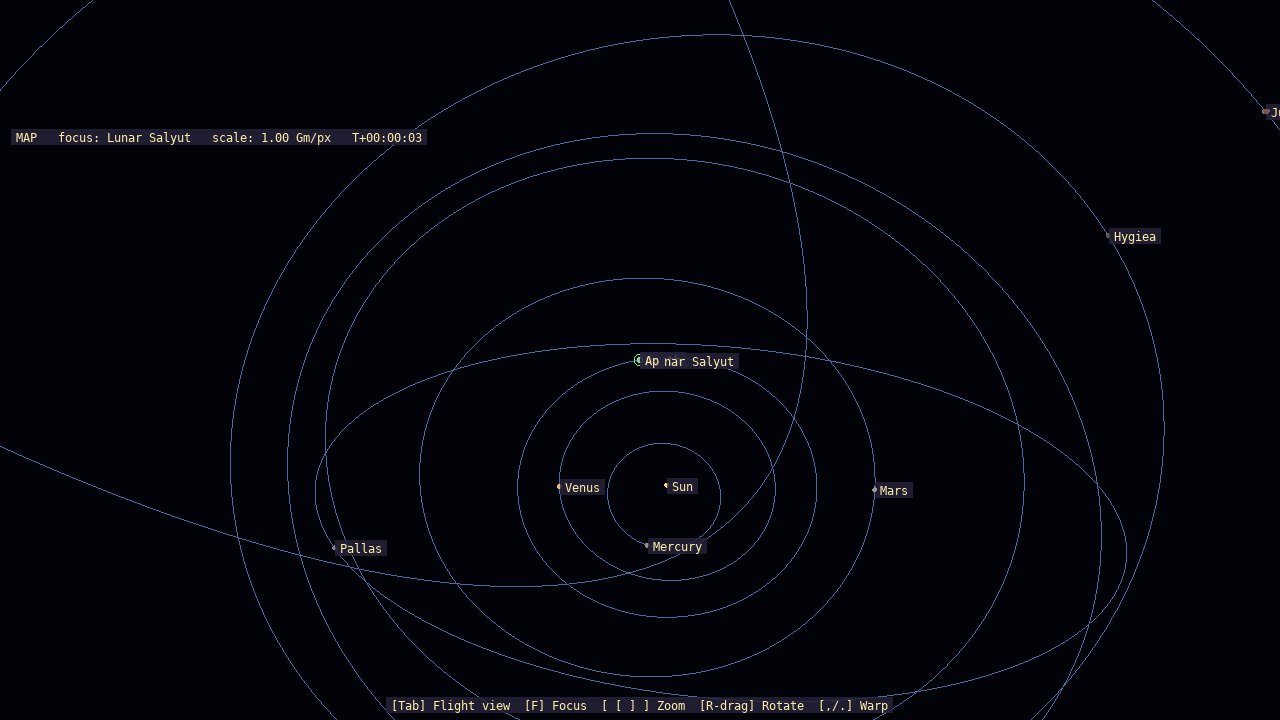
A top-down map of the solar system with every body's orbit. Press F to focus a body, [ ] to zoom and drag with the right button to rotate.
Galaxy (G)
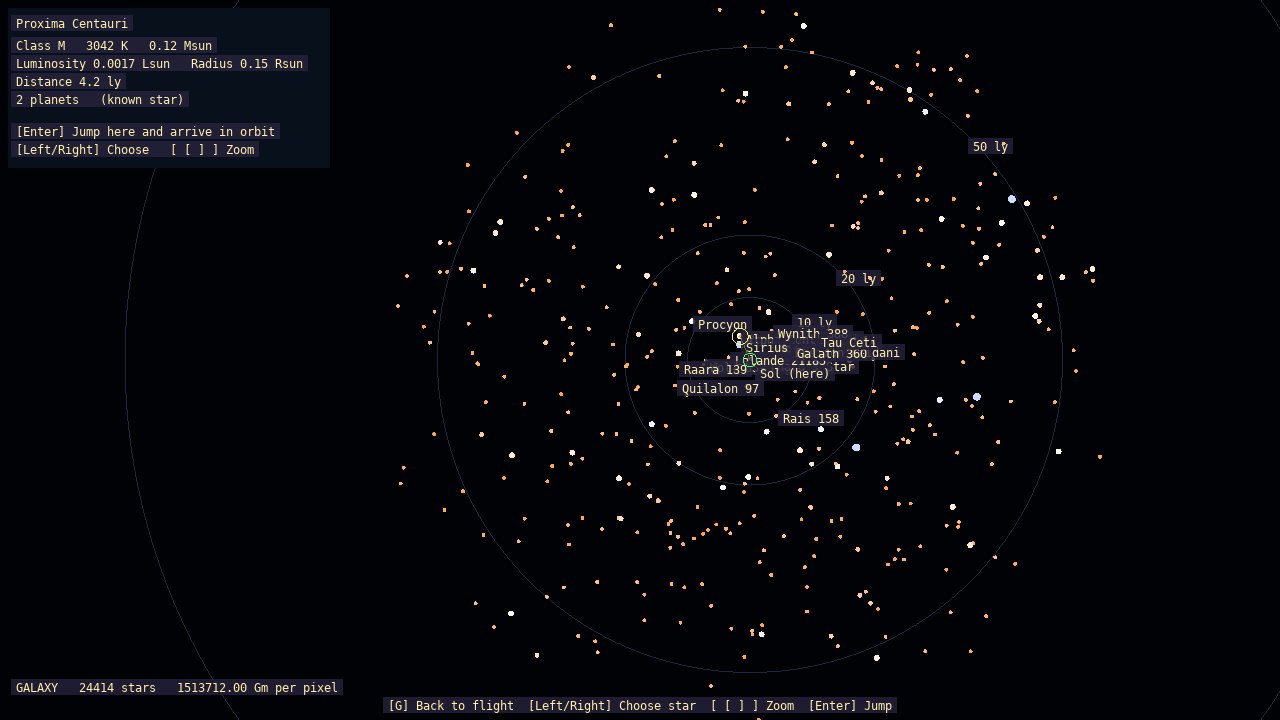
Kosmos generates a catalogue of 24,409 stars: Sol, thirteen real stars (including Sirius, Proxima, TRAPPIST-1, Betelgeuse and Rigel), 400 invented nearby stars and a two-armed spiral disc. Use Left/Right to choose a star, [ ] to zoom, and Enter to jump (the Galaxy map teleports; the ship's quantum drive is the in-universe way to travel). You arrive in a 200 km orbit around that system's Earth-like home world. Each system is generated from its star, so it is the same every time.
Sirius, Proxima, TRAPPIST-1, Betelgeuse and Rigel are hand-authored in data/systems/; the rest are generated.
Quantum jump drive
The quantum drive is Kosmos's interstellar travel. A ship whose ship.json has an engine of type hyperjump carries one; of the bundled ships, that is the Argo. The drive makes no thrust and no plume. It only jumps.
Making a jump
- Fly the Argo (start it with
--ship Argo, or press V to switch to it in a scenario). - Open View → Quantum navigation in the menu bar. (
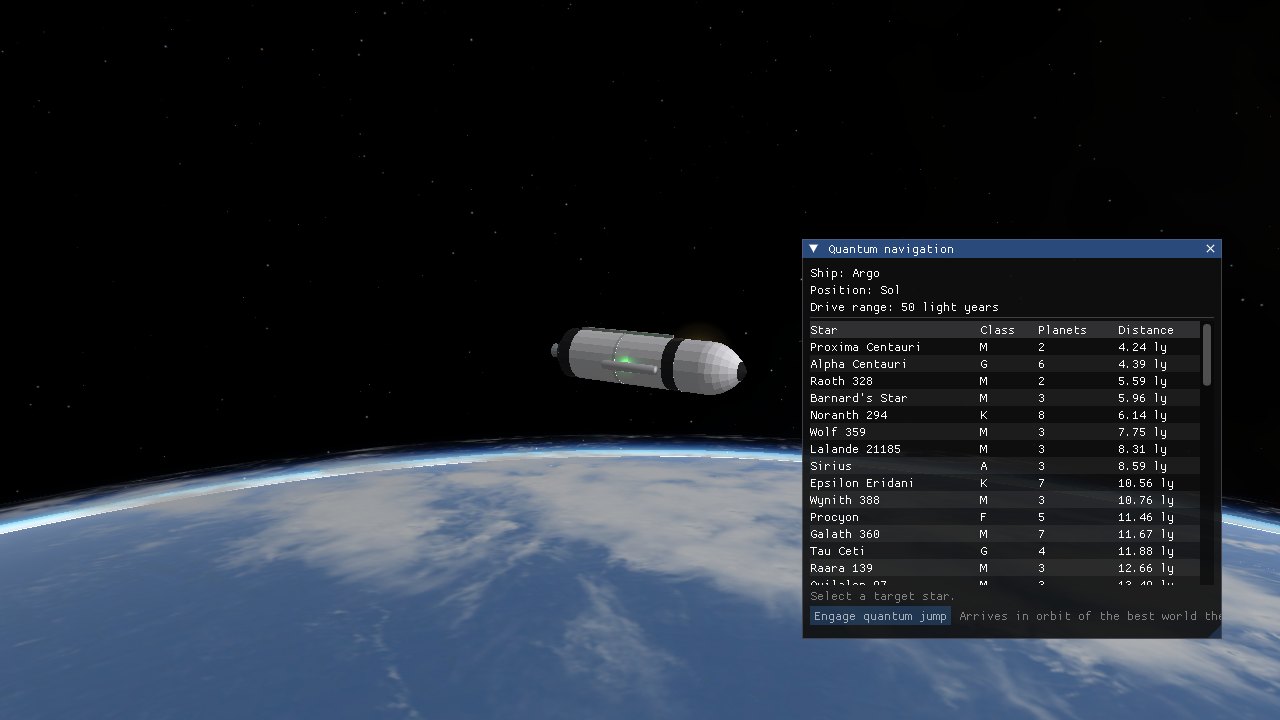
--quantumopens the window at startup.) - The window shows the drive's range and a table of the nearest stars within it (up to 64): name, spectral class, number of planets and distance in light years. Click one to select it.
- Press Engage quantum jump. The button is disabled if the star is out of range or is the system you are already in.
The world pauses for a few seconds of hyperspace effect while the new system loads, then you arrive and the window stays open so you can keep hopping. A ship with no quantum drive sees a "no quantum jump drive" notice instead of a list.
Range
The default range is 50 light years. An engine's range_ly field sets it per ship (see the Modders manual). Stars beyond range are not offered, so long journeys are made as a chain of jumps. The galaxy has 24,409 stars, shown on the G map.
Where you arrive
You arrive in orbit of the best world in the new system, chosen in this order:
- the home world, if it is a rocky planet with a real atmosphere (a 200 km orbit);
- otherwise the rocky planet whose atmosphere is nearest Earth's density (Mars- or Venus-like);
- otherwise any rocky planet;
- otherwise a moon of a gas giant (100 km);
- otherwise the first planet, whatever it is.
The altitude is never more than half the body's radius, so tiny worlds get a tighter orbit. The jump clears your target, switches the autopilot off and resets time warp to 1×. Your ship keeps its propellant, and the previous system is unloaded.
Related options
--system INDEX|NAME starts in a given system without a jump, --orbit-body auto picks the arrival world exactly as a jump does, and --test-jump N jumps to star number N a second into the run (a testing aid). The galaxy map is documented under Orrery & galaxy maps.
Menu bar
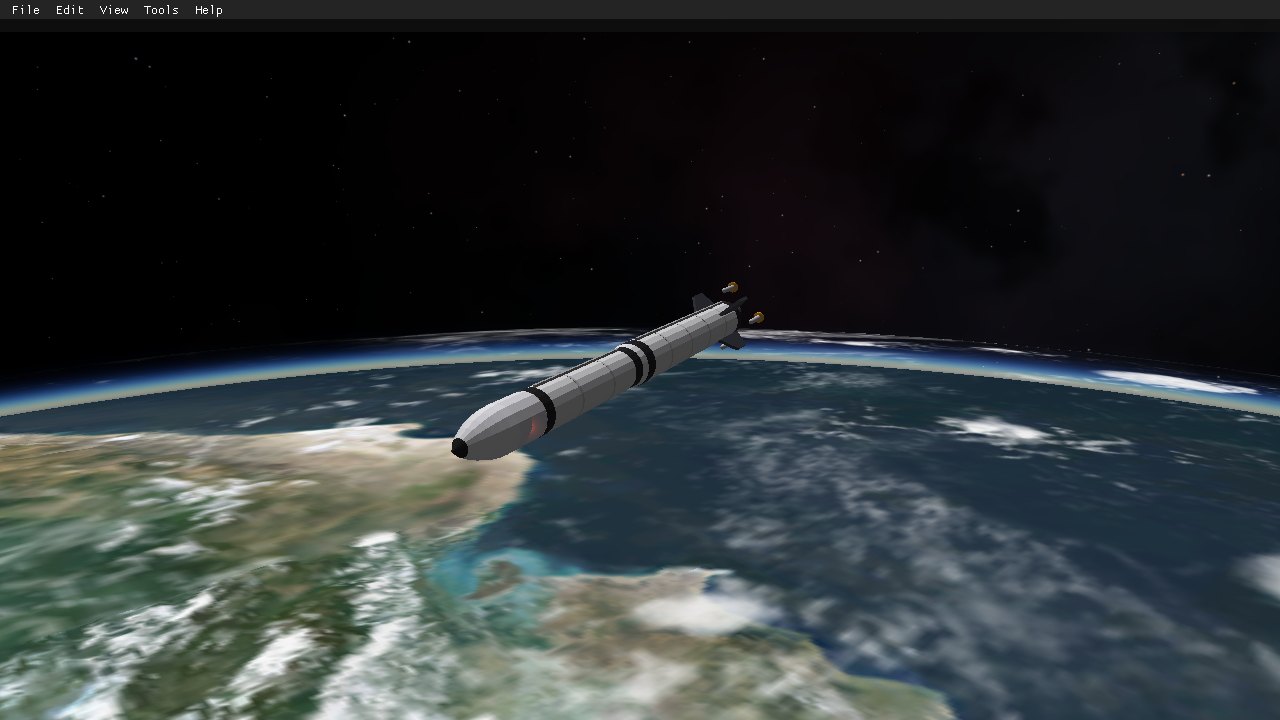
The menu bar is pinned open along the top of the screen. Untick View → Keep menu bar visible and it slides away, returning when you move the mouse to the very top edge.
| Menu | What it does |
|---|---|
| File | Open a scenario from the built-in list or from a .json file, save the current situation as a scenario, restart, and quit. |
| Edit | Undo and redo in the open editor; shortcuts to Settings and Properties. |
| View | Toggle Full screen and show or hide every window (Cameras, Settings, Properties, Lua console, Multiplayer, Quantum navigation) and both editors. 2D Panels lists the instrument panels the current ship defines (the Skylark has Flight instruments and Navigation) and shows the chosen one in the 2D cockpit. |
| Tools | Scenario editor, Base editor, screenshot, and reload of your own scenarios and bases. |
| Help | A key reference and the About box. |
Save scenario records where every ship is now. Orbits are saved as circular at the current altitude, so an eccentric orbit is rounded off. Your saved files go in ~/.config/kosmos/scenarios/ and appear in File → Open scenario after you save.
Scenario & base editors
Both live under Tools. Edits can be undone and redone, and one drag or one typed change counts as one step.
Scenario editor
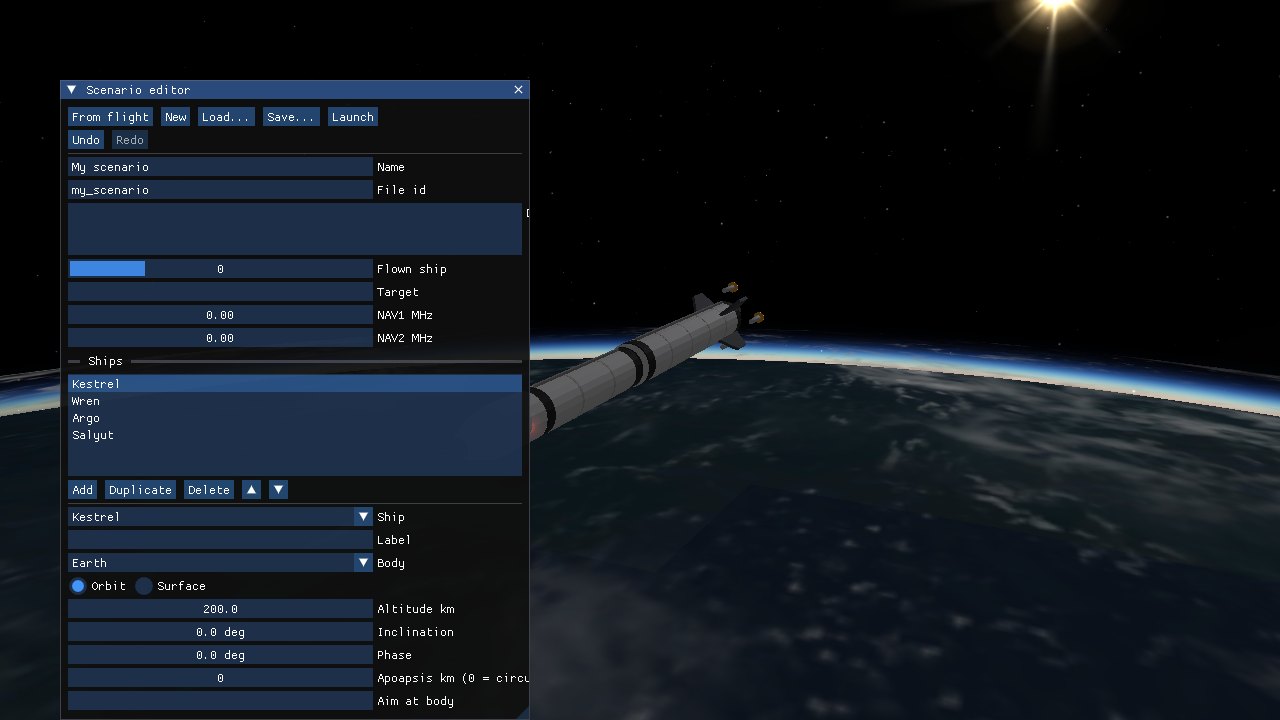
- Set the name, description, which ship you fly, the target and the NAV1/NAV2 frequencies.
- Add, duplicate, delete and reorder ships. Each one has a type, an optional label and a body.
- Start each ship in orbit (altitude, inclination, phase) or on a surface: latitude and longitude, the launch pad, or a base (pad or runway, direction, distance past the threshold). Give a height above zero to start in the air.
- From flight fills the editor from the ships as they are now. Launch runs it at once. Save writes it for later.
Base editor
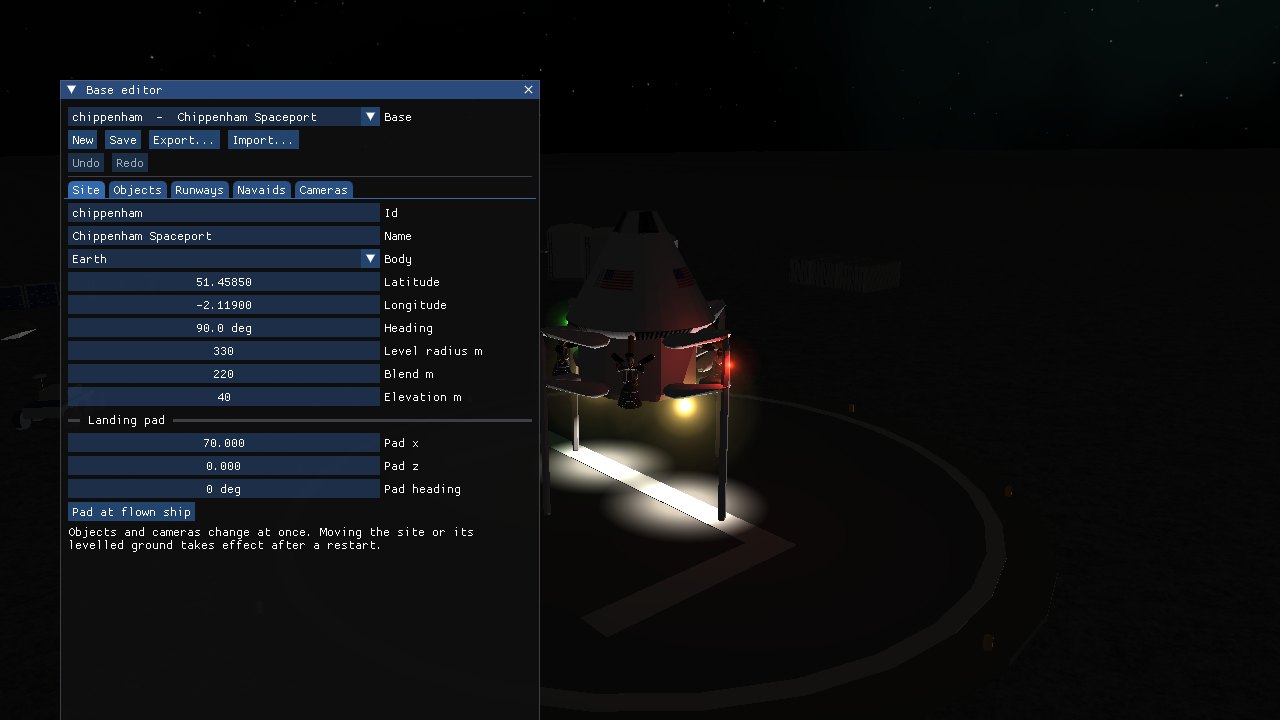
- Site: id, name, body, position, heading, levelled radius and landing pad.
- Objects: any prop type with its position, heading, scale, rows of copies, sizes and colours. Changes show in the world at once. The Stock model list adds the NASA models (habitats, VAB, radome, astronaut and more).
- Runways (with ILS), Navaids and Cameras have their own tabs.
- Place at flown ship copies your ship's position into the selected item. Fly to a spot, then drop a lamp or a camera there.
- Save writes the base to
~/.config/kosmos/bases/. A saved base replaces a shipped one with the same id.
Moving a site, changing its levelled ground, and new beacons take effect after you restart Kosmos.
Settings (F3)
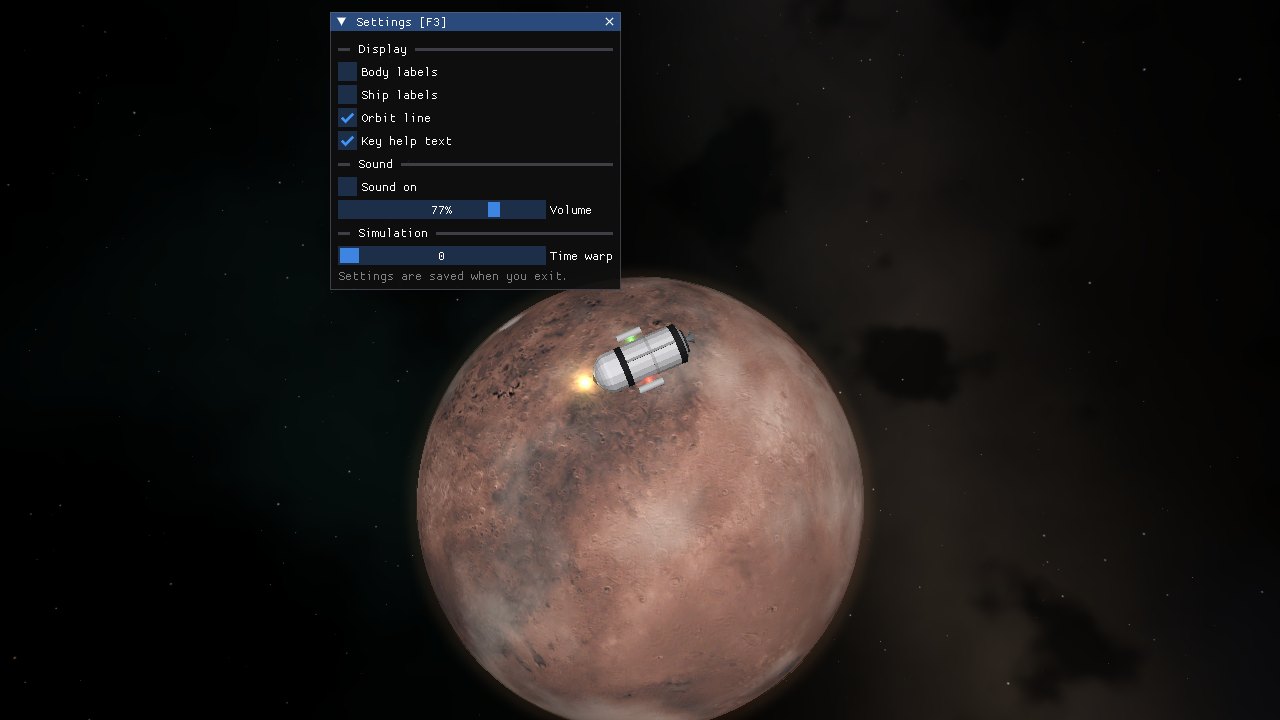
The settings window controls display and sound. Values live in the property tree under /sim/settings/ and are saved when you quit.
| Setting | Property | Default |
|---|---|---|
| Body labels | /sim/settings/labels | off |
| Ship labels | /sim/settings/ship-labels | off |
| Orbit line | /sim/settings/orbit-line | on |
| Key help text | /sim/settings/help-text | on |
| Sound | /sim/settings/sound | on |
| Volume | /sim/settings/volume | 20 % |
You can also change time warp from this window.
Sound has three layers: the rocket engine rumble, RCS hiss, and a wind that blows when you are on the ground or flying low in an atmosphere. Wind gets stronger with airspeed and is drowned out by the engines. Audio starts after the first frame is drawn, so the start-up is silent.
Property browser (F4)
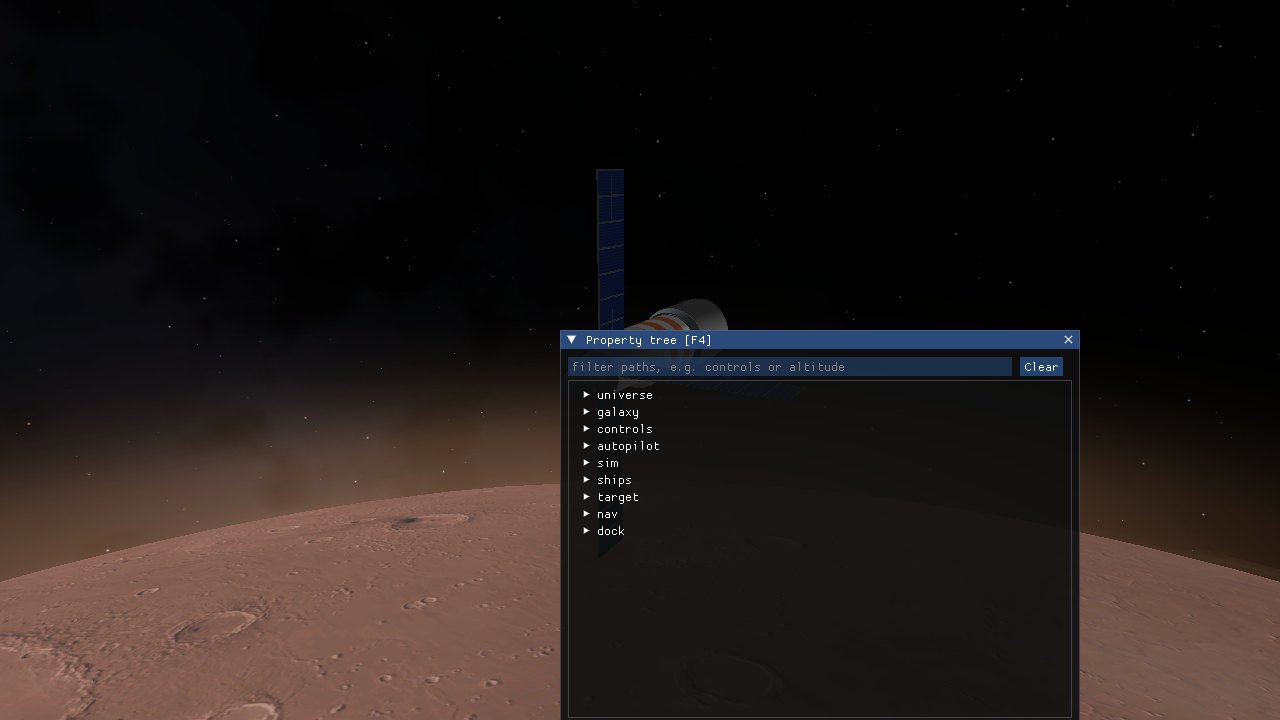
Everything the simulator knows is in a tree of properties, such as /controls/throttle or /ships/ship[0]/altitude. The F4 browser lets you explore the tree, read any value and write to writable ones.
- Expand the tree, or type in the filter box to search all paths (for example
altitude). - Click a property to put its path and current value in the boxes at the bottom.
- Edit the value and press Set, or press Get to refresh.
Some properties are tied to live simulation values and ignore writes. Keyboard controls rewrite /controls/pitch, yaw, roll, rcs-* and brake every frame, so changes to those are overridden while a key is being polled; /controls/throttle is not.
Multiplayer (F12)
Up to four players share a sky as ghost ships: each runs their own simulation and sees the others, drawn in 3D, labelled with name and distance and listed in the HUD. There is no collision or docking between players.
- Host with
--hostor Host a game in the F12 window. Make UDP port 7777 reachable (port forward or a VPN). - Join with
--join host:port, by typing the address in the window, or by choosing a game in the lobby list. - Lobby: an IRC channel (default
salyut.ddns.net,#kosmos). Hosts announce their game automatically; the window also has a chat box. IRC is plain text, so don't type anything private. - Gather: press J, or Go to beside a name in the window, to move next to another player. In space you appear about 150 m away with their velocity; beside a landed player you are set down on the ground 60 m away.
- Time warp is held at 1x while two or more players are connected. Clocks are not synchronised, so ghosts are placed relative to the body they orbit and views spanning two bodies can be slightly off.
Lua console (F11)
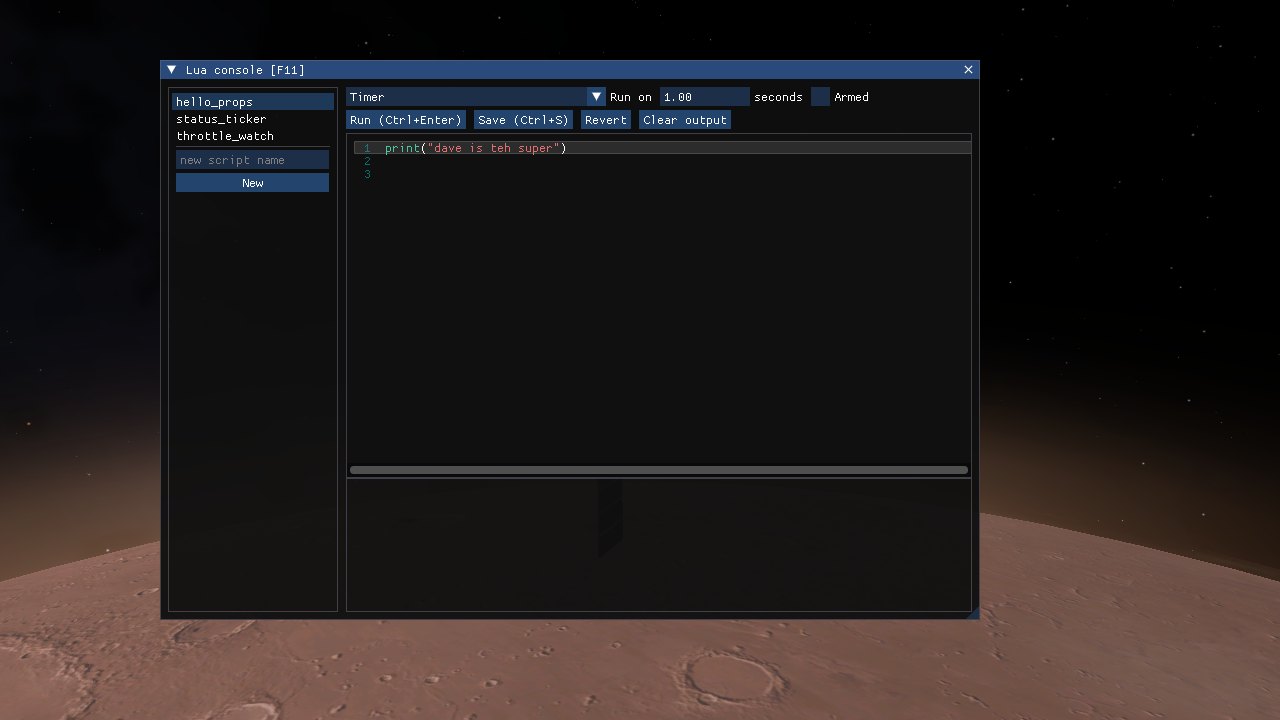
The Lua console is an in-game script editor. Scripts run in the simulator's Lua state, so they can read and write the property tree with the props table.
Using it
- The left list shows the available scripts. Type a name and press New to start another.
- Edit in the main pane, which has Lua syntax highlighting. Errors are marked on the offending line.
- Run (Ctrl+Enter) executes the script now. Save (Ctrl+S) stores it in your user folder. Revert reloads the saved version.
- Output from
print, and any errors, appear in the pane below the editor.
Choosing when a script runs
The Run on list picks the event that triggers the script. Tick Armed to enable it:
| Event | Runs |
|---|---|
| Manual | Only when you press Run |
| On scenario load / ship change | Each time the flown ship changes |
| Every frame | Once per rendered frame |
| Timer | Every N seconds |
| When a property changes | Whenever the named property's value changes |
Inside a script, these globals describe the event: event (the trigger name), dt (seconds since last run), and for property triggers event_path and event_value.
-- throttle_watch.lua: runs when /controls/throttle changes
print(event_path .. " = " .. event_value)

-- Read and write properties
local alt = props.get("/ships/ship[0]/altitude")
props.set("/controls/throttle", 0.5)
A script that raises an error disarms itself, so a bug cannot flood the console every frame. Fix it and arm it again.
Bundled examples live in data/scripts/: hello_props (manual), throttle_watch (property) and status_ticker (timer). Saved scripts go in ~/.config/kosmos/scripts/ alongside a small .json file holding the trigger.
Autopilot
Autopilots are ordinary Lua scripts supplied by the ship's addon. Kestrel's ascent autopilot flies from the pad to a 200 km circular orbit. Press P to enable it and watch the status line. Any manual throttle cut disables it. You can read its progress in /autopilot/status.
Scenarios
Forty-eight scenarios are bundled, including default, which is what you get with no options. Start one with --scenario ID; F10 steps through them. Scenarios live in sub-folders, one per world, shown as submenus under File → Open scenario; the menu re-reads the folder, so files you add or edit outside Kosmos appear without a restart.
| ID | Scenario | Ships |
|---|---|---|
| default | Default start (Chippenham pad); loaded with no options | Kestrel |
| 01_launch_pad | Earth: launch pad | Kestrel |
| 02_earth_orbit | Earth: low orbit fleet | Kestrel, Wren, Argo, Salyut |
| 03_moon_orbit | Moon: 100 km orbit | Argo |
| 04_tranquility | Moon: Tranquility Base | Ares Spider |
| 05_luna_probe | Moon: Luna probe landed | Luna E3 |
| 06_lunar_station | Moon: Lunar Salyut | Lunar Salyut, Ares Spider |
| 07_mars_orbit | Mars: orbit | Lunar Salyut |
| 08_mars_landing | Mars: Gale Crater | Ares Spider |
| 09_venus_orbit | Venus: orbit | Argo |
| 10_mercury | Mercury: landed | Luna E3 |
| 11_io_orbit | Io: orbit | Wren |
| 12_titan | Titan: orbit | Argo |
| 13_docking_approach | Earth: docking approach | Salyut, Wren |
| 14_wren_rendezvous | Moon: Wren rendezvous | Lunar Salyut, Wren |
| 15_chippenham | Earth: Chippenham spaceport | Kestrel |
| 16_twickenham | Earth: Twickenham spaceport | Kestrel |
| 17_helsinki | Earth: Helsinki spaceport | Kestrel |
| 18_wagga | Earth: Wagga Wagga spaceport | Kestrel |
| 19_skylark_takeoff | Skylark takeoff, Chippenham | Skylark |
| 20_skylark_approach | Skylark ILS approach, Chippenham | Skylark |
| 21_mars_high_orbit | Mars: high orbit (9,000 km) | Wren |
| 22_translunar | Earth to Moon: translunar coast | Apollo-Soyuz |
| 23_phobos | Phobos: orbit | Wren |
| 24_deimos | Deimos: orbit | Wren |
| 25_europa | Europa: orbit | Argo |
| 26_ganymede | Ganymede: orbit | Argo |
| 27_callisto | Callisto: orbit | Argo |
| 28_amalthea | Amalthea: orbit | Wren |
| 29_mimas | Mimas: orbit | Wren |
| 30_enceladus | Enceladus: orbit | Wren |
| 31_tethys | Tethys: orbit | Argo |
| 32_dione | Dione: orbit | Argo |
| 33_rhea | Rhea: orbit | Argo |
| 34_hyperion | Hyperion: orbit | Wren |
| 35_iapetus | Iapetus: orbit | Argo |
| 36_phoebe | Phoebe: orbit | Wren |
| 37_miranda | Miranda: orbit | Wren |
| 38_ariel | Ariel: orbit | Argo |
| 39_umbriel | Umbriel: orbit | Argo |
| 40_titania | Titania: orbit | Argo |
| 41_oberon | Oberon: orbit | Argo |
| 42_triton | Triton: orbit | Argo |
| 43_proteus | Proteus: orbit | Wren |
Ship systems
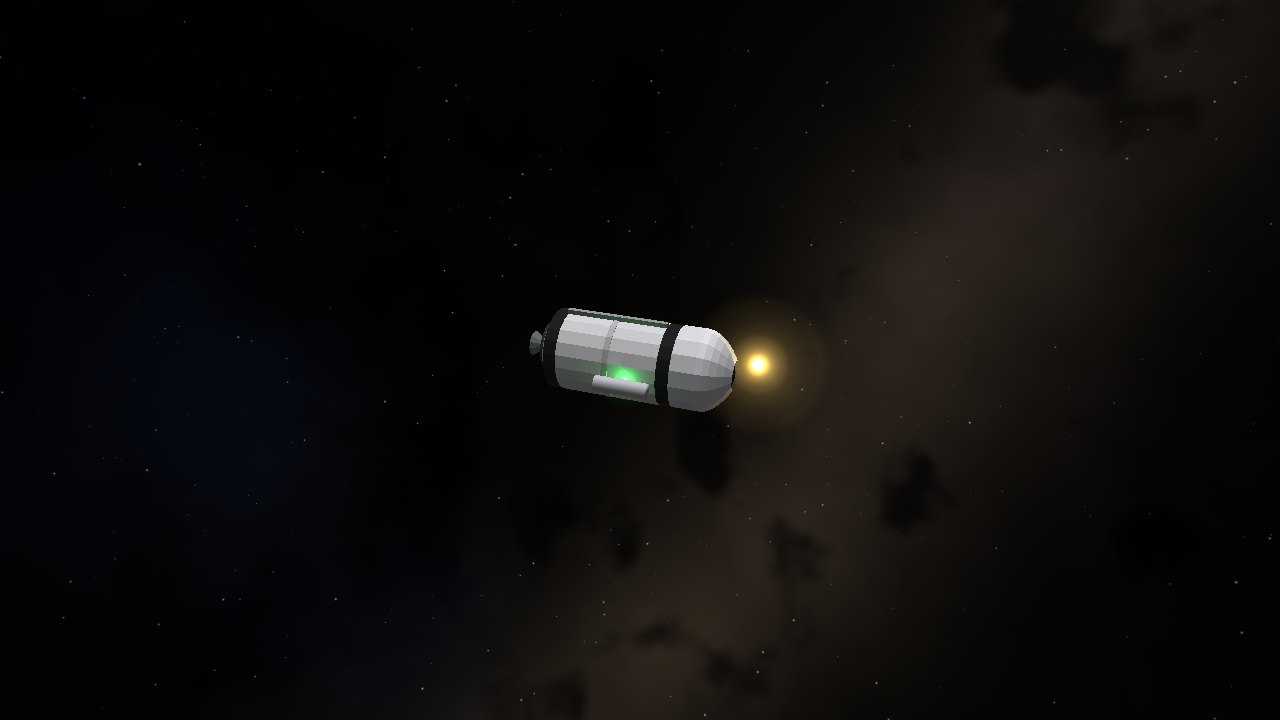
Crewed ships carry electrical power, consumables and pressurised cabins, and they can fail. Open the Ship systems window with F1 (or View → Ship systems), or put the Systems MFD on a screen (F6/F7 or the SEL button). Ships without any systems simply show “no systems on this ship”. Kestrel, Salyut, Ares Spider, the Luna probe, Apollo-Soyuz, Skylark and Argo all have them.
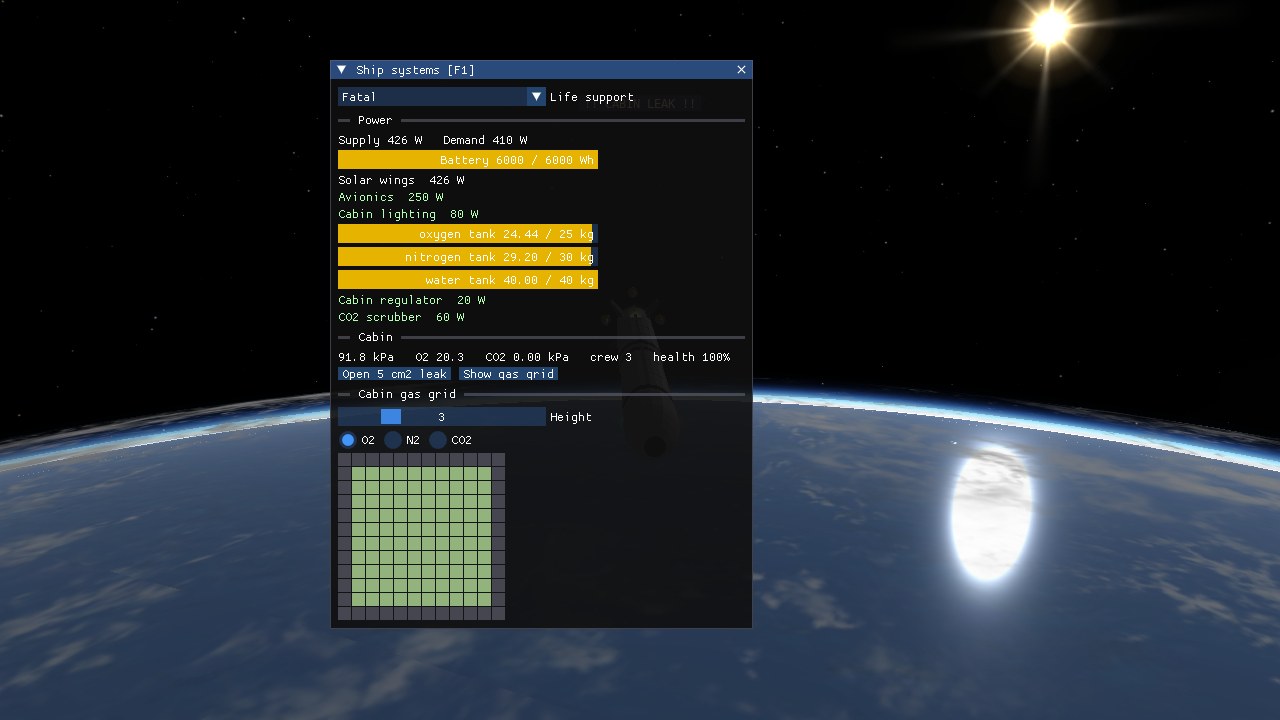
Power
Everything electrical hangs on one bus. Sources feed it, loads draw from it, and a battery smooths the difference.
| Source | Behaviour |
|---|---|
| Solar cells | Output depends on panel area, efficiency, the distance to the star and the angle between the panel and the Sun. They produce nothing in the shadow of a planet or moon (an eclipse) or when edge-on to the Sun. |
| RTG | Constant heat-to-electric power that decays slowly with the isotope’s half-life (87.7 years for plutonium-238). Works anywhere, in shadow or far from the Sun, which is why deep-space probes carry one. |
| Fission and fusion reactors | Start up when the other sources cannot meet demand, up to their rated power, and burn fuel as they go. Fission fuel is a few kilograms; fusion burns deuterium. When the fuel is gone they stop. |
| Fuel cell | Also dispatched on demand. Burns hydrogen and oxygen from the tanks and makes water. |
| Battery | Charges from any surplus and discharges to cover a shortfall, at a limited rate. |
When there is not enough power, loads are shed by priority. Priority 0 (cabin regulator, CO2 scrubber, avionics) is dropped last; lower-priority loads such as lighting go first. A shed load is shown as “(shed)” in the window. If the whole bus is dead the MFDs and the ship’s lights go dark. Time warp is safe: the power model runs in small substeps, so a battery or a solar eclipse is handled correctly at any warp.
Tanks
Gas and water tanks hold oxygen, nitrogen, water, hydrogen and deuterium. Crew use oxygen and water; the cabin regulator draws oxygen and nitrogen to keep the cabin at its set pressure; fuel cells and electrolysers convert between water, hydrogen and oxygen. Propellant tanks for the engines are separate and work as before.
The cabin
A cabin (a pressure vessel) is a sealed box of air. The simulation tracks oxygen, nitrogen and carbon dioxide in it, and spreads them through the box on a small 3D grid, so gas really does move: CO2 builds up near the crew and drifts through the cabin, and a leak drains the cabin through the hole. Vacuum outside acts as a sink.
- Crew each breathe about 0.84 kg of oxygen and produce about 1 kg of CO2 per day, and drink about 3 kg of water.
- The regulator tops up oxygen and nitrogen from the tanks to keep the cabin at its set pressure (101.3 kPa and 21% oxygen unless a ship says otherwise). It uses a little power.
- The scrubber removes CO2 while it has power and sorbent. Sorbent runs out; a long flight needs enough of it.
- A leak lets the air out exponentially. A 2 cm² hole in a 17 m³ cabin halves the air in about six minutes; the regulator can keep up with a small one until the tanks are empty.
Hazards and alarms
The window and HUD report a cabin as nominal or in trouble. Moderate hazards are oxygen below 16 kPa or above 50 kPa, total pressure below 50 kPa, and CO2 above 4 kPa. Acute hazards are oxygen below 12 kPa, total pressure below 30 kPa and CO2 above 8 kPa. Crew health drops over about half an hour in a moderate hazard and about three minutes in an acute one, and recovers over an hour once the air is good again. Alarms blink in red on the HUD: POWER SHORTAGE, BATTERY LOW, O2 TANK LOW, <CABIN> LEAK and the cabin’s hazard (for example CABIN O2 LOW, CABIN CO2 HIGH or CABIN LOW PRESSURE).
What failure does
The consequences are a setting, so you can fly as you like.
| Mode | Effect |
|---|---|
off | Systems run but crew health never changes. |
warn (default) | Alarms and readouts only. Nothing happens to the crew. |
fatal | When crew health reaches zero the crew is lost and the flight ends (“CREW LOST”). |
Choose it with the combo box at the top of the Ship systems window, with --life-support off|warn|fatal on the command line, or per scenario in the scenario editor (Life support). The scenario wins over the command line.
The Systems MFD
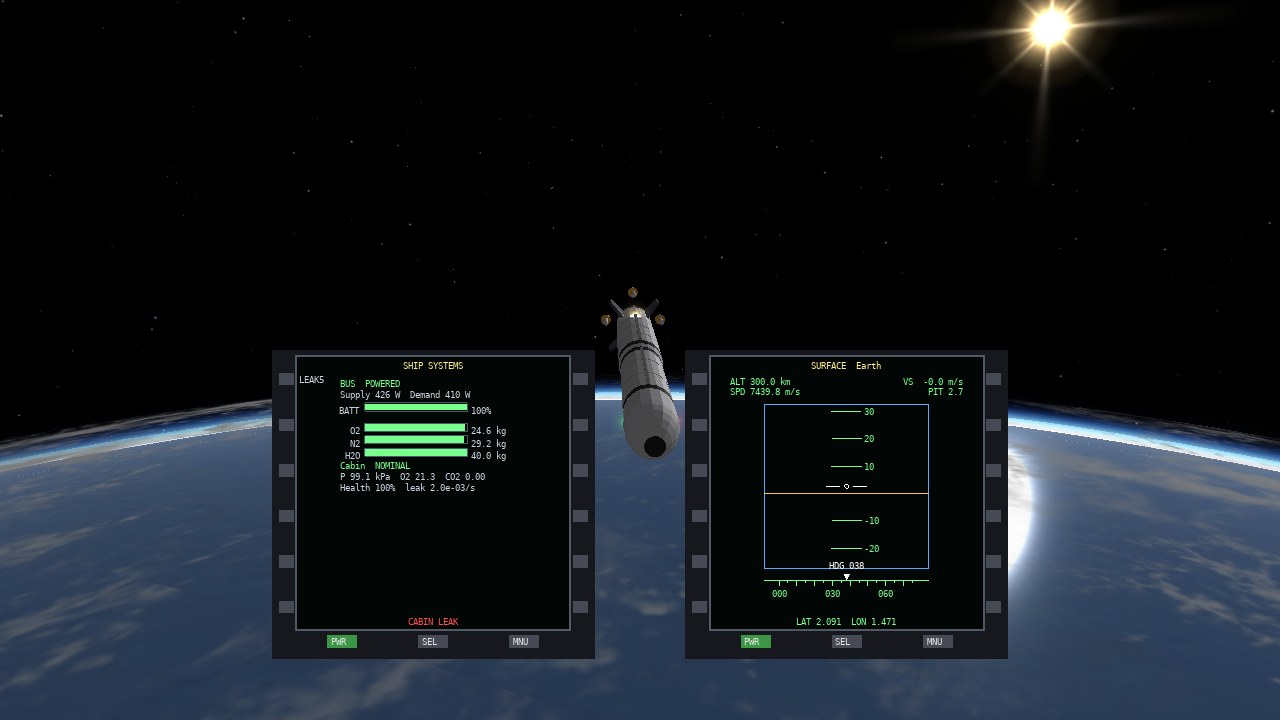
The MFD shows the bus state (POWERED or BROWN-OUT), supply and demand in watts, the battery and the tanks as bars, and for each cabin its pressure, oxygen and CO2 partial pressures, crew health and leak rate. LEAK5 (the top-left button) opens a 5 cm² hole so you can practise.
Try it
23_cabin_leak: a slow leak in a Kestrel capsule in orbit. Watch pressure and oxygen fall, and decide what to do.24_oxygen_tank_failure: the oxygen tank is nearly empty and the scrubber has little sorbent.- In the window, press Open 5 cm2 leak on any crewed ship, and use Show gas grid for a slice through the cabin air (oxygen, nitrogen or CO2; slide the height).
- Staging drops equipment with its stage. A capsule on top keeps its battery, tanks and cabin when the booster falls away.
This is a game-level model: gas is ideal, temperature is constant and there is no thermal or radiation model. It is meant to make you plan consumables and power, not to replace a mission simulator.
The fleet
| Ship | Class | Launch mass | Notes |
|---|---|---|---|
| Kestrel | Launcher | 219.5 t | Three stages (booster, upper stage, capsule); ascent autopilot |
| Wren | Tug | 8.0 t | 25 kN engine; one docking port |
| Argo | Transfer stage | 20.5 t | 150 kN engine; 16 t of propellant for interplanetary legs; quantum jump drive (50 ly) |
| Ares Spider | Lander | 10.0 t | 60 kN descent engine; top docking port |
| Salyut | Station | 20.0 t | Two docking ports |
| Lunar Salyut | Station | 37.0 t | Station with a large engine and solar array |
| Luna E3 | Probe | 0.38 t | Small lander probe |
| Skylark | Aircraft | 4.0 t | Light twin with two air-breathing engines |
Use --ship "NAME" to start with a particular ship, and V to switch between ships in a scenario.
Command line
| Option | Meaning |
|---|---|
--scenario ID | Start a scenario (none given: default); --list-scenarios lists them |
--ship NAME | Start with this ship |
--system INDEX|NAME | Start in a galaxy star system (0 or "Sol" is the hand-authored one) |
--stars | Print the 20 nearest stars and exit |
--quantum | Open the Quantum navigation window at startup |
--test-jump N | Quantum-jump to star N a second into the run (testing) |
--galaxy-map | Start in the galaxy map |
--orbit, --orbit-body B, --orbit-alt KM | Start in orbit around a body at an altitude; --orbit-body auto picks the best world as a quantum jump does |
--target NAME | Set the target ship or body |
--set PATH=VALUE | Set a property after startup (repeatable; value is a bool, number or string) |
--cockpit, --cockpit3d | Start in the 2D or 3D cockpit |
--mfd 0|1|2, --mfd-left ID, --mfd-right ID | MFD display style and modes |
--base-cam id:idx | Start looking through a base's camera |
--menu, --scenario-editor, --base-editor | Pin the menu bar (the default, except with --hide-info), or open an editor at start |
--no-tiles | Draw Earth from its single image instead of streaming the Celestia tiles |
--no-detail | Disable the fine ground-detail texture blended into terrain near the camera |
--no-relief | Disable body normal maps and Earth tile normal-map relief |
--check-data | Load, save and reload every scenario and base; report any that do not round-trip |
--camera-window, --settings-window, --property-window, --lua-window | Open the F2/F3/F4/F11 windows at start |
--max-texture N | Largest body texture accepted (default 16384) |
--selftest SECS, --autopilot, --selftest-throttle T, --selftest-warp N | Headless test run; --selftest-warp sets the time-warp step used while the autopilot coasts to apoapsis |
--fullscreen | Start in full screen at the desktop resolution (also Alt+Enter or View → Full screen). The window can be resized freely; the view follows. |
--user-camera N, --camera-editor | Start looking through the Nth camera from the camera editor / open the editor |
--panel N | Start in the 2D cockpit showing the ship's Nth panel (0 is the main one) |
--shot-stages N | Stage the ship N times before a screenshot |
--shot FILE, --shot-at SECS, --shot-throttle T | Save a screenshot after some seconds, optionally with the throttle set to T |
--warp-to SECS | Run the ship on rails until the simulation clock reaches this many seconds, then take the screenshot |
--sunlit | After the scenario loads, swing every ship round its planet to the sunlit side (for daylight screenshots in orbit) |
--date "YYYY-MM-DD HH:MM:SS", --mjd N | Start on a real GMT date (or Modified Julian Date, as in Orbiter): planets and Moon take their true positions and the Earth is turned for the time of day. With no date (and none in the scenario) the game starts at the real current GMT time. Start only; try 44_apollo11_launch. Planets rotate during the run (the Sun moves, bases and landed ships turn with the ground); Earth and Mars have their real axial tilt and are turned for the start date |
--earth-turn DEG | Turn the home planet by this many degrees, moving the Sun's position over a base: about 300 gives daylight at Chippenham and 20 gives night, when the base and ship lights switch on |
--orbit-body BODY, --orbit-alt KM, --orbit-half, --orbit-phase DEG, --ambient F | Start --ship in a circular orbit; --orbit-half picks the lit half, --orbit-phase the position round it; --ambient sets the fill light |
--map, --map-focus BODY, --map-scale S | Start in the orrery map, focused on a body at a zoom scale (for screenshots) |
--root DIR | Use this folder as the Kosmos root (its data/ and addons/) instead of the one next to the executable |
--host [PORT], --join HOST[:PORT], --name NAME | Host or join a multiplayer game (UDP 7777 by default) and set your name |
--lobby, --irc HOST, --channel #NAME, --advertise ADDR:PORT | Open the Multiplayer window; choose the lobby IRC server and channel; the address announced for a hosted game |
--hud MODE | Start with the HUD in orbit, surface or docking mode |
--no-clouds | Skip the cloud layers (faster start, helps on weak GPUs) |
--show-info | Start with the on-screen text (title, telemetry, key reminders) showing; it is hidden by default (toggle with I) |
--hide-info | Hide the on-screen text and the orbit line, and let the menu bar slide away (for screenshots); overrides --show-info |
--cam-fov DEG, --cam-antisun, --cam-sunward | Field of view (default 50); point the camera away from, or towards, the star |
--cam-pitch R, --cam-yaw R, --cam-distance M | Set the chase camera (radians, metres) |
High-resolution terrain
Kosmos ships with low-resolution runtime textures and procedural terrain for every body. For real elevation and close-up imagery, Kosmos can read Orbiter high-resolution planet packs directly: the same Elev.tree (heights) and Surf.tree (surface imagery) archives Orbiter uses. They are optional and are not included in the download because of their size and licence terms, so you add them yourself.
- Obtain the Orbiter 2016 high-resolution packs for the bodies you want (Earth, Moon, Mars). Check each pack’s licence terms.
- Unpack each pack as its own folder inside
data/orbiter/, next to the executable. The folder name must end with the body’s name, for exampledata/orbiter/Orbiter 2016 High Res: Earth. - Check that each folder holds
Elev.treeand, for imagery,Surf.tree. - Start Kosmos. The console prints
Earth terrain from Orbiter data(and so on) for each body it found.
data/orbiter/
  Orbiter 2016 High Res: Earth/   Elev.tree  Surf.tree
  Orbiter 2016 High Res: Moon/    Elev.tree  Surf.tree
  Orbiter 2016 High Res: Mars/    Elev.tree  Surf.tree
You can install only some of them; without an Orbiter pack, terrain is procedural and the orbital image comes from the bundled texture or any optional override you have installed. Orbiter terrain tiles stream in as you approach, so the first low pass over new ground may show coarser detail for a moment. The optional Celestia source tree lives in data/celestia/: Earth colour tiles (and optional specular and normal tiles) can stream directly from data/celestia/hires/. Close-up terrain compares Orbiter and available Celestia colour maps per location and uses whichever has finer texels; Orbiter elevation still shapes the ground. For other Celestia maps, use the import tools to install an image into data/textures/ or data/textures-hires/; moon sources under data/celestia/moons/ are not scanned at runtime or included in release packages. See the Developers manual for map lookup and import details.
Other bodies can use the same format: give the body "terrain": "orbiter" in sol.json and place a matching folder in data/orbiter/. See the Modders manual.
Files & settings
| Path | Contents |
|---|---|
~/.config/kosmos/settings.json | Saved F3 settings |
~/.config/kosmos/scripts/ | Your Lua console scripts |
data/scenarios/ | Bundled scenarios |
data/bases/ | Spaceport definitions |
data/scripts/ | Example console scripts |
data/sol.json | The solar system |
addons/ | Ships, MFD modes and extra content |
data/celestia/ | Optional Celestia sources; moon packs are grouped under moons/<planet>/<Moon>/ and excluded from release packages |
data/orbiter/ | Optional Orbiter high-resolution terrain packs |
data/textures/ | Installed runtime fallback images |
data/textures-hires/ | Optional installed texture overrides |
On Linux, settings follow $XDG_CONFIG_HOME if set; on Windows they use %APPDATA%.
Troubleshooting
| Problem | What to try |
|---|---|
| Time warp will not go up | You are thrusting, landed or in an atmosphere. Cut the engines and climb or orbit first. |
| "Vessel lost" | You hit the ground or burned up. Press R to reset. |
| Keys do nothing | A text box in an F-key window has focus; click the scene or close the window. |
| Ground looks soft or blurry close up | Install the Orbiter high-resolution packs (see above). Otherwise, textures are limited by --max-texture and your GPU; the terrain mesh gives way to a textured sphere above 300 km altitude. |
| Startup is slow | If Orbiter terrain packs are installed, their elevation and image archives take time to load; the first start takes longest. |
| Planet names are not shown | Body labels are off by default; switch them on in F3. |