Modders Manual
Overview
Kosmos is data-driven. The simulator reads plain files at start-up and publishes its state in a property tree that Lua scripts can read and write. You can add:
- Ships and aircraft: a
ship.jsonplus optional meshes and an autopilot script. - Scenarios: start states, one JSON file each.
- Bases: spaceports and airfields built from a catalogue of props.
- Bodies: replace or extend the solar system.
- MFD modes: new instrument screens, written in Lua.
- Scripts: anything that reads or writes properties.
Native (compiled) addons are not supported. Lua covers scripting, and everything else is JSON.
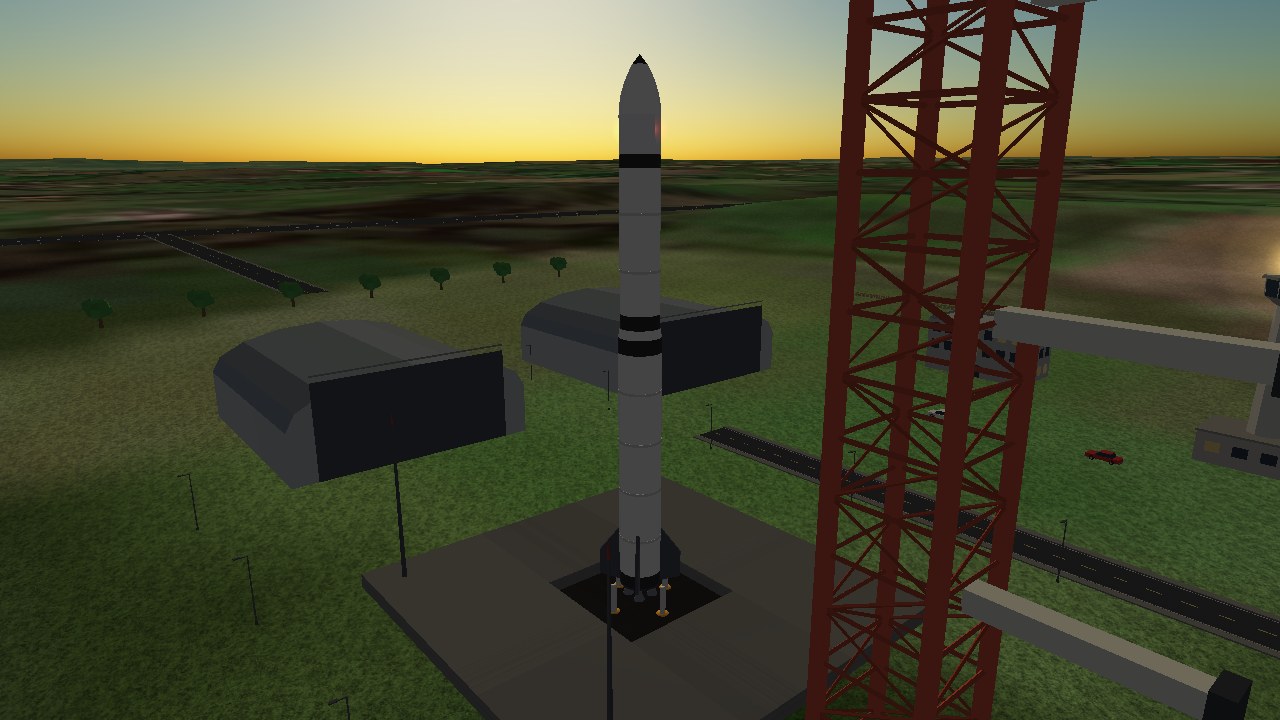
data/bases/chippenham.json.Addon layout
An addon is a folder in addons/. Kosmos scans every folder for an addon.json on start-up:
addons/
  myship/
    addon.json        manifest (required)
    ship.json         one or more ship definitions
    ascent.lua        optional autopilot script
    models/           optional OBJ/MTL meshes
    scenarios/        optional scenario JSON files
    bases/            optional base JSON files
The manifest names the addon and lists what it contributes:
{
  "id": "myship",
  "name": "My Ship",
  "version": "0.1",
  "ships": ["ship.json"]
}
An addon that adds instrument screens lists mfds instead (or as well):
{"id": "mymfd", "mfds": [{"id": "fuel", "script": "fuel.lua"}]}Any scenarios/ and bases/ folders inside an addon are loaded automatically alongside the bundled ones.
Your first addon
Copy addons/wren to addons/mytug, change the id and name, and edit ship.json: change "name" and the engine's thrust. Then start it:
./kosmos --ship "My Tug" --orbit --orbit-alt 400The ship appears in a 400 km orbit. Change a number, restart, and see the difference in the HUD: that is the whole workflow.
ship.json
The top-level fields of a ship definition:
| Field | Meaning |
|---|---|
name | Display name and the name used with --ship |
class | Descriptive class: launcher, tug, transfer, lander, station, shuttle, probe or aircraft. aircraft turns on the atmospheric flight model. |
torque_accel | Angular acceleration from the reaction wheels (rad/s²) |
max_rate | Maximum rotation rate |
rcs_thrust | RCS translation thrust (N) |
drag_area | Reference area for atmospheric drag (m²) |
camera_distance | Starting chase-camera distance (m) |
retractable_gear, gear_time | Landing gear that folds away (L, property /controls/gear), taking gear_time seconds (default 6) to move. Wheels and stage gear points carry load only while fully down; {ship}/gear-position (0 to 1) reports the travel. |
part animations | A simlib animation JSON, relative to the addon folder, loaded onto a part's model. Rotate, translate, spin and blend animations read named properties; gear-position is set every frame. A glTF model may instead carry a clip named gear, posed from gear-up (start) to gear-down (end). |
script | A Lua file in the addon folder, loaded when this ship becomes active (see ship scripts) |
transponder | Docking transponder frequency |
stages | The stack of stages (required) |
ports | Docking ports |
cockpit, cameras | Instrument panel and extra viewpoints |
surfaces, wheels, inertia, damping | Aircraft only |
The ship frame is: nose towards −Z, roof towards +Y, right-hand side +X. All positions are in metres in that frame.
Stages & engines
A ship is a stack of stages. Pressing Space fires the next stage and drops the spent one. Each stage has its own mass, fuel and engines:
{
  "name": "Booster",
  "dry_mass": 12000,        // kg, structure only
  "propellant": 170000,     // kg of fuel
  "z": 10,                  // where the stage sits along the ship
  "length": 24, "radius": 2.0,
  "separation_speed": 1.5,  // m/s kick when it is dropped
  "engines": [
    {"position": [0, 0, 23.6], "direction": [0, 0, -1],
     "thrust": 3400000,     // N
     "isp": 310,            // seconds
     "plume": 26}           // size of the exhaust flame
  ],
  "gear": [[3.3, 0, 24.5], [-3.3, 0, 24.5]]   // landing points
}
JSON does not allow comments. The // notes above are for this manual only; leave them out of your files.
| Engine field | Meaning |
|---|---|
position | Where the engine is, in the ship frame |
direction | Direction the thrust points in the ship frame (usually the nose, [0,0,-1]) |
thrust | Vacuum thrust in newtons |
isp | Specific impulse in seconds; sets fuel consumption |
plume | Exhaust plume size |
air_breathing | If true, thrust falls with air density (for aircraft); implied by jet and scramjet |
type | rocket (default), solid, nuclear, jet, scramjet or hyperjump. Picks the plume: a jet is invisible unless "afterburner": true and the throttle is above 80%; a scramjet is blue with shock diamonds; a nuclear rocket has no plume, just a soft neon blue-white glowing panel; a hydrogen engine gives a short, tight plume with shock diamonds in vacuum; a hyperjump drive makes no thrust or plume |
range_ly | Jump range in light years of a hyperjump engine (default 50); it enables View → Quantum navigation. See Giving a ship a quantum drive |
fuel | For liquid rockets: kerosene (yellow, billowy; the default), hydrogen (longer, tighter, blue-white), methane or hypergolic. Solid rockets use solid (short, fat, orange) |
afterburner | For a jet: show an afterburner plume (with diamonds) at high throttle |
Fuel use is set by thrust and Isp, so an efficient engine lets you carry less propellant for the same delta-v. Mass is the sum of every stage still attached.
Use the TWR figure on the HUD to tune a design: 1.2–2 is comfortable for launch from Earth; a lander should be above 1.0 relative to the body's gravity.
Parts & models
A stage's parts list draws what you see. Each part is either a built-in prop, a profile of revolution, or an OBJ model.
"parts": [
  {"prop": "stage",   "radius": 2.0, "length": 24, "z": 22, "colour": [236, 236, 240]},
  {"prop": "fins",    "radius": 2.0, "span": 1.9, "length": 5.5, "count": 4, "z": 22},
  {"prop": "engines", "radius": 2.0, "count": 4, "length": 1.6, "z": 23.6},
  {"profile": [[21.5, 0.0], [21.5, 0.28], [24.5, 0.28], [24.5, 0.0]], "colour": [200, 200, 205]},
  {"model": "models/mine.obj", "offset": [0, 0, 5]}
]| Form | Draws |
|---|---|
{"prop": NAME, ...} | A built-in shape: stage, fins, engines, fairing, adapter, csm or aeroplane |
{"profile": [[z, r], ...]} | A lathe: a solid of revolution defined by (position, radius) pairs |
{"model": "file.obj"} | Your own OBJ/MTL mesh, relative to the addon folder |
A model part also takes scale (a number or [x, y, z]; a negative value mirrors it) and rotate (degrees about X, Y and Z), applied before offset. glTF/GLB, OBJ and AC3D are read; use .glb or .obj if you want to edit the mesh in Blender.
Common part fields: radius, top_radius, length, span, count, z, offset, colour ([r,g,b]), accent and emissive (glow).
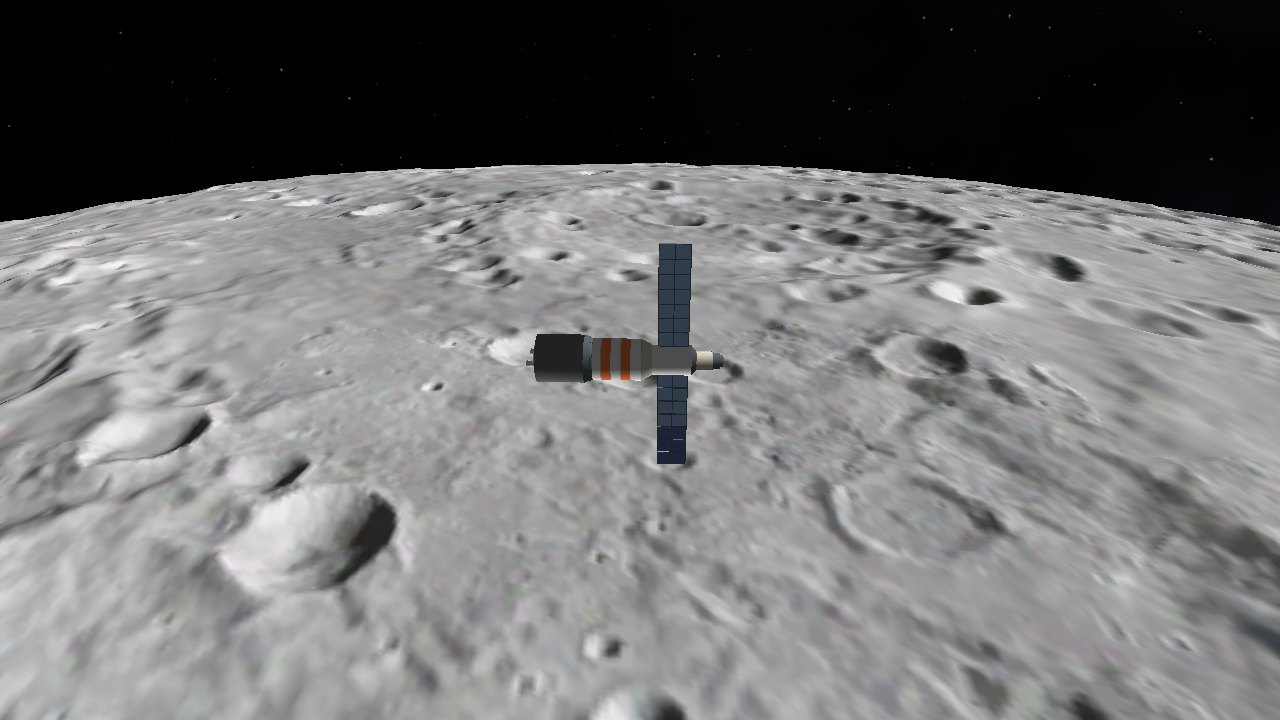
Part kits
A kit is a reusable part: a folder with a part.json and a mesh. Instead of placing parts by hand, list kits in a stage and Kosmos stacks them nose-ward, working out the stage’s z, length, radius, mass and propellant, and adding each kit’s engines, lights and ports where it sits.
"stack_z": 20,
"stages": [
  {"name": "Booster",
   "kits": [
     {"kit": "booster_srb", "radial": 2.8, "count": 4, "angle": 45},
     "engine_2m", "tank_2m", "interstage_2m"]},
  {"name": "Upper stage", "kits": ["engine_2m", "tank_2m", "fairing_2m"]}
]
Kits are listed bottom first and each starts where the last one ended. stack_z (ship or stage level) sets where the first kit’s bottom sits on the ship’s Z axis. Stage fields you give yourself (z, length, radius, gear, separation_speed) win, and a stage’s own dry_mass is added to the kits’. Existing ships that do not use kits are unchanged.
| Item field | Meaning |
|---|---|
kit | The kit name; "other_addon:name" reaches into another addon. A plain string in the list is the same thing. |
radial, count, angle | Strap-on copies spaced evenly round the axis at radial metres from it, the first at angle degrees. They do not advance the stack, so list them where they should sit. |
scale, gap | Scale the whole kit; leave a gap in metres above it. |
Kit folders are searched in <addon>/parts/, then addons/parts/ (shared by all addons), then data/parts/. part.json:
{
 "model": "tank_2m.glb",       // mesh beside part.json
 "length": 12, "radius": 2.0,  // metres; how far the kit advances the stack
 "dry_mass": 5000, "propellant": 90000,
 "engines": [], "lights": [], "ports": [], "gear": [], "parts": []
}
The mesh is drawn in the ship frame with its bottom attach node at the origin and the nose along −Z, so it spans z = 0 to z = -length. Engines, lights, ports and gear use the same frame; they are the ordinary entries from a ship file, moved to the kit’s place in the stack. Extra parts (built-in props) may sit beside the mesh. Meshes are glTF, so Blender’s default export (Y up, −Z forward) needs no conversion. Samples are in data/parts/ and addons/kitdemo (“Kit Demo”, run it with --ship "Kit Demo").
NASA stock parts
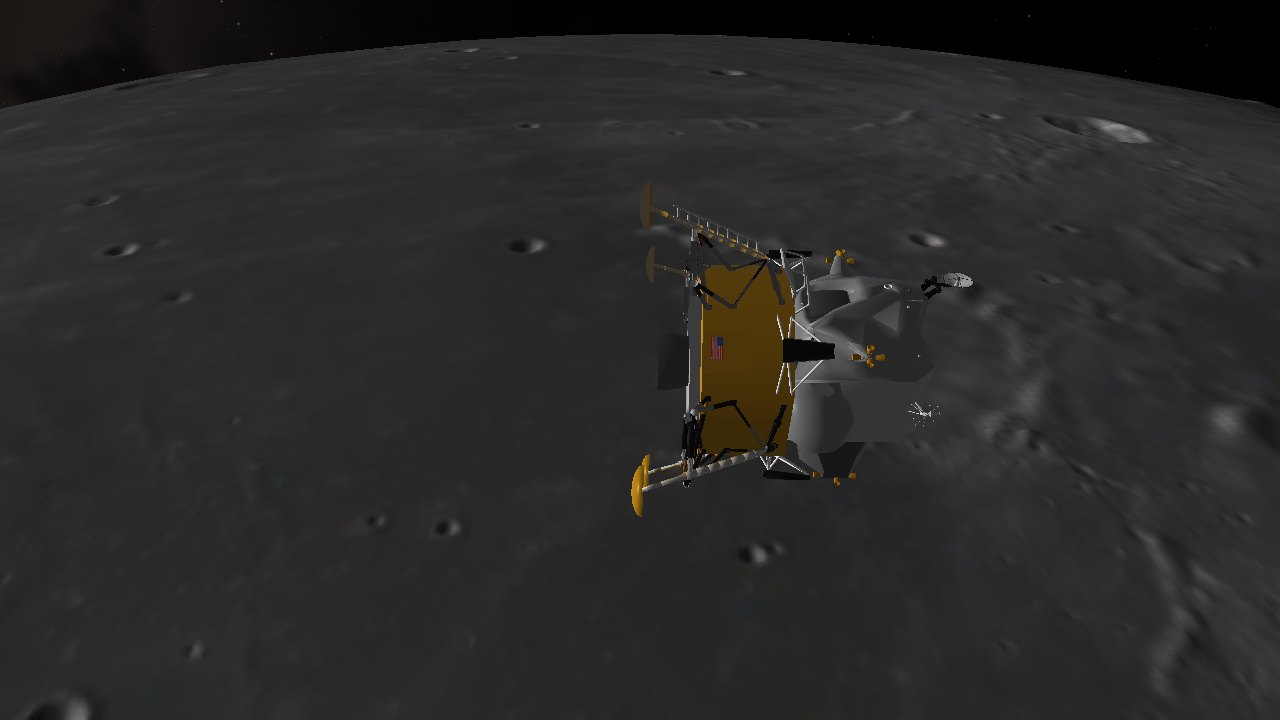
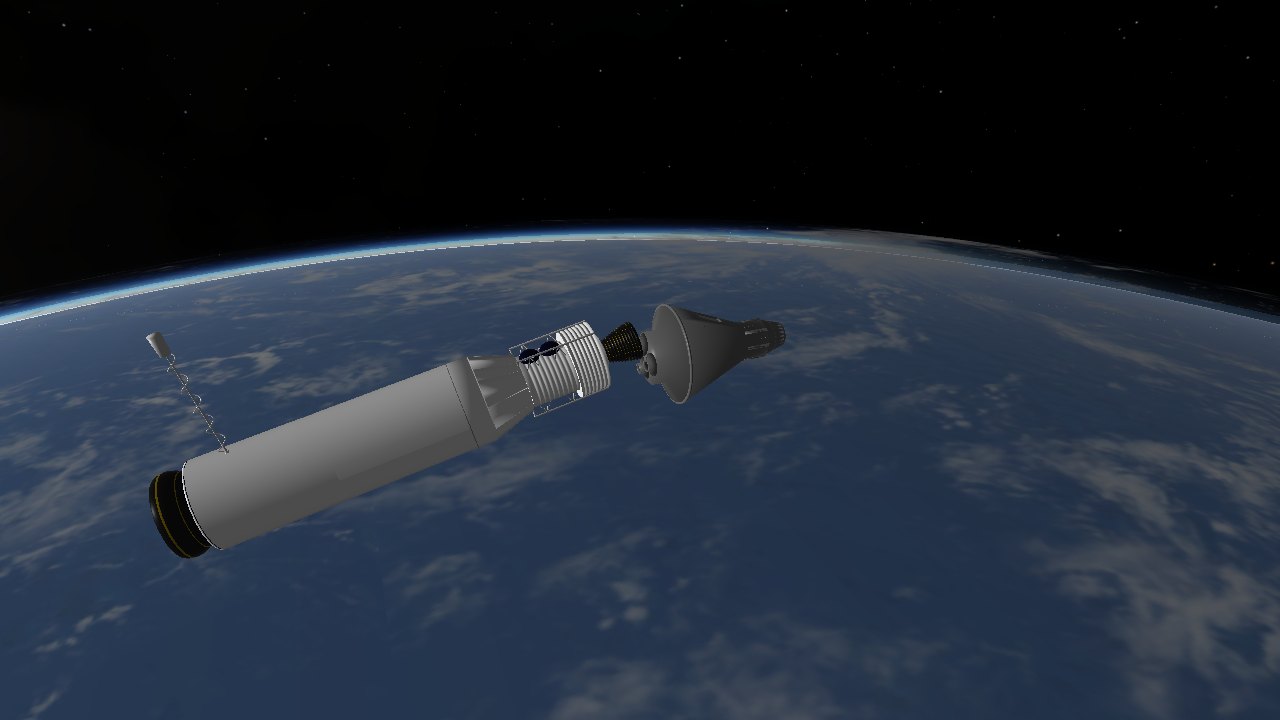
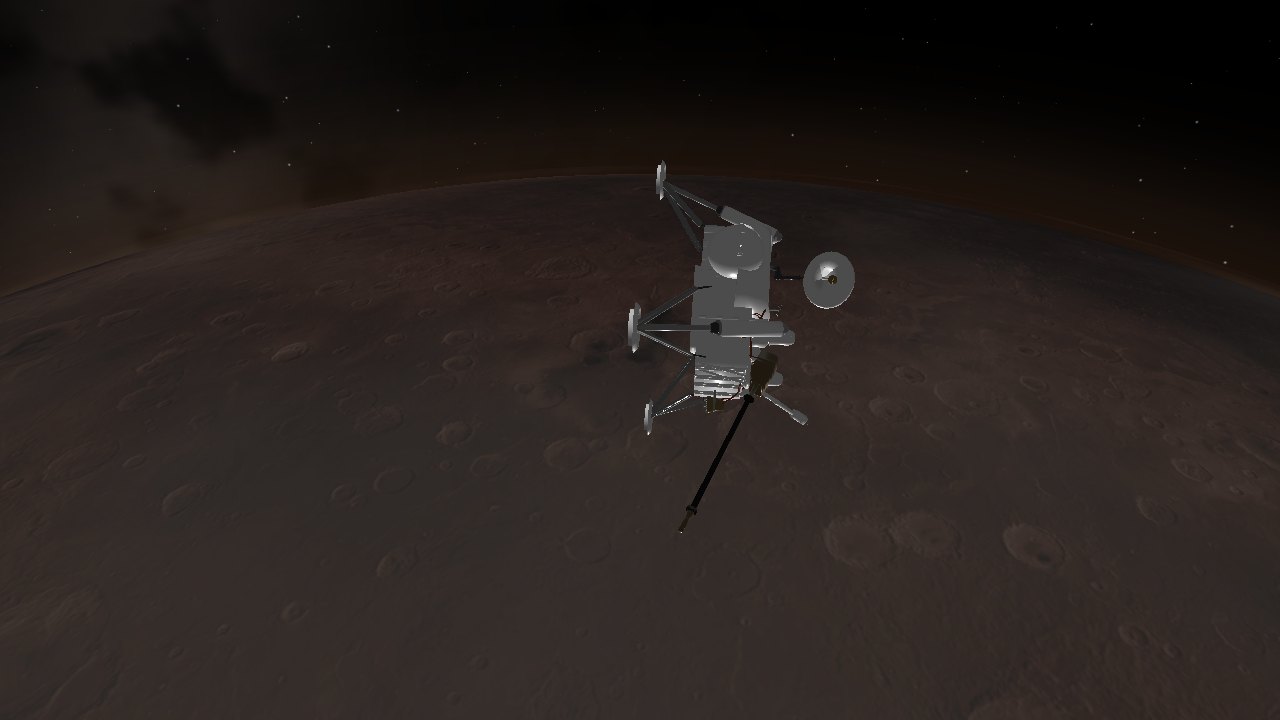
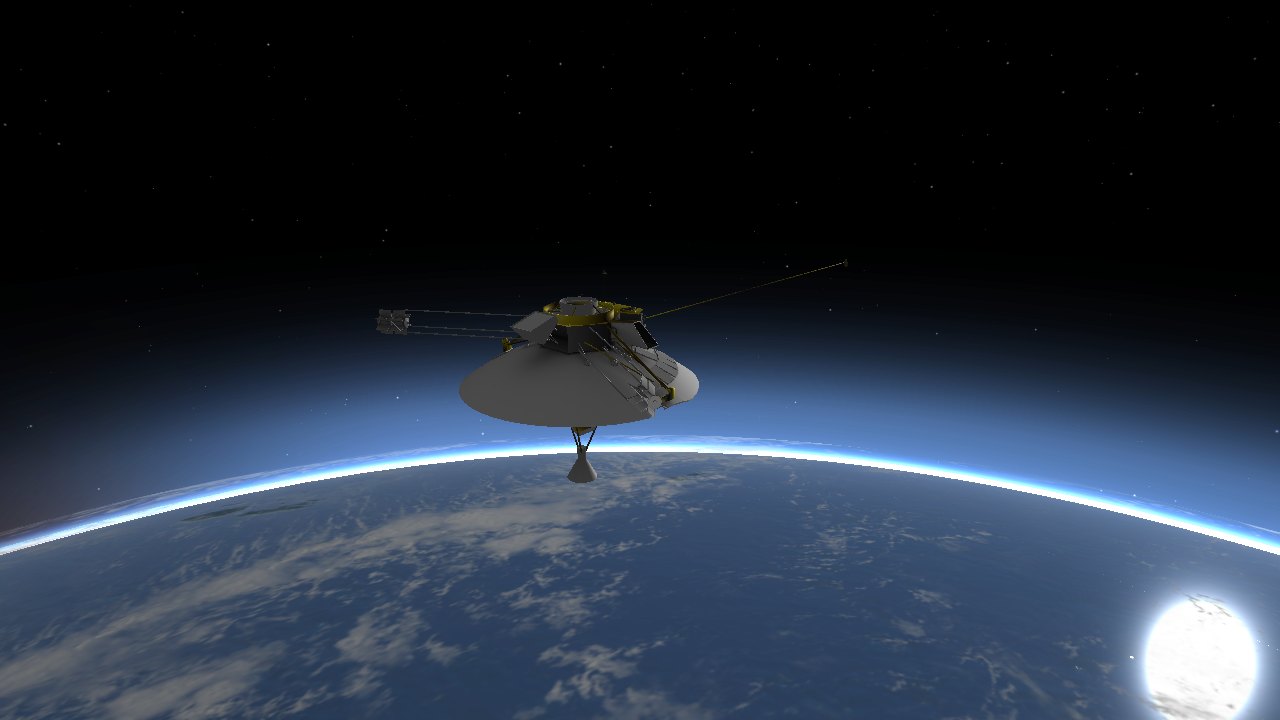
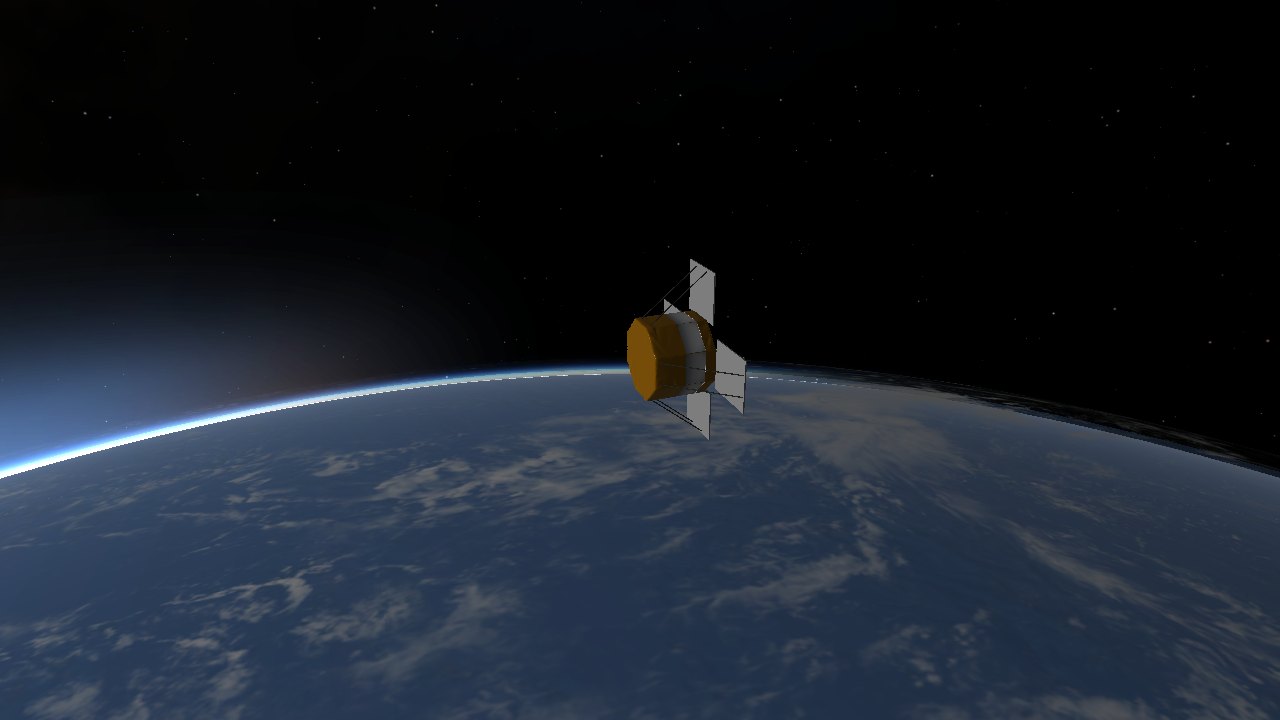
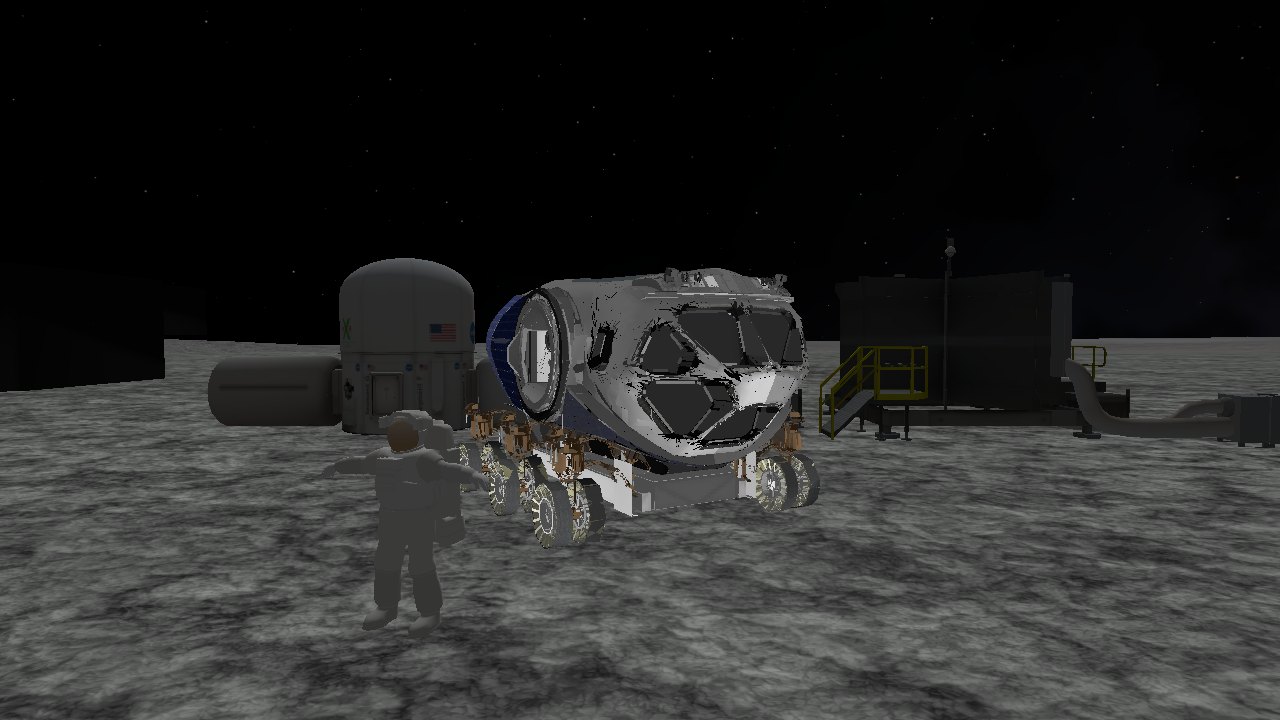
Kosmos ships models made from NASA’s 3D Resources (credits in data/CREDITS-models.md), each about 30 000 triangles or fewer. Six are kits you can list in a stage: nasa_acrimsat, nasa_agena (with its 71 kN engine), nasa_lunar_module, nasa_mercury_capsule, nasa_pioneer10 and nasa_viking_lander. The lunar module kit defines no landing gear. Masses, engines and sizes are approximate. The rest are GLB-only props for bases: nasa_astronaut, nasa_gantry, nasa_habitat_unit_1, nasa_habitat_unit_2, nasa_headquarters, nasa_mission_control, nasa_radome, nasa_exploration_vehicle and nasa_vab, drawn at real size (the VAB is 218 m long, so give it a scale if you want it smaller). tools/nasa_import.py rebuilds them from a folder of NASA downloads.
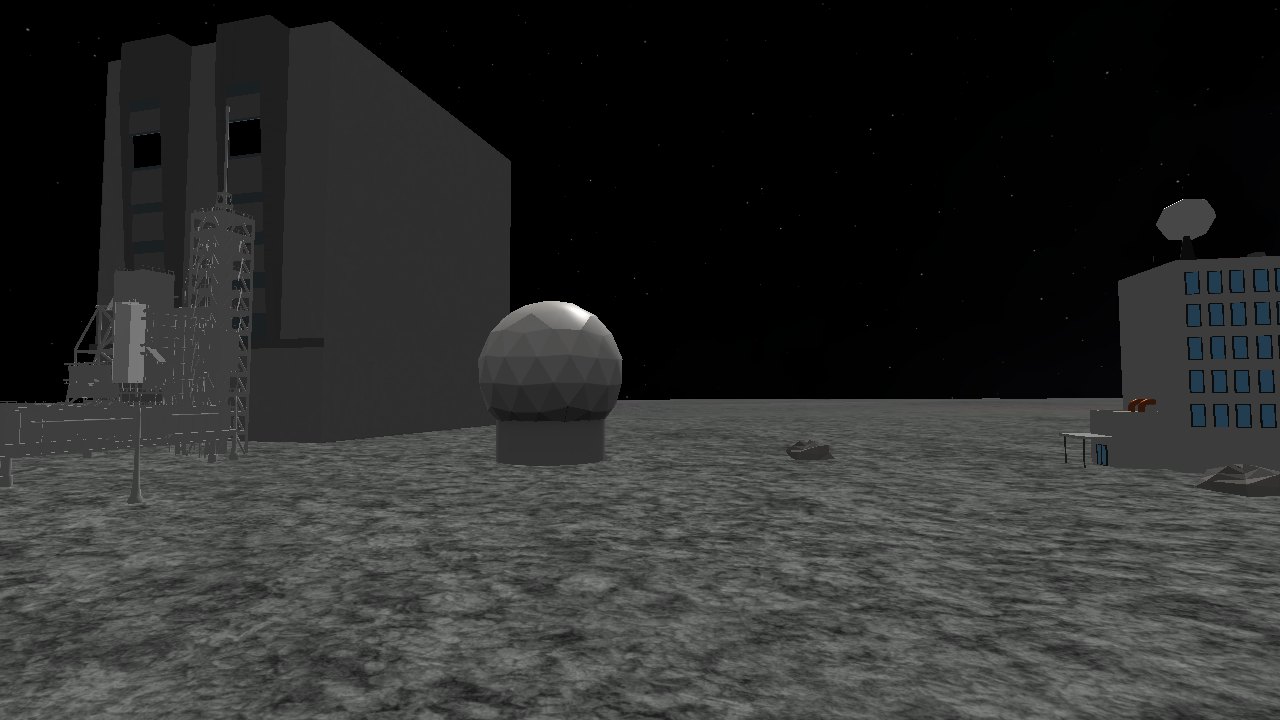
Editing in Blender
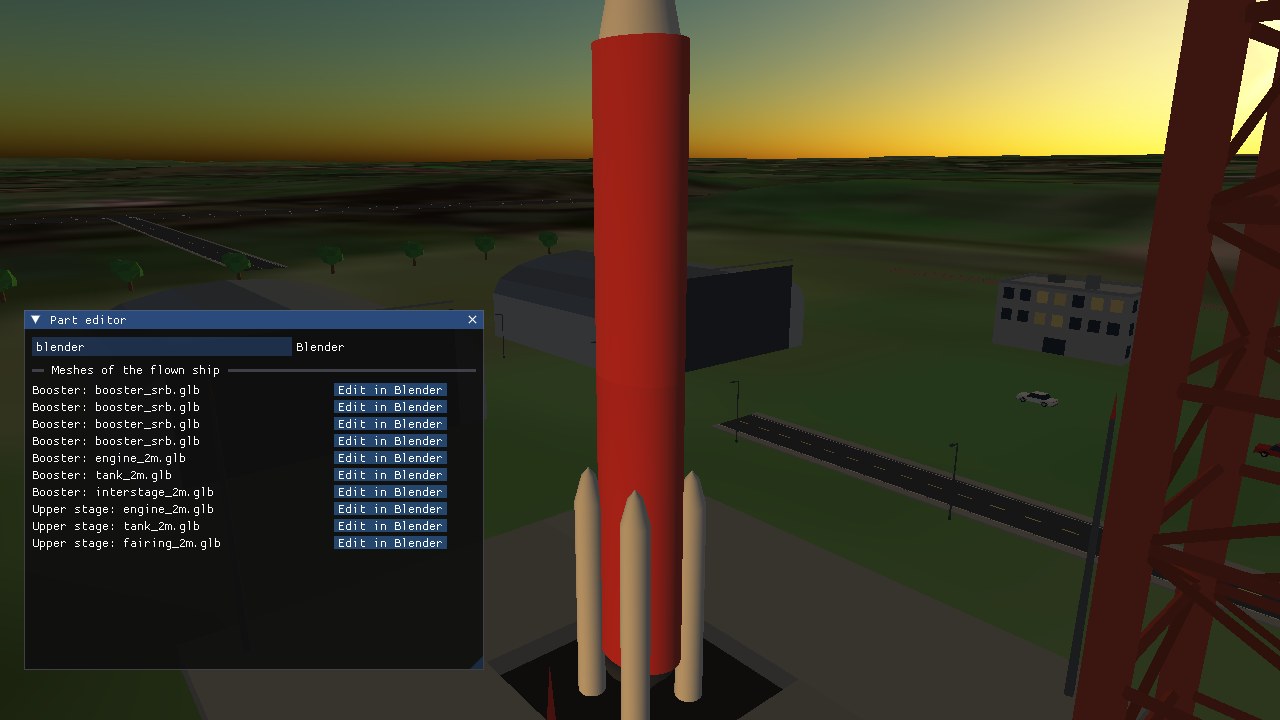
Open Part editor from the Windows menu (or start with --part-editor). It lists the flown ship’s meshes. Choose Edit in Blender and Kosmos pauses the simulation, starts Blender on the mesh, and waits.
A worked example
Here is the round trip on the tank of the Kit Demo rocket. The Blender pictures are renders of the mesh made with tools/blender_render.py; the Kosmos pictures are straight from the running sim.
- Pick the mesh. The Part editor lists every mesh of the flown ship. Press Edit in Blender beside
tank_2m.glb.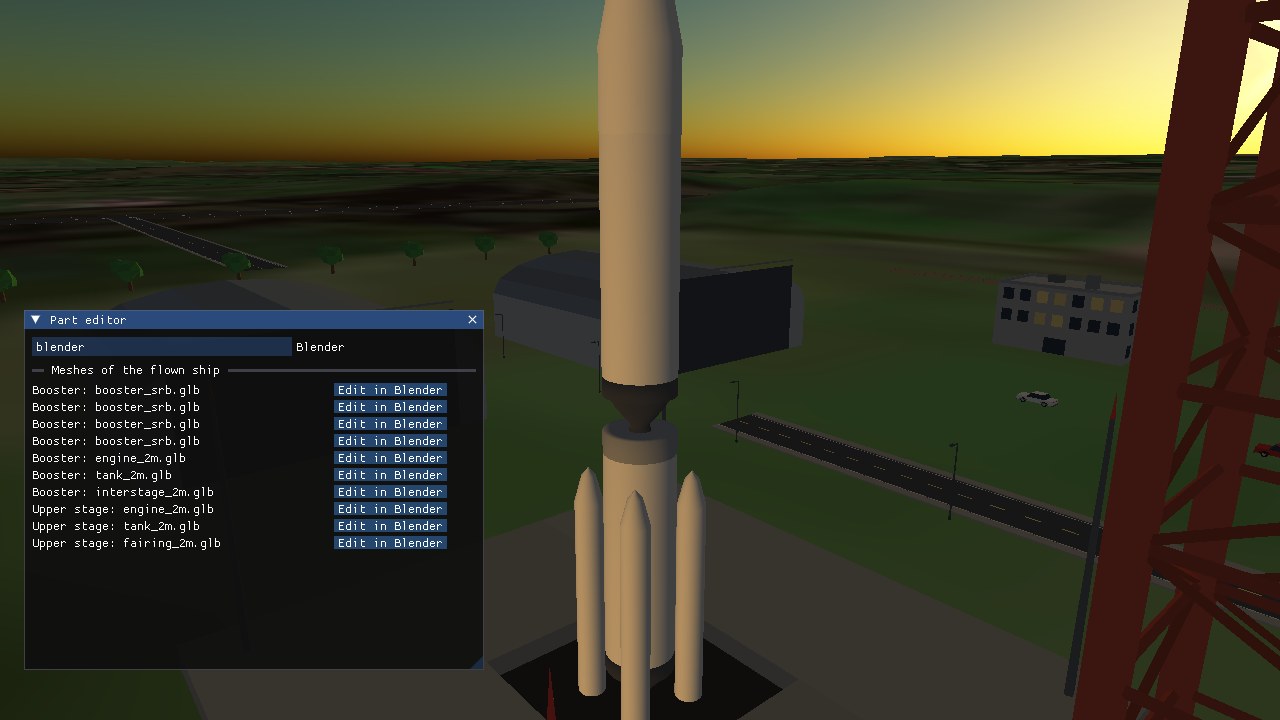
The Part editor beside the rocket. The cream tank is the part we are about to edit. - It opens in Blender. The simulation pauses and Blender starts on the mesh, vertex colours included.
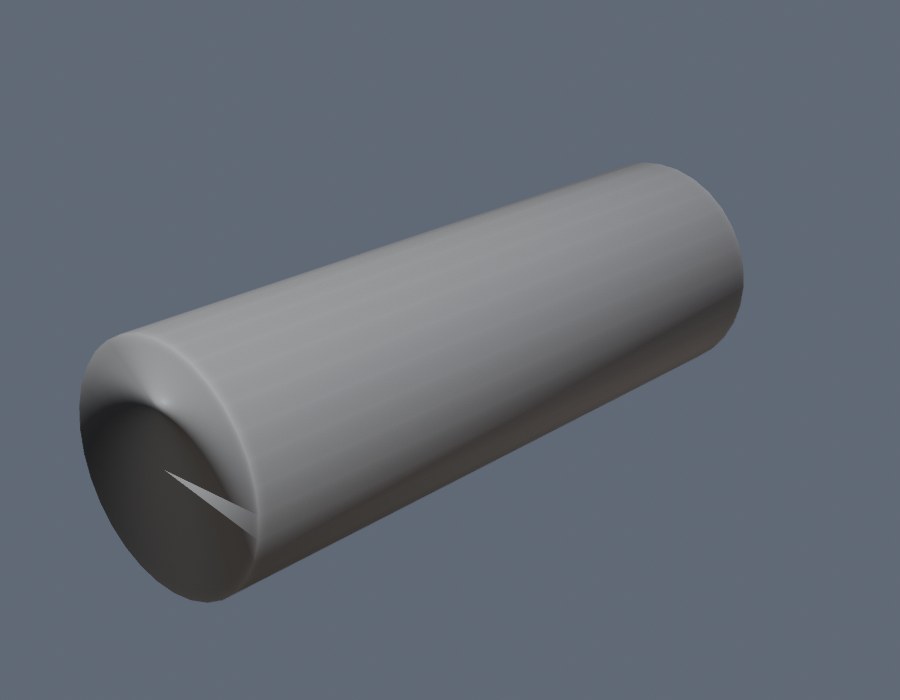
The tank as Blender sees it, before any change. - Change it. Edit by hand, or with a script: Blender runs headless too, so a change can be automated.
tools/blender_example_edit.pywidens the tank by 35% and paints it red:blender -b --python tools/blender_example_edit.py -- addons/mymod/parts/tank_2m/tank_2m.glb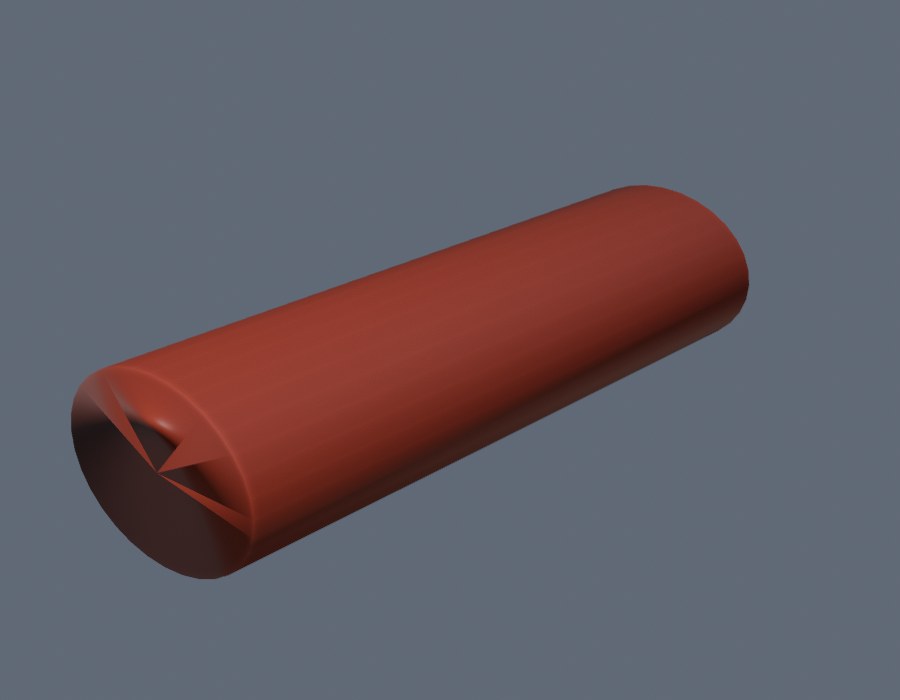
The same mesh after the edit, saved back to the same file. - Save, and see it in Kosmos. Saving (Ctrl+S, or File → Send to Kosmos) writes the file; Kosmos notices within a moment and swaps the mesh on the paused ship. Close Blender and the sim resumes.
Both tanks (every use of that mesh) now show the edit.
The Kosmos pictures were taken by running the edit script on the part file and then restarting the sim, rather than clicking through a live Blender session, but the file Kosmos loads is the same one a saved Blender session writes.
- Edit the mesh in Blender and save with Ctrl+S (or File → Send to Kosmos). The script writes the mesh back to the same file; Kosmos notices and reloads it, so you see the change on the paused ship.
- Close Blender to resume. Resume, keep Blender open carries on flying and you can keep editing. Cancel and restore puts the original back.
The original is kept as name.glb.bak beside the file, and Blender keeps a name.glb.blend there for Ctrl+S; delete them when you are done. Procedural parts (prop and profile) show Convert + edit: the part is exported to models/ in the addon as a GLB with vertex colours (named after the ship, stage and part, and reused if it already exists, so earlier edits are never overwritten) and swapped for the mesh on the running ship. The ship file is not changed until you press Use in ship.json, which replaces that part with {"model": ..., "offset": ...} and keeps the original as ship.json.bak; it takes effect on the next launch, and is refused for stages built from kits. Each session backs up the mesh first, so Cancel and restore only undoes that session. Edits are to the files on disk; a mesh outside the addon folder, or one shared by several ships, changes for all of them.
Set the Blender executable in the window (default blender, saved with the settings) or with --blender PATH. Only .glb, .gltf and .obj parts can be edited; convert AC3D or Orbiter .msh models first (see tools/). Any mesh that changes on disk is reloaded while Kosmos runs, whichever editor wrote it.
Base objects
The Base editor’s Objects tab has the same round trip. Convert this object + edit bakes a built-in prop (house, hangar, tower…) with its place, heading, scale and every copy of its row into a GLB, and replaces it with a "model" object. Edit this model in Blender does the same for an object that is already a model. To merge several props into one mesh, tick them under Pick objects to join and press Join picked + edit: Blender opens with one scene object per prop (named index_type), so you can select them and press Ctrl+J, or edit them separately; everything in the file is exported back as one model.
{"type": "model", "model": "models/chippenham_group0.glb", "x": 0, "z": 0, "y": 0, "heading": 0, "scale": 1}A converted or joined model sits at the base origin with scale 1, so it appears exactly where the props were. In the model’s own frame +Z is forward, +X is to the left and +Y is up, in metres. model is a path relative to the base file, else to the bases/ folder in your user folder (where the editor writes the GLBs, in bases/models/); the file is reloaded when it changes on disk. Saving the base keeps the model object; Cancel and restore brings back the original objects and the previous file. Only one Blender session runs at a time, and the rest of the part-editor notes above apply. kosmos --export-base ID out.glb writes all of a base’s built-in props as one GLB without the editor.
Docking ports
List the ports a ship offers. Each has a position, an outward-facing direction and an up vector, so two ports can be lined up and checked for matching rotation:
"ports": [
  {"name": "Fore", "position": [0, 0, -8.6], "direction": [0, 0, -1], "up": [0, 1, 0]},
  {"name": "Aft",  "position": [0, 0,  4.6], "direction": [0, 0,  1], "up": [0, 1, 0]}
]
Set "transponder": 123.4 at the top level so a docking MFD can tune the ship's beacon.
Cockpits & cameras
Every ship has a cockpit camera. Without a cockpit block it sits at the front centre of the hull looking along the nose, and the head-up display (H) appears there. The cockpit block provides an eye position, optional yaw, pitch (degrees from straight ahead) and fov, and an instrument panel row. Each panel entry reads a property:
"cockpit": {
  "eye": [0, 0.45, -2.2],
  "mfds": true,
  "mfd_left": "orbit", "mfd_right": "surface",
  "panel": [
    {"label": "ALT",  "property": "{ship}/altitude", "scale": 0.001, "format": "%.1f km"},
    {"label": "THR",  "property": "/controls/throttle", "scale": 100, "format": "%.0f %%"}
  ]
}
{ship} expands to the property path of the ship being flown, scale multiplies the value and format is a C-style format. Set "mfds": false to remove the two MFDs. Add extra interior viewpoints (listed in the F2 window) with cameras:
"cameras": [
  {"name": "Passenger cabin", "position": [0, 0.3, 0.5], "fov": 70},
  {"name": "Tail", "position": [0, 2.6, 7.2], "yaw": 180, "pitch": 5, "fov": 55}
]
Instrument panels
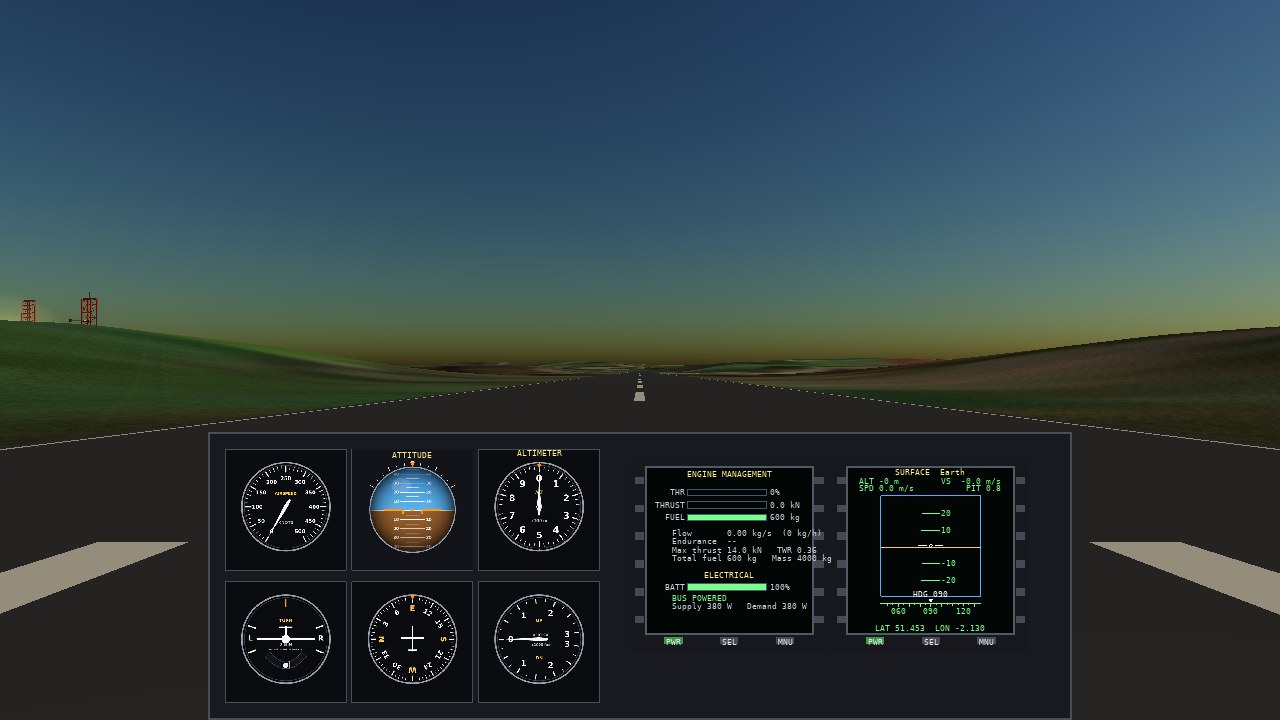
A cockpit can carry a whole instrument panel, in the manner of Orbiter's 2D panels. Give the cockpit block a layout and a list of instruments; each instrument is an MFD mode (any mode from any addon) placed on a flat board in panel units. The same board is the 2D panel along the bottom of the screen and the instrument panel of the 3D cockpit, where its buttons are clicked with the mouse. With instruments present they replace the left and right MFD pair, and the readout row is not drawn.
"cockpit": {
  "eye": [0, 0.9, -4.2],
  "layout": {"width": 1500, "height": 500, "image": "panel.png",
             "size": 0.85, "position": [0, -0.15, -0.75], "tilt": 25},
  "instruments": [
    {"mode": "engine",  "x": 760, "y": 60,  "size": 290, "frame": true},
    {"mode": "asi",     "x": 30,  "y": 30,  "size": 210},
    {"mode": "adi",     "x": 250, "y": 30,  "size": 210}
  ]
}
width and height give the board's size in panel units and image (optional, relative to the ship folder) a background bitmap stretched over it. x, y and size place the instrument's 400×400 drawing square. A frame instrument is a full MFD with bezel and buttons, which needs about 10% extra room around its square; without it the instrument is a bare gauge (a plain dark backing, no buttons). In the 3D cockpit size is the board's width in metres, position its centre relative to the eye (x right, y up, z back) and tilt its tilt back in degrees. The first two instruments are the ones F6 to F9 drive. Mode scripts receive a fifth bare argument in draw(self, g, w, h, bare), true on a bare gauge, so they can leave out small text. The Skylark's panel is the worked example.
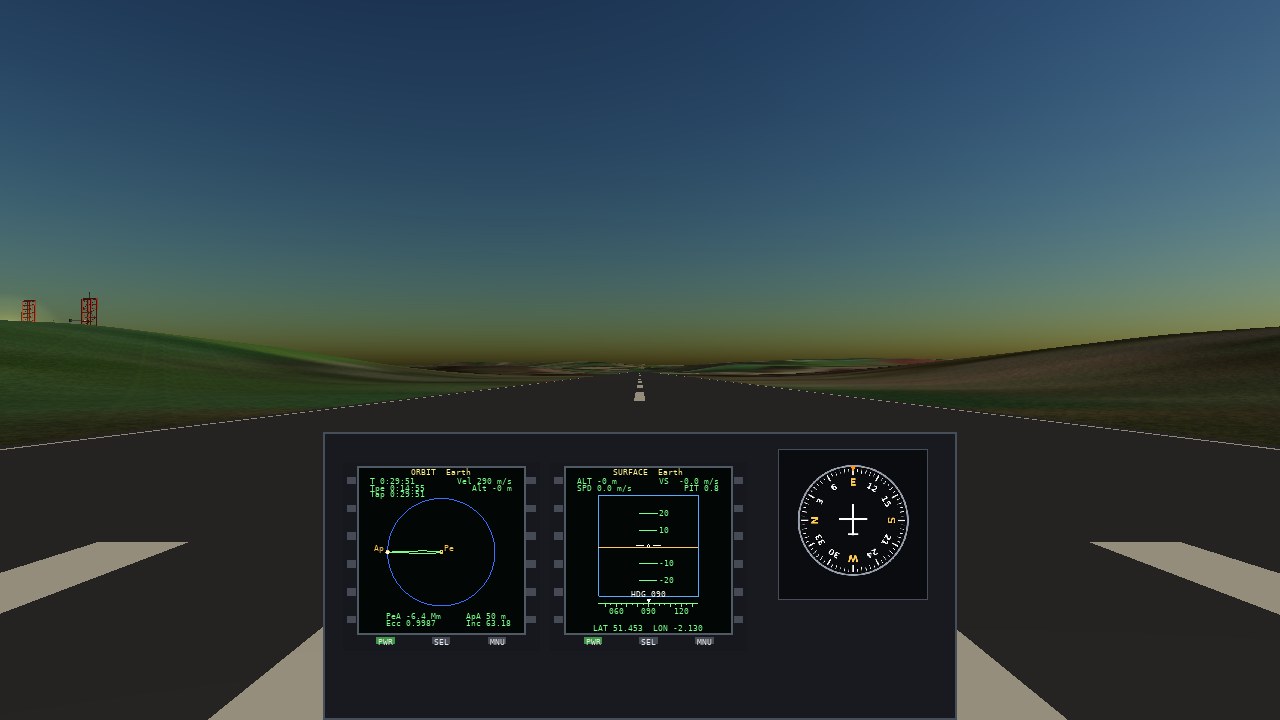
Give the layout a name and add more 2D-only panels with a panels list; each has name, width, height, optional image and its own instruments. They appear under View → 2D Panels.
"panels": [
  {"name": "Navigation", "width": 1100, "height": 500,
   "instruments": [{"mode": "orbit", "x": 60, "y": 60, "size": 290, "frame": true},
                   {"mode": "dg", "x": 790, "y": 30, "size": 260}]}
]
panels list.Aircraft
Set "class": "aircraft" and describe the airframe with surfaces (what makes lift and control), wheels (what it rolls on) and, optionally, inertia and damping.
"surfaces": [
  {"control": "", "position": [0, 0, 0.15], "area": 10,
   "cl0": 0.3, "cl_alpha": 5.0, "cd0": 0.025, "induced_drag": 0.05, "stall_deg": 15},
  {"control": "aileron", "position": [4.2, 0, 0.3], "area": 1,
   "cl0": 0.3, "cl_alpha": 5.0, "cd0": 0.025, "induced_drag": 0.05,
   "stall_deg": 15, "gain_deg": 12},
  {"control": "rudder", "position": [0, 1.2, 6.5], "forward": [0, 0, -1], "up": [1, 0, 0],
   "area": 2.5, "cl_alpha": 3.5, "cd0": 0.015, "stall_deg": 16, "gain_deg": 15}
],
"wheels": [
  {"position": [0, -2.1, -3.5], "steer_deg": 40, "rolling_resistance": 0.03},
  {"position": [1.8, -2.1, 1.0], "rolling_resistance": 0.03}
],
"inertia": [14000, 20000, 12000],
"damping": [0.8, 1.0, 0.8]| Surface field | Meaning |
|---|---|
control | "" for fixed, or elevator (pitch), aileron (roll), rudder (yaw) or flaps |
position | Centre of pressure, in the ship frame |
area | Area (m²) |
cl0, cl_alpha | Lift coefficient at zero angle of attack, and its slope per radian |
cd0, induced_drag | Zero-lift drag and the induced drag factor |
stall_deg | Angle of attack where lift collapses |
gain_deg | Deflection at full control input. Opposite signs on left and right ailerons give roll. |
forward, up | Orientation; a vertical fin uses "up": [1, 0, 0] |
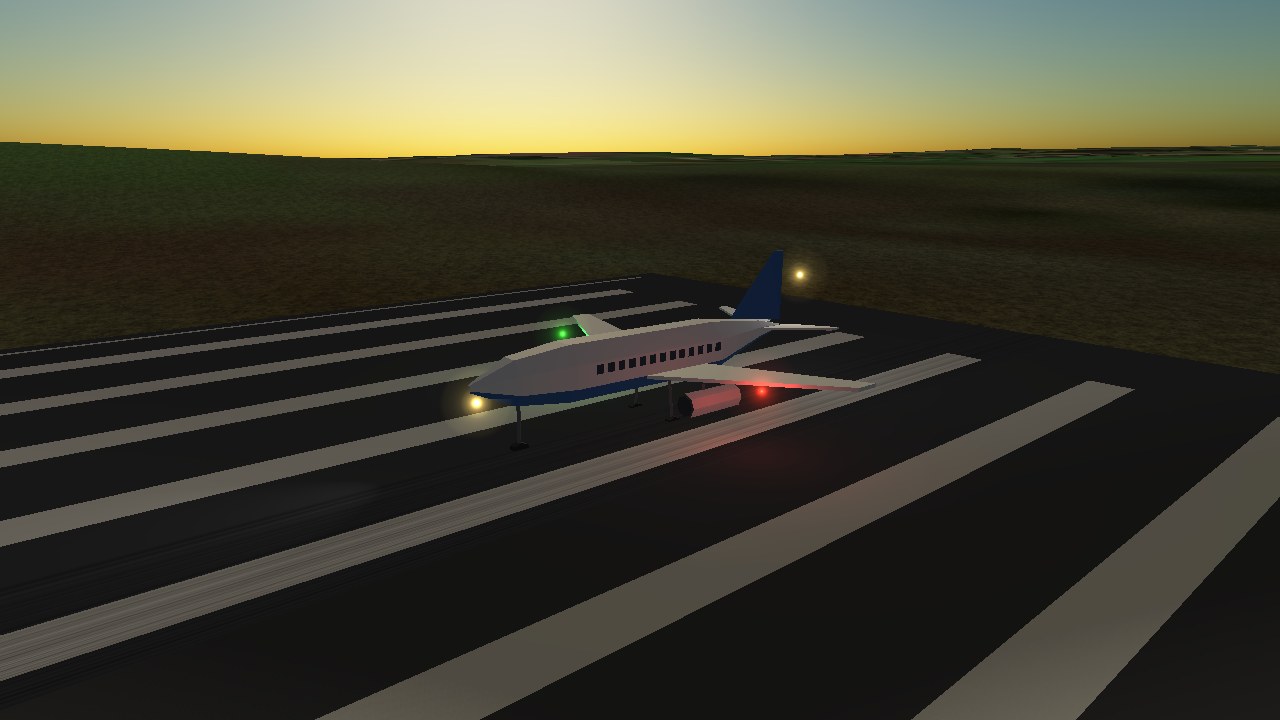
Engines on an aircraft should set "air_breathing": true. The "aeroplane" prop draws a ready-made airliner mesh: {"prop": "aeroplane", "span": 12, "offset": [0, -2.1, 0.3]}. The Skylark in addons/skylark is a complete worked example.
addons/skylark/ship.json.Giving a ship a quantum drive
Any ship can have the interstellar jump drive: add an engine of type hyperjump to its ship.json. It needs no propellant or thrust, and it draws no plume.
"engines": [
  { "type": "hyperjump", "thrust": 0, "range_ly": 50 }
]range_lyis the reach of one jump in light years (default 50). If a ship has several hyperjump engines, the longest range wins.- The player gets View → Quantum navigation listing up to 64 of the nearest stars within range, and a ship with no hyperjump engine sees "This ship has no quantum jump drive".
- The drive is a pure player action: it has no Lua function. A jump unloads the current system, builds the new one from the galaxy catalogue, clears the target, disables
/autopilot/enabledand sets/sim/warp-indexto 0. Ship scripts should not assume the bodies in/universe/bodiesstay the same, so look bodies up by name each time they are needed. - The arrival world is picked by the rules in the Flight manual; you can test it from the command line with
--orbit-body auto --system Nor--test-jump N.
Ship scripts
Set "script": "ascent.lua" and that file runs when the ship becomes the active one. Define a global update(dt) function; it is called every simulation step. Everything the script knows comes from props.get and everything it does is a props.set, so it can replace the player's hands:
local ship = "/ships/ship[0]"

function update(dt)
  if not props.get("/autopilot/enabled") then return end

  local alt = props.get(ship .. "/altitude")
  if alt > 80000 then
    props.set("/controls/throttle", 0)
  else
    props.set("/controls/target-pitch", 90 - alt / 1000)
    props.set("/controls/throttle", 1)
  end
  props.set("/autopilot/status", "Climbing")
end
The P key toggles /autopilot/enabled. See addons/kestrel/ascent.lua for a complete ascent autopilot with several phases.
Importing Orbiter meshes
Orbiter add-ons can be reused. Drop the add-on's files into addons/NAME/orbiter/ and convert its meshes:
python3 tools/msh_import.py addons/NAMEThis converts every .msh under orbiter/Meshes to OBJ/MTL in addons/NAME/models/, changes DDS textures to PNG (needs Pillow), and mirrors the mesh from Orbiter's left-handed, nose +Z frame into Kosmos's nose −Z frame. Use it in a part: {"model": "models/x.obj"}.
Orbiter keeps masses, thrust and fuel in compiled code, so you write ship.json for an imported add-on by hand. addons/ares is the worked example (./kosmos --ship "Ares Spider").
Scenarios
Tools → Scenario editor builds these files for you, and File → Save scenario records a flight in progress. Files in ~/.config/kosmos/scenarios/ are loaded at start and replace a shipped scenario with the same id. That includes default.json, the scenario loaded when Kosmos runs with no arguments: copy it there and edit it to change the default start.
A scenario is a JSON file in data/scenarios/, or in scenarios/ inside an addon. File names sort the list, so prefix with a number. Sub-folders become submenus in File > Open scenario (01_Earth/ shows as “Earth”; the number sets the order). The menu re-reads the folders, so changes made outside Kosmos show up straight away.
{
  "name": "Mars: high orbit",
  "description": "A tug 9,000 km above Mars.",
  "active": 0,
  "ships": [
    {"ship": "Wren", "body": "Mars",
     "orbit": {"altitude_km": 9000, "inclination": 20, "phase": 180}}
  ]
}| Field | Meaning |
|---|---|
name, description | Shown in the scenario list |
active | Index in ships of the ship you fly first |
ships[].ship | Ship name, as in its ship.json |
ships[].body | Body to start at |
ships[].orbit | altitude_km, inclination (degrees) and phase (degrees along the orbit). Add apoapsis_km for an ellipse: altitude_km is then the periapsis and phase the true anomaly. "toward": "Moon" lays that ellipse in the Moon’s orbital plane with its apoapsis aimed where the Moon will be on arrival, which gives a translunar trajectory (see 22_translunar) |
ships[].surface | Start on the ground instead of in orbit |
date or mjd | Optional start date at the top level: "date": "1969-07-16 13:32:00" (GMT) or "mjd": 40418.5639. The planets, the Moon and the home planet’s orientation are set for that moment (see 44_apollo11_launch); without it the system starts on its default date |
nav | Optional list of radio frequencies to pre-tune (NAV1, NAV2), at the top level of the scenario |
target | Optional ship or body name to set as the target, at the top level of the scenario |
Surface starts
Use "surface" with latitude, longitude and heading to stand a ship on a body, or "pad" for a launch pad:
{"ship": "Ares Spider", "body": "Moon",
 "surface": {"latitude": 0.67, "longitude": 23.47, "heading": 90}}
Stand a ship on a base with "surface": {"base": "mysite"}. Optional extras: "runway": 0, "reverse": true, "along": METRES (distance past the threshold), and "altitude" with "speed" to start in the air. Scenarios 19 and 20 use these for a takeoff and an approach.
Check yours with ./kosmos --list-scenarios, run it with --scenario ID, and cycle through all with F10.
Bases
You do not have to write base files by hand. Tools → Base editor edits any loaded base with live feedback and saves JSON in this format to ~/.config/kosmos/bases/. See the manual.
A base is a built-up site on a body's surface: a launch complex, an airfield, a lunar outpost. Put files in data/bases/ or an addon's bases/ folder. The terrain is levelled around the centre (flat_radius, easing back over blend) and the objects stand on it.
{"bases": [{
  "id": "mysite", "name": "My Site", "icao": "EGMS", "body": "Earth",
  "latitude": 51.4, "longitude": -2.1, "heading": 90,
  "flat_radius": 300, "blend": 200,
  "pad": {"x": 70, "z": 0, "heading": 0},
  "runways": [{"name": "Runway 1", "x": 560, "z": 0, "length": 1500, "width": 45,
    "ils": [{"frequency": 109.5}, {"frequency": 109.9, "reverse": true}]}],
  "navaids": [
    {"type": "vtol", "name": "Pad", "frequency": 92.3},
    {"type": "vor", "x": 20, "z": -170, "frequency": 113.4},
    {"type": "ndb", "x": 200, "z": -200, "frequency": 0.341}
  ],
  "cameras": [{"name": "Control tower", "x": 60, "y": 28, "z": -120, "fov": 40}],
  "objects": [
    {"type": "hangar", "x": 140, "z": -60, "heading": 270, "width": 36, "depth": 40, "height": 14},
    {"type": "street_lamp", "count": 6, "x": 20, "z": -35, "step_x": 25}
  ]
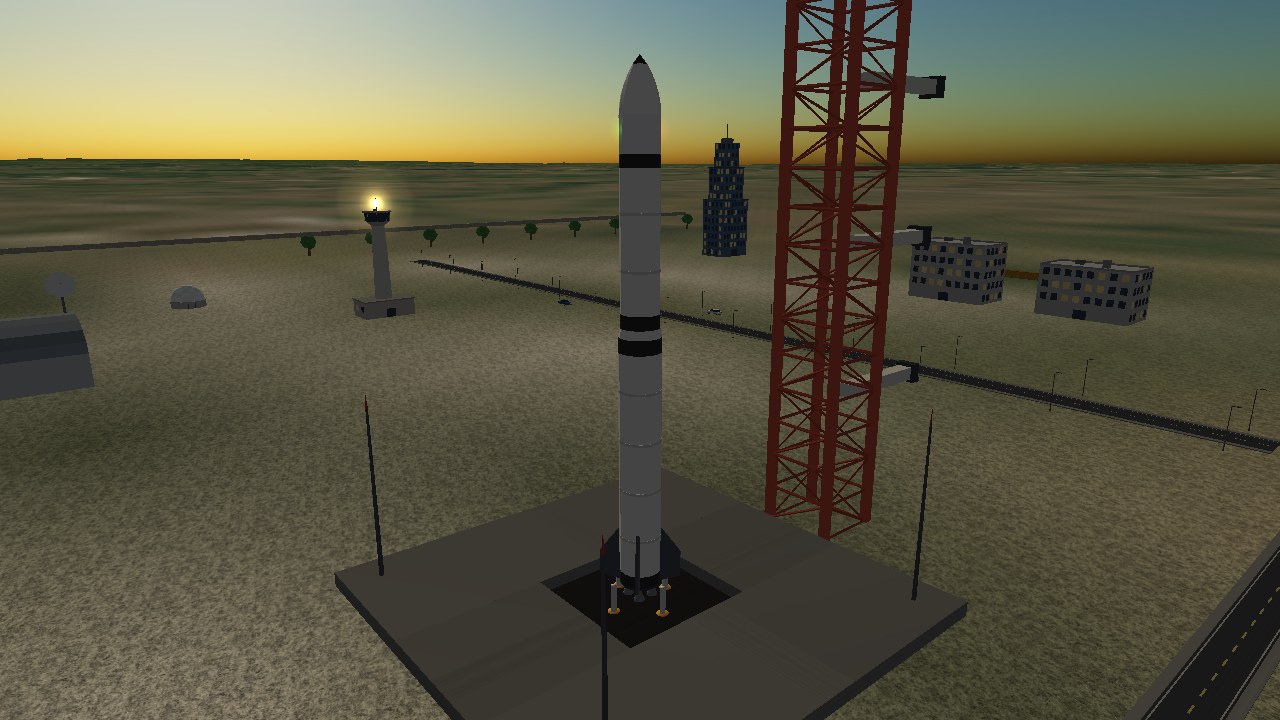
}]}
Coordinates
Coordinates are metres in the base frame: x is to the right of the base heading, z is along it, and y lifts a prop off the ground. heading turns a prop, scale scales it, and count with step_x/step_z lays out a row.
Object types
Optional overrides: size, width, depth, height, length, radius, number, seed, and colour/colour2 as [r,g,b].
| Group | Types |
|---|---|
| Buildings | house, office, skyscraper, hangar, control_tower, water_tower, radar, domed_radar |
| Site furniture | wall, fence, road, street_lamp, barrel, crate, container, tank, car |
| Landscape | conifer, tree, bush, rock, rock_cluster |
| Launch | launch_tower, launch_pad, saturn_v, rocket_stage |
| Space hardware | spaceship, aeroplane, station_module, solar_array, solar_windmill, antenna_dish, satellite, skylab |
Stock models in a base
A model object also finds the shipped meshes under data/, so {"type": "model", "model": "parts/nasa_vab/nasa_vab.glb", "x": -60, "z": 60, "scale": 0.25} works in any base. The Base editor’s Objects tab has a Stock model list with an Add button. Choosing Edit in Blender on a stock model works on a copy in your bases/models/ folder, never the shipped file.
Base cameras
Entries in cameras appear in the F2 window. They follow the flown ship while it is nearby or above the local horizon (otherwise they look at the pad), unless "track": false, which uses yaw and pitch (degrees from the base heading) instead.
Lights
Ships and bases can carry lamps, drawn with simlib's local-light system: they light nearby models and show as glowing bulbs. Add a "lights" array to ship.json (ship frame: nose along -Z, +X right, +Y up) or to a base (base frame: x right, z forward, y up, in metres).
"lights": [
  {"position": [-4.3, 0, 0.3], "colour": [255, 40, 30], "intensity": 1.4, "range": 26, "glow": 0.3},
  {"position": [0, 2.1, 14], "pattern": "strobe", "period": 1.6, "intensity": 4, "range": 50},
  {"position": [-30, 46, 20], "colour": [255, 248, 235], "intensity": 30, "range": 120,
   "inner": 5, "outer": 17, "aim": "ship", "aim_point": [0, 30, 0]}
]| Key | Meaning |
|---|---|
position | [x, y, z] in the owner's frame (or separate x, y, z). |
count, step_x/y/z | Repeat the lamp count times, offset by the step each time; handy for runway edge lights. |
colour, intensity, range | RGB 0-255, brightness (about 1-5 for small nav lights, 6 for street lamps, 30 for floodlights) and reach in metres. |
inner, outer | Cone angles in degrees. Leave outer out (or 0) for a point light; set it for a spotlight. |
direction | Spotlight direction [x, y, z] (default straight down). |
aim_point, aim | Bases only. aim_point points a spot at a point; "aim": "ship" points it at the nearest ship within 400 m, falling back to aim_point. This is how tower floodlights follow a rocket. |
pattern, period, phase | steady (default), strobe (two sharp flashes), beacon (slow pulse) or blink (on/off). period is in seconds, phase is 0-1. |
glow | Size of the visible bulb in metres (default 0.4); 0 hides it. Use intensity 0 with a glow for a bulb that lights nothing, which is cheap for long rows. |
navigation | Ship lamps only: marks a running light or strobe, drawn dimmer with a smaller glow. Defaults to true for point lamps and false for spots (landing lights); set it explicitly to override. |
always | Base lamps come on at dusk by default; always keeps one lit in daylight (beacons). Ship lamps are always on unless you set "always": false. |
stage | Ships only. The lamp goes out when that stage (0-based) is jettisoned. If omitted it belongs to the stage whose body it sits on. |
Only the 16 lamps nearest the camera light the scene; the rest still draw their glow. Lamps are bright only in the dark, so test with --earth-turn DEG (turns the home planet to move the Sun) and --hide-info. The base editor keeps lights when it saves.
Navaids
The nav displays show a short ident rather than the full name. A base's optional "icao" (four letters; made up from the id when missing) gives its beacons idents such as EGMS VOR and EGMS ILS 1R. A navaid in navaids.json can set its own "ident"; otherwise its name is shown.
| Type | Where | Notes |
|---|---|---|
vtol | Base navaids | Pad beacon for the VTOL MFD |
vor | Base navaids | VHF bearing station; frequencies around 108–118 MHz |
ndb | Base navaids | Frequency below 1 MHz; tuned on the ADF MFD |
ils | Per runway, ils array | One entry per landing direction. glide sets the angle (default 3°); "reverse": true is the opposite end. |
A runway's ILS puts a localizer and glideslope at the touchdown zone. Free-standing navaids not tied to a base live in data/navaids.json, with body, latitude, longitude, frequency and optional heading/glide:
{"type": "vor", "id": "cape-vor", "name": "Cape VOR", "body": "Earth",
 "latitude": 28.52, "longitude": -80.68, "frequency": 112.40}
Bodies & solar systems
data/sol.json defines the solar system. Each entry in bodies is a star, planet or moon:
{"name": "Mars", "kind": "planet", "parent": "Sun",
 "gm": 4.282837e13, "radius": 3389500.0, "spin": 7.0882e-05,
 "terrain": "orbiter", "colour": [190, 105, 70],
 "atmosphere": {"density": 0.02, "scale_height": 11100.0, "colour": [210, 150, 110]},
"orbit": {"a_au": 1.523679, "e": 0.0934, "i": 1.85, "raan": 49.558, "argp": 286.502, "m0": 19.373}}| Field | Meaning |
|---|---|
kind | star, planet or moon |
parent | Body it orbits (omit for the central star) |
gm | Gravitational parameter, m³/s² |
radius | Radius in metres |
spin | Rotation rate in rad/s (a negative value spins backwards); synchronous keeps one face towards the parent |
colour | Fallback colour used before a texture loads |
atmosphere | density (kg/m³ at the surface), scale_height (m) and haze colour; optional clouds {"cover": 0-1, "height": m, "colour": [r,g,b]} adds a generated cloud layer seen from orbit |
orbit | Elements: a_au or a_km, e, i, raan, argp, m0 (degrees) |
terrain | "orbiter" or "earth" to use elevation data (otherwise the surface is generated) |
texture, tilt, rings | Image name, axial tilt (degrees) and ring inner/outer radii |
Planets with a VSOP87 data file in data/vsop87/ start at their true position for the Julian date epoch_jd (default J2000, 2451545.0) and then follow a Kepler orbit. Others use the orbit elements you give. belt describes a generated asteroid belt (count, seed, a_min/a_max, e_max, i_max).
A star may have a parent too, which makes a binary companion (Sirius B is a white dwarf orbiting Sirius). Other star systems are files in data/systems/, named after the star in lower case with dashes (proxima-centauri.json) and using this same format plus top-level name and home (the planet you start at). A file there replaces the procedurally generated system for that star; the star must also exist in the catalogue in galaxy.cpp.
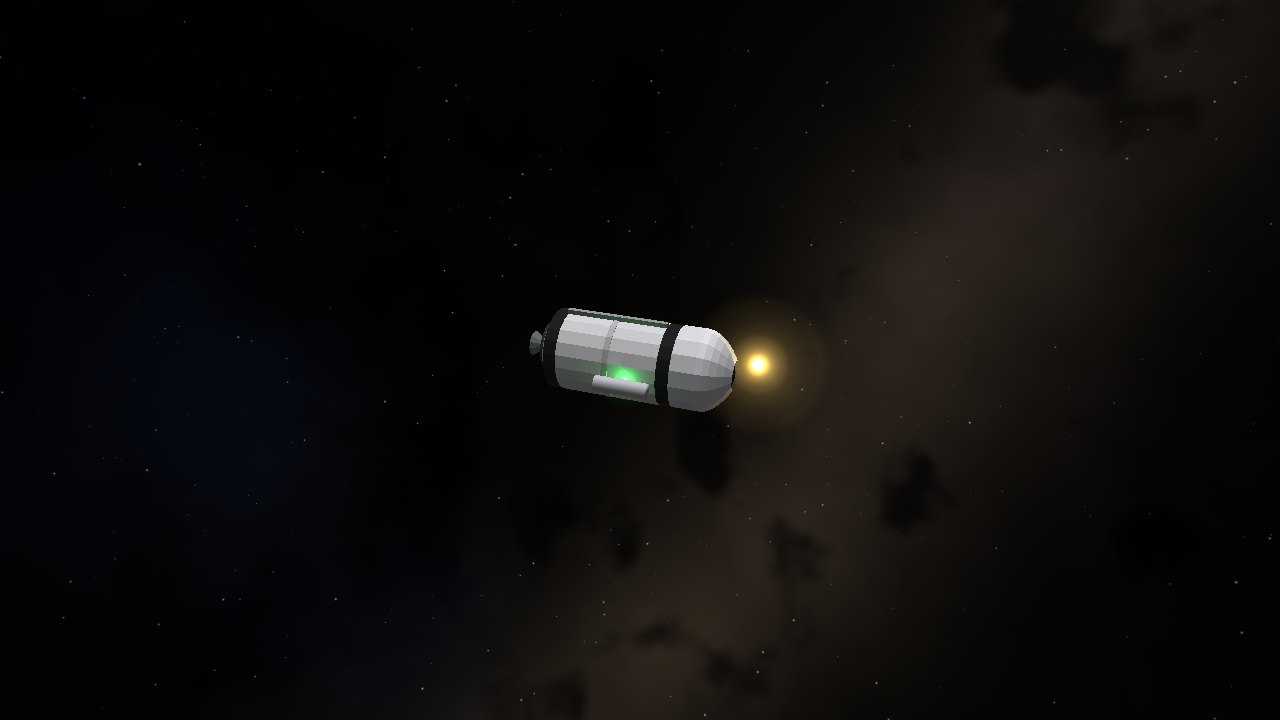
Because each system is a JSON file, you can build a fictional system: give it a new star, a few planets and a moon, and swap it in for sol.json to explore it.
Textures & terrain
A body may have "mesh": "bodies/vesta.glb" (a glTF under data/) to be drawn as that shape instead of a sphere. Model it with a mean radius of 1 centred on the origin, with UVs the surface image can use; Kosmos scales it by radius. Gravity, collision and terrain still treat the body as a sphere, so the mesh is for viewing from space. Vesta uses this.
Surface images are equirectangular (2:1), with north at the top and 180°W at the left, and use the body's lower-case name. Put a custom image for an existing body in data/textures-hires/<body>.<ext> (.dds, .png, .jpg or .jpeg) to override the bundled map without changing it. New bodies can use data/textures/<body>.<ext>. Image lookup checks data/textures-hires/, optional data/celestia/hires/<body>/, then data/textures/. Normal maps are named <body>_normal and checked in data/textures-hires/, data/celestia/hires/<body>_normal/, then data/textures/; --no-relief disables normal-map relief. tools/gen_textures.py generates test maps up to 16384×8192 as block-compressed DDS. DDS files are uploaded to the GPU still compressed, so a 16k Earth costs about 90 MB of VRAM rather than about 1.5 GB for a PNG.
Keep original source collections separate from runtime images. Put Celestia sources under data/celestia/; use tools/celestia_import.py to install supported single-image maps into data/textures/, or pass --out data/textures-hires for overrides. Organize moon sources under data/celestia/moons/<planet>/<Moon>/. Kosmos does not scan that moon-source tree at runtime, so stitch a desired .ctx map with tools/ctx_import.py into a runtime texture folder. Earth is the exception: when its Celestia tile sources are present under data/celestia/hires/earth/, they stream directly; specular and normal tile sets are optional.
Orbiter's high-resolution Surf.tree archives can be converted to an orbital-view image:
python3 tools/orbiter_import.py "data/orbiter/Orbiter 2016 High Res: Earth/Surf.tree" --body earth --level 8The converted image goes to data/textures-hires/. For close-up terrain, bodies with "terrain": "orbiter" read elevation and imagery tiles directly from matching folders in data/orbiter/ (Elev.tree and Surf.tree). When a Celestia or installed surface map has finer texels at a location, terrain uses it for colour while Orbiter continues to supply elevation. Earth switches from terrain mesh to its whole-body image or streamed tiles above 300 km; other bodies scale that transition by radius.
Celestia moon sources, large Celestia hi-res packs, Orbiter data and optional installed overrides are not shipped. See data/celestia/README.md, data/textures/README.txt and TEXTURE_SOURCES.md for source organization and import details.
Lua & the property tree
Scripts run in a sandboxed Lua state with a global props table. Limits stop a runaway script from hanging the simulator: a maximum number of VM instructions per call and a memory cap.
| Call | Does |
|---|---|
props.get(path) | Returns a bool, number or string, or nil if the property does not exist |
props.set(path, value) | Writes a value, creating the property if needed |
props.exists(path) | True if the property exists |
props.children(path) | A list of child names |
props.node(path) | A node object with value, set, path, name, child, children and on_change |
props.listen(path, fn) | Call fn(path, value) whenever the value changes; returns an id |
props.unlisten(id) | Stop listening |
print(...) | Writes to the log and the F11 console |
Property paths look like /controls/throttle. Repeated children use an index: /ships/ship[0]/altitude. Values are booleans, numbers or strings.
-- Warn when fuel is low
props.listen("/ships/ship[0]/stage-fuel", function(path, value)
  if value < 100 then print("Low fuel: " .. value .. " kg") end
end)
Property reference
Controls (read by the simulator)
| Path | Meaning |
|---|---|
/controls/throttle | 0–1 |
/controls/pitch, yaw, roll | −1 to 1 (rewritten each frame from the keyboard) |
/controls/rcs-x, rcs-y, rcs-z | RCS translation |
/controls/brake, flaps | Aircraft |
/controls/sas | SAS mode name: stability, prograde, retrograde, radial-out, radial-in, normal, antinormal, off |
/controls/target-pitch, target-heading | Attitude targets for scripted flight |
/controls/stage | Set true to fire the next stage (resets itself) |
Simulation
| Path | Meaning |
|---|---|
/sim/paused | Pause the simulation |
/sim/warp-index, /sim/warp | Time-warp level (0–10) and the resulting factor |
/sim/active-ship | Index of the flown ship |
/sim/target | Target ship or body name |
/sim/settings/* | labels, ship-labels, help-text, orbit-line, sound, volume |
/autopilot/enabled, /autopilot/status | Autopilot switch and a status string |
/dock/undock | Set true to undock |
/target/* | Distance, relative speed, closing speed, inclination, node times and phase angle for the target |
/galaxy/* | Current star and the nearest stars |
Ships
Each ship publishes under /ships/ship[N]/, with /ships/count giving how many there are.
| Property | Meaning |
|---|---|
name, soi | Ship name and the body whose sphere of influence it is in |
stage, stage-count | Current stage and total stages |
crashed, landed, on-rails | State flags |
altitude, speed, orbital-speed, vertical-speed | Metres and m/s |
pitch, heading | Degrees |
latitude, longitude, body-radius | Where you are over the body |
mass, thrust, twr, acceleration-g | Propulsion and loads |
stage-fuel, total-fuel | Propellant remaining (kg) |
alpha, sideslip, dynamic-pressure, flight-path | Aerodynamic state |
orbit/apoapsis, periapsis, eccentricity, inclination | Orbit shape |
orbit/semi-major-axis, raan, arg-periapsis, true-anomaly, period | More elements |
orbit/time-to-apoapsis, time-to-periapsis, orbit/bound | Timing and whether the orbit is closed |
position/x|y|z, velocity/x|y|z | State vector |
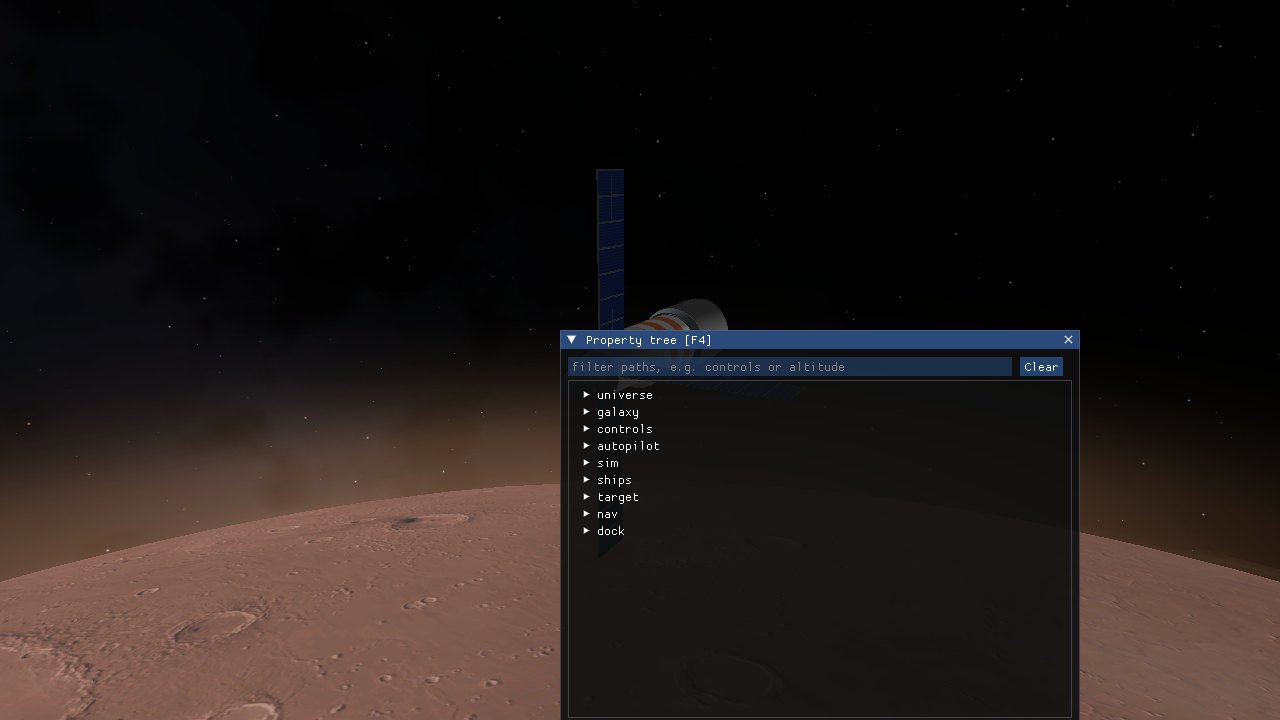
The fastest way to find a property is to filter for it in the F4 browser. It shows live values.
Writing an MFD
Scripts can read every body's /universe/bodies/body[i]/{x,y,z,vx,vy,vz,parent} (universe frame). OrbitComp also accepts /orbitcomp/page (1-3) with /orbitcomp/node-mode, time, prograde, radial and normal, applied once; handy with --set for screenshots.
MFD modes are Lua files listed in an addon's mfds array. An entry may carry "domain": "space" or "atmosphere"; the default "any" always shows. Ships hide the other regime's modes from the mode list and from their panels: cockpit.mfd_filter is "auto" (default: class aircraft hides space modes, any other ship hides atmosphere modes), "atmosphere", "space", or "none" to offer everything (for a spaceplane, say). The stock Orbit, Map, Ascent, Align, Sync, Transfer, OrbitComp and Docking modes are space; Airspeed, VSI, Turn and Heading are atmosphere. A script returns a table:
return {
  name = "Fuel",
  buttons = { "RESET", "", "", "", "", "", "", "", "", "", "", "" },  -- 12 labels, left column then right

  init   = function(self) self.peak = 0 end,
  update = function(self, dt) end,

  draw = function(self, g, w, h)
    local fuel = props.get("/ships/ship[" .. props.get("/sim/active-ship") .. "]/total-fuel")
    self.peak = math.max(self.peak, fuel)
    g:colour(120, 255, 140)
    g:text(200, 14, "FUEL", 1)
    g:rect(60, 100, 340, 140)
    g:fillrect(60, 100, 60 + 280 * fuel / math.max(1, self.peak), 140)
  end,

  button = function(self, i)    -- i is 1-based
    if i == 1 then self.peak = 0 end
  end,
}| Drawing call | Does |
|---|---|
g:colour(r, g, b) | Set the drawing colour |
g:line, g:rect, g:fillrect | Lines and rectangles |
g:circle, g:disc, g:tri | Circles, filled circles and triangles |
g:arc(cx, cy, r, deg0, deg1) | Arc |
g:text(x, y, s, align) | Text; align 0 left, 1 centre, 2 right |
g:image(file, cx, cy, w, h, angle, sx, sy, sw, sh) | A bitmap from the mode's own folder (PNG, with alpha), centred at cx, cy and scaled to w×h. angle turns it clockwise about its centre, in degrees. The optional sx, sy, sw, sh pick a pixel region of the file, which is how a scrolling strip like an attitude ball is cut. Images are cached, and later ones draw over earlier ones. |
Bitmap instruments, such as the attitude indicator and altimeter in addons/instruments, are built from g:image calls over PNG files; tools/make_instrument_bitmaps.py draws the placeholder art, and any file can be replaced with finished artwork of the same size. The ship property {ship}/roll (degrees, right wing down positive) is there for such instruments.
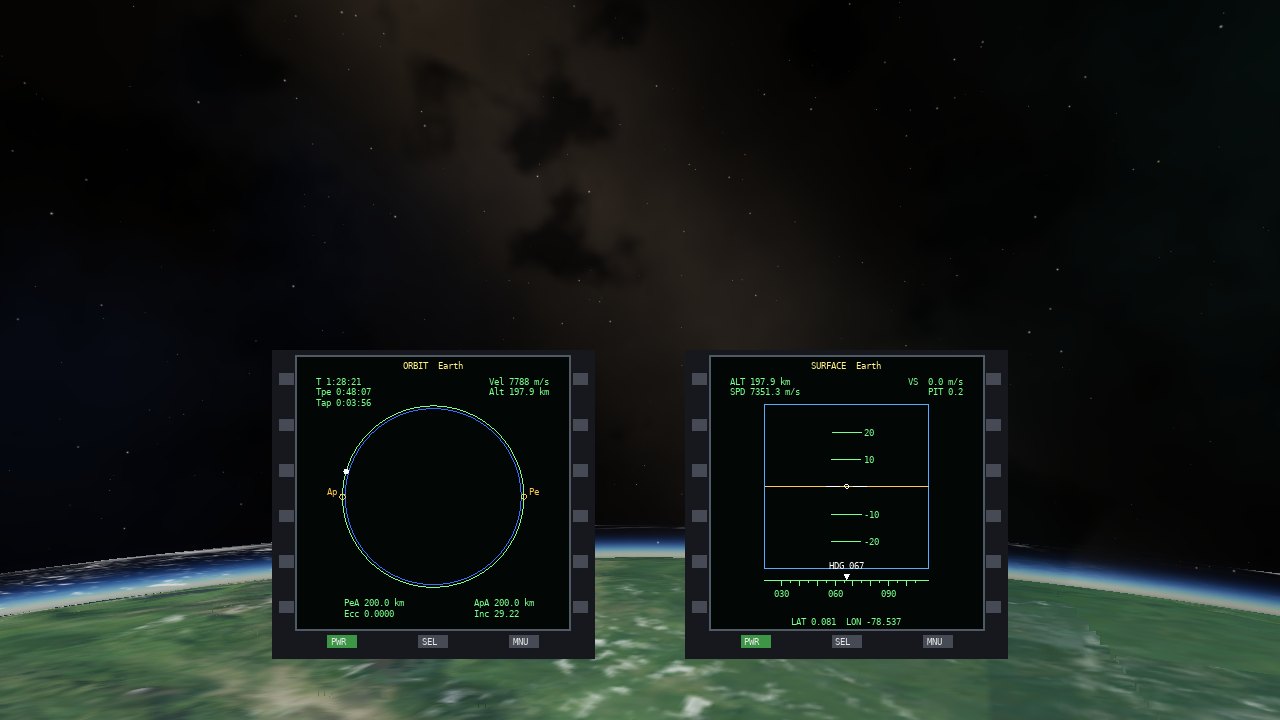
The drawing surface is a 400×400 box regardless of the on-screen size, so one script works in the panel, the heads-up display and the 3D cockpit. Each MFD gets its own self table. The stock modes in addons/stockmfd (Orbit, Surface, Map, HSI, ADF and others) are good examples to copy.
addons/stockmfd.Using the console for development
Press F11 to open the Lua console. It is the quickest way to try a script without restarting: edit, press Ctrl+Enter and see the result. A script can be triggered manually, every frame, on a timer or when a property changes, and gets event, dt, event_path and event_value globals. Errors mark the line in the editor. Saved scripts go to ~/.config/kosmos/scripts/.
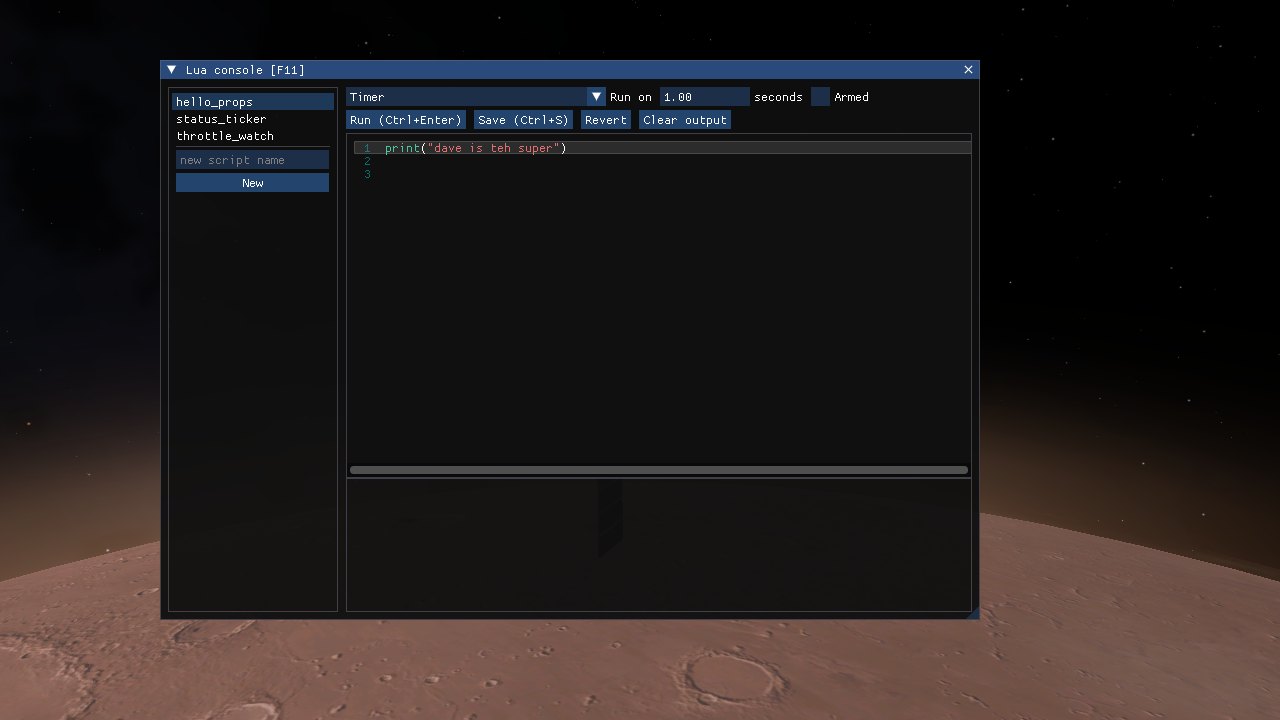
The script folders are scanned when Kosmos starts; a user script with the same name as a shipped one replaces it.
Testing & screenshots
Kosmos has a headless mode that flies a scenario without a window and prints a report each few seconds:
./kosmos --scenario 19_skylark_takeoff --selftest 60 --selftest-throttle 1
./kosmos --scenario 02_earth_orbit --selftest 120 --autopilot
The report ends with the final altitude, apsides, whether the ship crashed and which body's sphere of influence it is in. A good regression check is the default ascent: ./kosmos --selftest 700 --autopilot should finish in a stable 200.1 × 196.2 km orbit. If your change moves that number, you altered the flight physics.
To take a screenshot at a chosen camera angle:
./kosmos --scenario 21_mars_high_orbit --shot mars.png --shot-at 4 \
         --cam-distance 60 --cam-pitch 1.4 --cam-yaw 0
Angles are in radians and distance is in metres. Every image on this site was made this way. Add --base-cam id:index to look through a base camera, or --camera-window, --settings-window, --property-window and --lua-window to capture the tool windows. --cam-fov DEGREES sets the field of view (default 50), --cam-antisun points the camera away from the star, and --quantum opens the Quantum navigation window. To visit a star in a test, use --system NAME --ship Argo --orbit-body NAME --orbit-alt 1.495978707e8 (1 AU above the surface); --orbit-body auto picks the arrival world the quantum drive would.
Ship systems & pressure vessels
A ship’s power, consumables and cabins are data. Add a "systems" list (equipment) and a "vessels" list (pressure vessels) to a ship.json, or to a part kit’s part.json (kit entries are merged into the ship, and their stage is set to the kit’s stage). Nothing here needs code. A ship with neither key has no systems and behaves exactly as before.
"systems": [
  {"type": "battery", "name": "Batteries", "capacity_wh": 8000, "max_w": 3000, "charge": 1.0},
  {"type": "solar", "name": "Solar wings", "area_m2": 30, "efficiency": 0.28, "facing": [0, 1, 0]},
  {"type": "rtg", "watts": 300, "half_life_years": 87.7},
  {"type": "fission", "watts": 40000, "fuel_kg": 50},
  {"type": "fuel_cell", "watts": 3000},
  {"type": "tank", "gas": "oxygen", "capacity_kg": 20, "kg": 20},
  {"type": "tank", "gas": "nitrogen", "capacity_kg": 12},
  {"type": "tank", "gas": "water", "capacity_kg": 30},
  {"type": "regulator", "name": "Cabin regulator", "vessel": "Cabin"},
  {"type": "scrubber", "name": "CO2 scrubber", "vessel": "Cabin", "kg_per_day": 4, "sorbent_kg": 30},
  {"type": "load", "name": "Avionics", "watts": 400, "priority": 0}
],
"vessels": [
  {"name": "Cabin", "position": [0, 0, -2], "size": [3, 3, 3.5], "crew": 2,
   "pressure_kpa": 101.3, "o2_fraction": 0.21}
]
Components
Every entry needs a type. These keys work on all of them:
| Key | Meaning |
|---|---|
name | Label shown in the window (defaults to the type). |
stage | Stage index or stage name that carries the item. It is lost when that stage separates. Default: the top stage, so equipment in a capsule survives staging. |
watts | Power drawn (loads) or produced (RTG, reactors, fuel cell). |
priority | For powered items: 0 is shed last, higher numbers go first. Default 1; regulators and scrubbers default to 0. |
enabled | Switch the item on or off at the start. Electrolysers default to off, everything else on. |
type | Keys | Notes |
|---|---|---|
battery | capacity_wh (1000), charge 0–1 (1), max_w | Charge and discharge limit; default is capacity per hour. Several batteries add up. |
solar | area_m2, efficiency (0.28), facing (ship frame, default +Y) | Output = area × efficiency × 1361 W/m² at 1 AU, scaled by 1/r² and the cosine of the angle to the Sun, zero in eclipse. |
rtg | watts, half_life_years (87.7), age_years | Decays as 0.5age/half-life with mission time. |
fission, fusion | watts (rated), fuel_kg (10) | Dispatched on demand up to the rated power. Fuel burns at 8.2×10¹³ J/kg with 30% efficiency. Fusion uses deuterium. |
fuel_cell | watts | Dispatched on demand; consumes hydrogen and oxygen tanks (7.2×10⁷ J per kg of hydrogen) and fills water. |
tank | gas: oxygen, nitrogen, water, hydrogen or deuterium; capacity_kg (10), kg (full) | Several tanks of one gas pool together. |
electrolyser | watts | Splits water into oxygen (8/9) and hydrogen (1/9) at 2×10⁷ J/kg. Off by default: set "enabled": true. |
regulator | vessel, watts (20) | Refills oxygen and nitrogen from the tanks, up to 0.02 kg/s, to the vessel’s pressure_kpa and o2_fraction. |
scrubber | vessel, kg_per_day (6), sorbent_kg (unlimited), watts (60) | Removes CO2 until the sorbent is used up. |
load | watts, priority | A plain consumer such as avionics or lighting. |
Regulators and scrubbers name a vessel; if omitted they serve the first vessel.
Vessels
| Key | Meaning |
|---|---|
name | Referred to by regulators, scrubbers, scenarios and tagged meshes (default Cabin). |
position, size | Centre and full size of the box in the ship frame, metres. The box is mapped onto a unit cube for the gas grid, so it can be any shape. Volume is the product of the size. |
crew | Number of people breathing in it. A vessel with no crew has no hazard and no health. |
pressure_kpa, o2_fraction, co2_kpa, temperature_k | Starting atmosphere. Defaults: 101.3 kPa, 0.21, 0, 294 K. Temperature is fixed. |
crew_at | List of [x, y, z] in the unit cube (0–1). Crew breathe and exhale at these places, spread evenly. Default is the centre. |
vents | List of {"at": [x,y,z], "area_cm2": n}: permanent leaks at a place on the hull. Use for a ship that starts holed; scenarios can do the same with leak_cm2. |
stage | As for components. |
Tagged meshes
Instead of typing a box, you can model it. Name objects in a part’s model like this and Kosmos reads their bounds when the ship loads:
| Name starts with | Gives |
|---|---|
vessel_NAME | The pressure vessel called NAME (a bare vessel is called Cabin). The box is the object’s bounding box, placed with the part’s offset, rotate and scale. |
crew_* | A crew position at the object’s centre, in the vessel that contains it. Crew breathe and exhale there. |
vent_* | A vent position at the object’s centre. It starts closed; it marks where a leak opened later (a scenario’s leak_cm2, the window button, or breach-cm2) shows up in the gas grid. |
In OBJ files each usemtl group is one object, so give the material that name. In GLB/glTF use the node (mesh) name. The tagged objects are never drawn, so you can make them any shape. Crew count, pressure and the rest come from a "vessels" entry with the same name; if the JSON gives no crew number, the number of crew markers is used. If a vessel exists in both places the mesh supplies the box and positions and the JSON the numbers.
In scenarios
A scenario takes "fullscreen": true to start in full screen, "life_support": "off"|"warn"|"fatal" and each ship may carry "systems" overrides, as fractions or plain numbers:
"ships": [{ "ship": "Kestrel", ...,
  "systems": { "leak_cm2": 2, "battery": 0.5, "tanks": { "oxygen": 0.4, "water": 1.0 } } }]
leak_cm2 opens a leak in the first vessel at the start; battery is the starting charge 0–1; tanks maps a gas to the fraction of capacity left. The scenario editor has fields for all of these.
Property tree and Lua
Everything is published under /ships/ship[N]/systems/:
| Path | Meaning |
|---|---|
present, life-support | The ship has systems; the mode name. |
alarm, crew-lost | Current alarm text (empty when fine); true once the crew has died. |
bus/powered | False when any load is being shed. |
bus/instruments | False when the bus has no electricity at all; MFDs and lights go dark. |
bus/supply-w, bus/demand-w | Fixed-source supply and total demand. |
battery/wh, battery/percent | Stored energy. |
tank/oxygen-kg | Also nitrogen, water, hydrogen, deuterium. |
vessel-count | Number of vessels. |
vessel[i]/name, hazard | Name; empty or O2 LOW, O2 HIGH, CO2 HIGH, LOW PRESSURE. |
vessel[i]/pressure-kpa, ppo2-kpa, ppco2-kpa | Total pressure and partial pressures. |
vessel[i]/health, leak-rate | Crew health 0–1; leak decay constant in 1/s. |
vessel[i]/breach-cm2 | Write-only: setting an area opens a leak of that size. It reads back as 0. |
-- open a 5 cm2 hole in the first cabin of the active ship
local base = "/ships/ship[" .. props.get("/sim/active-ship") .. "]/systems/"
props.set(base .. "vessel[0]/breach-cm2", 5)
if props.get(base .. "alarm") ~= "" then print(props.get(base .. "alarm")) end
The Systems MFD, addons/stockmfd/systems.lua, is a short example of an MFD built from these properties.
Use ./kosmos --check-data after editing a ship or scenario, and --scenario NAME --systems-window --life-support fatal to try one. 23_cabin_leak and 24_oxygen_tank_failure are small complete examples.
Common mistakes
| Symptom | Likely cause |
|---|---|
| The ship does not appear in the list | The addon has no addon.json, the ships array has the wrong file name, or the JSON has a syntax error. Check the log on stderr. |
| Thrust seems to push the wrong way | The ship nose is −Z. An engine at the tail pointing forward has "direction": [0, 0, -1]. |
| An imported mesh is back to front or mirrored | Convert it with tools/msh_import.py, which handles Orbiter's coordinate system. |
| Ship tips over on the ground | The gear points (or wheels) are missing or are not below the centre of mass. |
| An aircraft will not rotate or climbs wildly | Check area, cl_alpha and the elevator's gain_deg sign. Compare against addons/skylark/ship.json. |
| A base object floats or sinks | Objects stand on the levelled ground. Make flat_radius big enough to contain the site, and use y only to lift things. |
| A property write has no effect | The property is tied to a live value, or the keyboard overwrites it every frame (pitch, yaw, roll, RCS, brake). |
| Comments in JSON break loading | JSON has no comments. Remove them. |